
Follow Us

Soluții pentru problemele tale IT

Home /Stații de lucru/OS - Windows/Configurare OS/How to Add and Delete Users Accounts With Command Prompt in Windows
Home /Stații de lucru/OS - Windows/How to Add and Delete Users Accounts With Command Prompt in Windows
Home /Stații de lucru /How to Add and Delete Users Accounts With Command Prompt in Windows

How to Add and Delete Users Accounts With Command Prompt in Windows

  • Data 08/01/2018
  • Autor Gabriel Paraschiv
  • Categorie Configurare OS, OS - Windows, Stații de lucru
  • -17
  • 1363
Configurare noua (How To)

Situatie

Aceasta solutie ofera posibilitatea de a ne misca mai rapid, sa nu mai fim nevoiti sa accesam control panel, user accounts si asa mai departe.

Solutie

Pasi de urmat

Open your PC’s Start menu. You can do this by clicking the Start button in the bottom left corner of your screen. Please note that, in order to add or delete users, you’ll need to be on an Administrator account.

  • You can also tap the ⊞ Win button to do this.


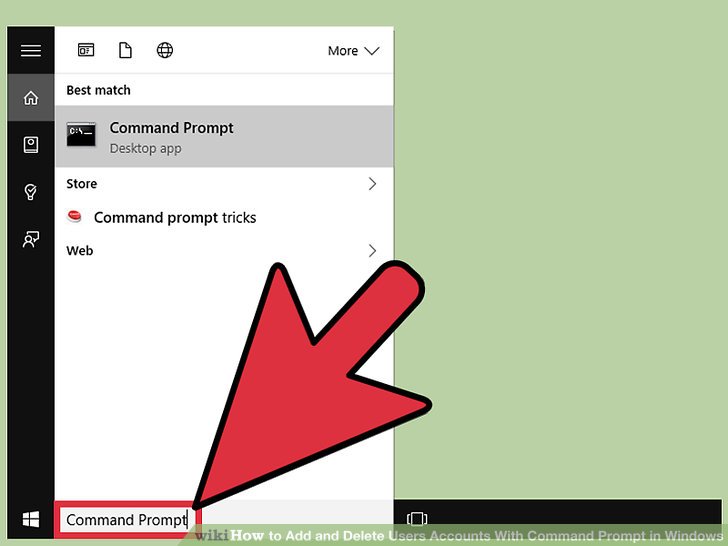
Type “Command Prompt” into your Start menu’s search bar. The Command Prompt app should appear at the top of the relevant search results.

  • You can also hold ⊞ Win and tap X to bring up the quick-access menu with Command Prompt in it.
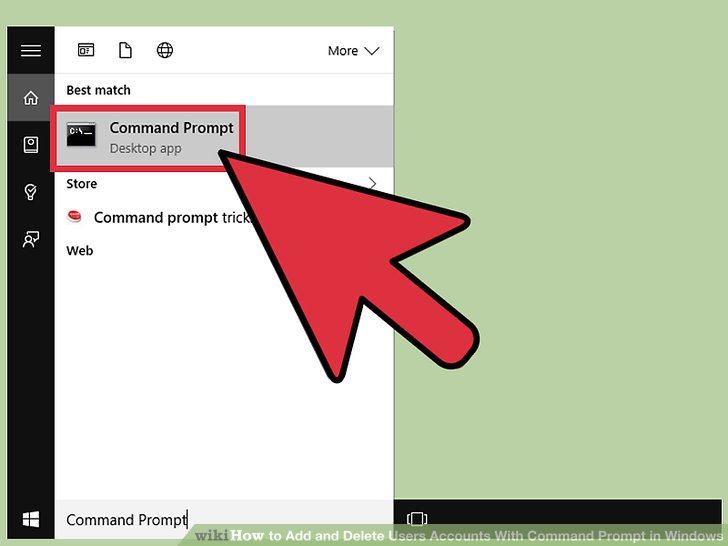
Right-click the Command Prompt icon. This will prompt a drop-down menu.
 

Click “Run as administrator” in the drop-down menu. You won’t be able to access Command Prompt in Administrator mode if you’re using a guest account.

  • If you’re using the quick-access menu, just click the “Command Prompt (Admin)” option. Do not use the regular Command Prompt option.

Click “Yes” on the pop-up window. This will allow you access to Command Prompt as an administrator.

Click on the Command Prompt window. This will make sure that your cursor is currently active on the Command line.


Add a user account.

To do this, type net user (username) (password) /add and tap ↵ Enter when you’re done. This will add a new user to your account!

  • Replace the information in parentheses with an actual username and password; be sure to exclude the parentheses.

Delete a user account.

To do this, type net user (username) /delete and tap ↵ Enter when you’re done. Your selected user account should be gone!

  • You will see a line that says “The command completed successfully” after successfully adding or removing an account.

 Exit Command Prompt.
Now you know how to add and delete users with the Command Prompt app!

Tip solutie

Permanent

Impact colateral

Atentie! Trebuie sa fiti logati cu un cont de utilizator pentru care sa aveti drepturi de administrator.
Etichetare: askitaskit.rocommand promptCommand Prompt iconHow to AddHow to Add and Delete Users Accounts With Command Prompt in WindowsOpen your PC’s Start menuRun as administratoruser accountwindows

Voteaza

Up Down
(32 din 81 persoane apreciaza acest articol)
Share
Tweet
Share

Despre Autor

Gabriel Paraschiv

Solutii Asemanatoare

  • How to clean temporary files on Windows 11 -6
  • Cum deschidem un RDP in full screen folosind Command Prompt in Windows 10 5
  • Cum deschidem fereastra Sound folosind Run in Windows 10 0
  • Cum pot activa modul Dark in Microsoft Office? -2
  • Cum pot rezolva problema cu conexiunea la retea in Windows 10? -1
  • Reducerea deseurilor rezultate din echipamente electronice (e-waste): corectarea software a disfunctionalitatilor butoanelor perifericelor -3

Leave A Comment? × Cancel Reply

29534

Soluții Disponibile

0 Articole

In ultima saptamana

Cele mai recente soluții

  • How to clean temporary files on Windows 11
    • 302
    • 17/04/2025
  • How to update iOS on your iPhone
    • 336
    • 17/04/2025
  • Cum deschidem un RDP in full screen folosind Command Prompt in Windows 10
    • 369
    • 16/04/2025
  • Cum deschidem fereastra Sound folosind Run in Windows 10
    • 313
    • 16/04/2025
  • How to enter text with your voice on a Chromebook
    • 553
    • 16/04/2025
© Askit.ro, 2014 - 2026. All rights reserved. Done by Class IT
Share
Tweet
Share