Social

Is the Windows 10 app Microsoft Update Health Tools legitimate?

The Microsoft Update Health Tools application may be listed as an installed application on devices running Microsoft’s Windows 10 operating system. You may see it listed in the Settings application under Apps & Features, and also in the classic Programs and Features listing of the Control Panel.

The application is not listed in the Start Menu or linked on the desktop or taskbar. Some administrators and users may wonder about the purpose of the Microsoft Update Health Tools application, especially since it is not installed manually by users of the system. Is Microsoft Update Health Tools a legitimate application?

The short answer: yes, the program is legitimate. It has been created by Microsoft.

How does it end up on Windows 10 devices?

The application is pushed to Windows 10 devices via system updates, on most systems via Windows Updates, but it can also be installed manually via the Microsoft Update Catalog website. The update in question has the ID KB4023057. Its support page refers to it as “Update for Windows 10 Update Service components”, and labels it as an update for all major versions of the Windows 10 operating system.

Reports about the application go back to mid-2020 when users started to post questions about the functionality of the Microsoft Update Health Tools application on various forums and sites, including Microsoft’s own Community and Docs sites.

  • Microsoft provides the following information about the update:

This update includes files and resources that address issues that affect the update processes in Windows 10 that may prevent important Windows updates from being installed. These improvements help make sure that updates are installed seamlessly on your device, and they help improve the reliability and security of devices that are running Windows 10.

In other words: the update, and the Microsoft Update Health Tools application it installs, is designed to resolve updating issues on Windows 10 devices.

  • Microsoft lists a handful of issues that may be resolved with the help of the update:

Network settings may be reset.
Registry keys may be cleaned up that “may be preventing updates from being installed successfully”.
Repair disabled or corrupted components of the Windows 10 operating system.
Free up disk space to ensure that there is enough space for the update to be downloaded and installed successfully.
Reset the Windows Update database to repair problems.
What if the update is not installed (but Microsoft Health Update Tools is)?

If you check the list of installed Windows updates on newer versions of Windows 10, you may notice that KB4023057 may not be installed. Microsoft lists it as compatible with all versions of Windows 10, but the company’s Update Catalog website does not list versions of newer versions of Windows 10. The newest version listed is Windows 10 version 1803.

One possible explanation for the discrepancy is that Microsoft Update Health Tools may have been installed on earlier versions before the device itself was updated to a more recent version of Windows 10. Another explanation is that it the application could have been installed as part of another update on newer versions of Windows 10.

This needs more researching, feel free to leave a comment in this regard below.

  • Uninstall the Microsoft Update Health Tools application
  • You can remove the application from the system, e.g. by selecting the uninstall button in the Settings application. Note that doing so may interfere with the update capabilities of the system.

It is unclear whether the update will be pushed to systems again if issues are detected during system updates.

[mai mult...]

How to Connect AirPods to PS5

  • The PS5 doesn’t support Bluetooth headphones like AirPods out of the box. You can add support with a Bluetooth adapter.
  • Depending on how you connect the AirPods, you may only be able to hear audio, not chat with other players.
  • Bluetooth headphones have latency that reduces their performance and may not be acceptable for the most-demanding gamers.
[mai mult...]

WhatsApp va primi funcția de video call și pe desktop

WhatsApp a avut o criză majoră la începutul acestui an. Odată cu schimbarea regulilor platformei, milioane de utilizatori au ales alte platforme. Acum WhatsApp încearcă să-i atragă înapoi cu o opțiune surpriză. Conform WABetaInfo, Facebook lucrează acum la implementarea apelurilor în interfața Web și în aplicația desktop de WhatsApp. Acestea ar trebui să fie lansate în următoarele câteva săptămâni și vor fi cel mai probabil disponibile în stadiu „beta” atunci când vor fi lansate.

[mai mult...]

Write notes in a new tab and save them locally with the TextNotes extension for Firefox

Found something interesting and want to save it for future reference? You could save the web page, or copy the content and save it in Notepad, or a cloud-based note taking service. But if you would like to save the note directly in Firefox, you’ll probably like the TextNotes extension.

Before you get your hopes up and think this is an add-on that saves notes to specific tabs, let me tell you that it doesn’t. Click on the extension’s button on the toolbar and a new tab opens. This is TextNotes’ interface, and the page is divided into two panes. The one on the left is the tree panel which lists the notes that you have added, select a note and its contents will appear on the right pane.

Well, there is no note available to begin with, so let’s add one. Click the + button above the tree and a new blank note is created. Place the cursor in the right pane and type away. TextNotes will automatically save the note. Where does it save it? The extension does not rely on cloud services, as I hinted earlier it is an offline add-on. Your notes are saved directly in your browser’s storage (in your current profile).

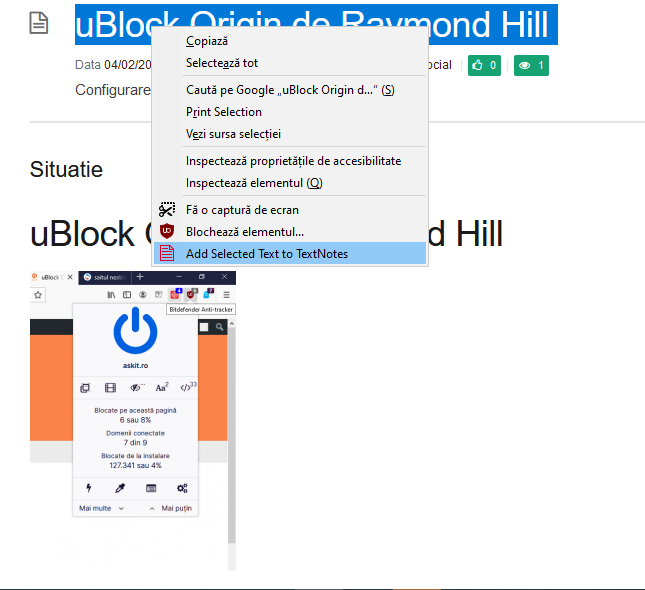
There is another way that you can create new notes. Select some text on a web page, access the right-click menu, and choose the option that says “Add Selected Text to TextNotes”. This creates a new note which contains the text, but it doesn’t include the title or the URL of the tab/page that the content was saved from.

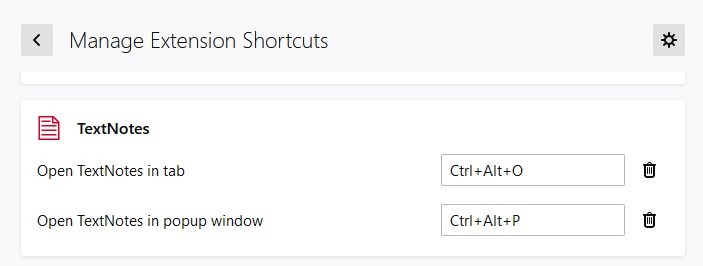
You can open TextNotes with a hotkey; Ctrl + Alt + O. Don’t want to open it in a new tab? Use Ctrl + Alt + P, or click the toolbar button while holding the Ctrl key, to open the interface in a new window.

The hotkeys can be changed from Firefox’s add-ons page: Add-ons > Manage Extension Shortcuts > TextNotes.

You can trash notes, and the deleted notes are stored in the add-on’s built-in trash bin, from where they can be recovered instantly if required. Drag and drop notes to rearrange their order. Right-click on the sidebar to create a new note, add a separator to manage a collection of notes or to delete a note.

TextNotes has a feature called hyperclicks, which are clickable hyperlinks or URLS, paste the link in a note, and you’re good to go. To use a saved link, hold the Ctrl key and the left mouse button for a few seconds, that’s a Ctrl + long-click. This action opens the link in a new tab in the foreground. To open it in a background tab, make sure that Caps Lock is enabled while you Ctrl + long-click.

Since TextNotes does not support cloud-based synchronization of its own, you will have to rely on Firefox sync. But, in order to prevent loss of data, you may want to save your notes manually. Click on the three-dot icon in the top right corner of the add-on’s interface. Select Preferences and a pop-up window appears with 3 options. Hit the Save button to store your notes as a TN (compressed document) file. Or you can save the content directly to a plain-text file, which you can open with Notepad or any text editor of your choice.

The TN document is useful if you want to Load (import) it back to TextNotes. If you want cloud-support, you can save this file to your online storage account, as a backup. The add-on’s menu also has a Help file which explains how TextNotes works.

[mai mult...]

uBlock Origin de Raymond Hill

În sfârșit, un blocant de reclame eficient. Folosește procesorul și memoria foarte puțin.

  • Despre această extensie

Un blocant (paravan) eficient: folosește foarte puțin procesorul și memoria și totuși poate încărca și aplica mii de filtre în plus față de alte paravane populare.

Utilizare: Butonul mare de pornire/oprire în fereastra paravanului este pentru a activa/dezactiva uBlock pentru site-ul curent. Funcția este valabilă doar pentru site-ul curent, nu la nivel global. Flexibil, mai mult decât un „blocant de reclame”: acesta poate citi și crea filtre din fișierele de gazde (hosts).

  • În mod implicit, aceste liste de filtre sunt încărcate și aplicate:

– EasyList
– Lista serverelor de reclame a lui Peter Lowe
– EasyPrivacy
– Domenii malițioase

  • De asemenea, mai sunt disponibile și alte liste precum:

– Lista îmbunătățită pentru urmărire a lui Fanboy
– Lista de gazde a lui Dan Pollock
– Lista de reclame și urmărire hpHosts
– Gazdele MVPS
– Spam404

Desigur, cu cât sunt mai multe filtre active cu atât mai mult este utilizată memoria. Totuși, chiar și după adăugarea în plus a două liste Fanboy și lista de reclame și urmărire hPhosts, uBlock₀ tot folosește mai puțină memorie decât restul paravanelor. De retinut că odată cu selectarea în plus a unora dintre liste se poate ajunge la afectarea aspectului site-urilor — în special listele care sunt în mod normal liste de gazde.

Fără listele prestabilite de filtre această extensie nu face nimic. Așadar, dacă totuși vreți să contribuiți, gândiți-vă la persoanele care muncesc să întrețină aceste filtre pe care le utilizați, care sunt oferite pentru utilizare gratuită.

Acest supliment trebuie să:

  • Să citească și să modifice setările de confidențialitate
  • Să acceseze filele browserului
  • Să stocheze un volum nelimitat de date pe partea de client
  • Să acceseze activitatea browserului în timpul navigării
  • Să îți acceseze datele pentru toate site-urile web
[mai mult...]

Cum sa activezi Dark theme pe Facebook Android

Pasul 1: Se deschide aplicatia Facebook instalata pe telefonul dumneavoastra

Pasul 2: Se deschide tab-ul Optiuni (Options). Apasam cele 3 linii orizontale situate in dreapta ecranului:

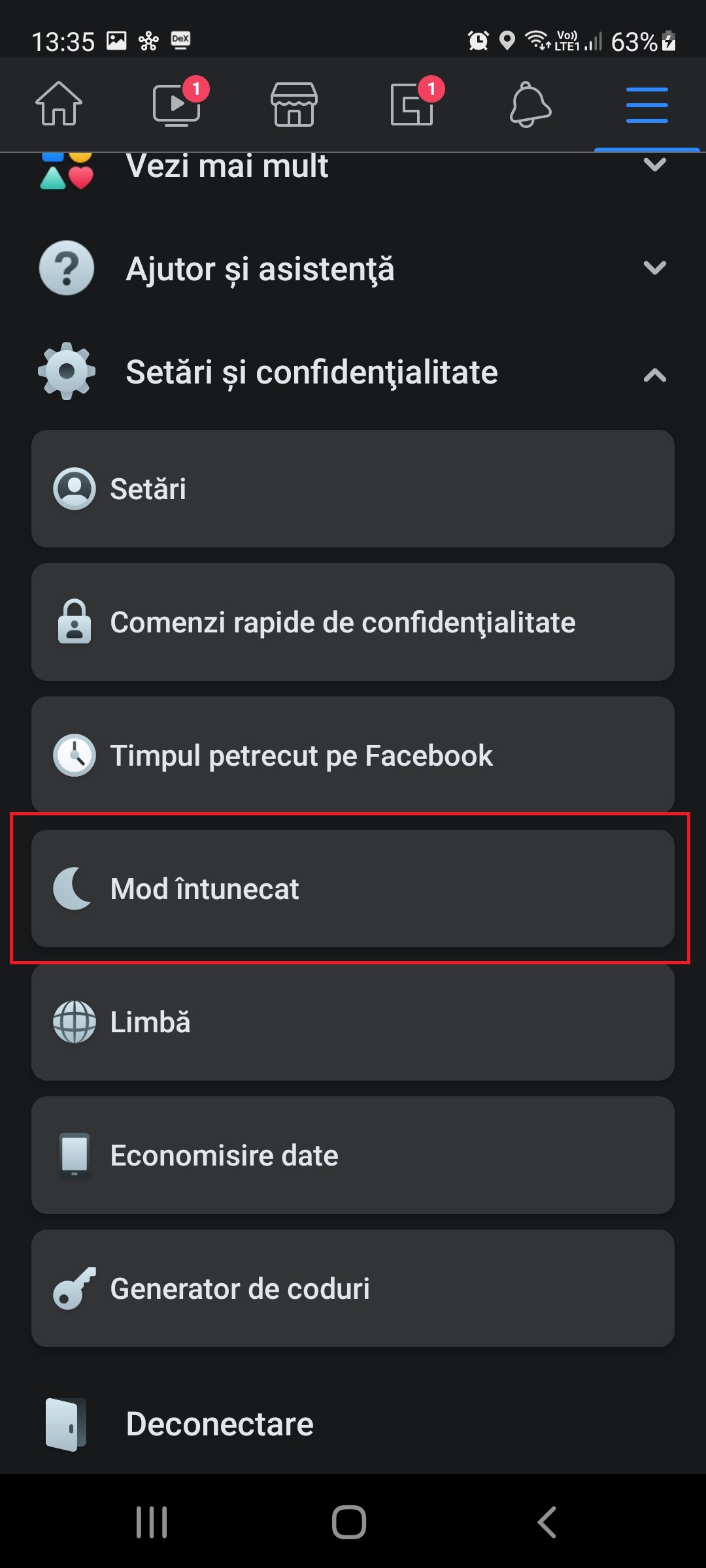
Pasul 3: Se da scroll pana in partea de jos unde regasiti meniul “Mod intunecat (Dark Theme)”

Pasul 5: Se seteaza optiunea “Activat (Activate)” respectiv “Dezactivat (Deactivate)” daca se doreste dezactivarea optiunii.

[mai mult...]