Soluții

How to Install FreeRADIUS and Daloradius on Ubuntu 20.04

FreeRADIUS is a free open source server for UNIX and Unix-like operating systems that allows one to set up a RADIUS protocol server. You also need a correctly configured client that communicates with the server when you want to use it, which could be used for authentication or accounting various types of network access. Sample applications are hotspots, VPN protocols such as OpenVPN, Strongswan, or SoftEther (Wireshark) on an Android smartphone.

What is the RADIUS Protocol?

Remote Authentication Dial-IUser Service (RADIUS) is a networking protocol that manages user authentication, authorization, and accounting by providing centralized AAA management. These are some short descriptions of what each term in AAA means, but they do not all mean the same thing:

  • Authentication: The process of determining whether the client (which can be a user, device or process) is authorized to utilize the system.
  • Authorization: The process of determining how much usage and when to provide this information so that power usage costs may be calculated.
  • Accounting: This is the sum-up report on activity on the network for billing purposes.

The command-line interface for managing FreeRADIUS can be confusing even for expert system administrators. To ease their problem, we can use daloRADIUS which is a web-based GUI version of FreeRADIUS.

What is daloRADIUS?

daloRADIUS is a web-based GUI for managing FreeRADIUS and enables you to manage multiple servers from your browser with ease. And it works with major Linux distributions–CentOS, Red Hat Enterprise Linux, Ubuntu, OpenWrt etc., as long as they are running the latest version of Redis or Memcached and have SSL support.

Prerequisites
  • A server running an Ubuntu 20.04, with a minimum of 512MB RAM, a minimum of 300MB storage space and minimum of 1.4 GHz 64-bit CPU
  • Being logged in as a root user or user with sudo privileges.
Updating your System

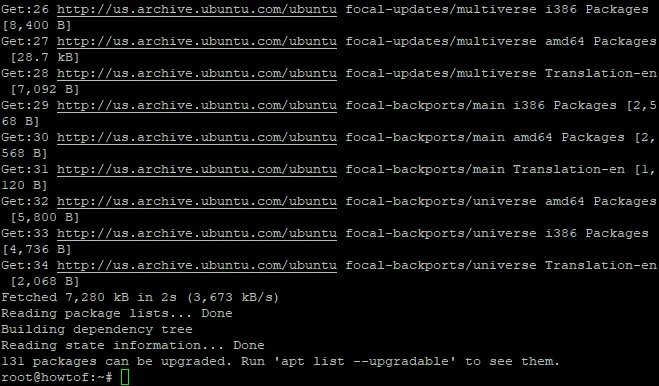
To keep your system up-to-date, start by running the update command on your terminal to download and install the latest packages and security updates:

sudo apt update -y
sudo apt upgrade -y

The -y flag is used by the update command to automatically answer yes when asked if you want to continue with the changes.

apt update command will update the list of available packages from their sources. apt upgrade command will download and install the updates.

Sample output:

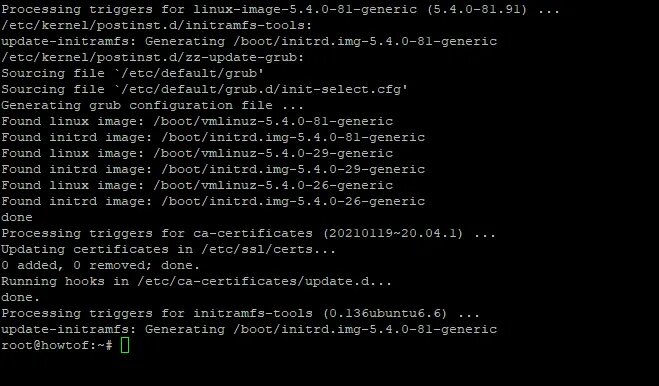
After the update process is complete, you might want to reboot your system. To do so, run the command below in your terminal:

sudo reboot now
Installing Dependencies

Dependencies are software requirements that need to be fulfilled in order for another program to work. The next thing to do is install the necessary dependencies. Ubuntu Server comes with Apache installed, but there are some related packages that must be added. To install the dependencies, run the command below in your terminal:

sudo apt-get install apache2 mariadb-server php libapache2-mod-php php-mail php-mail-mime php-mysql php-gd php-common php-pear php-db php-mbstring php-xml php-curl unzip wget -y

You can check the version of php installed on your system by running the command below in your terminal:

php -v

The output should be similar to one below:

Installing FreeRADIUS

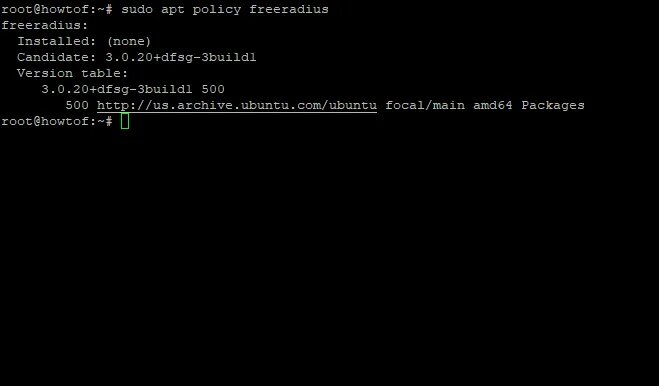
Once all the prerequisites and dependencies are met, we can now install FreeRADIUS. You can view versions of FreeRADIUS available in your Ubuntu by typing the command below in your terminal:

sudo apt policy freeradius

To install FreeRADIUS and the various utilities that come with it on Ubuntu 20.04, execute the following command:

sudo apt -y install freeradius freeradius-mysql freeradius-utils

To quickly check that FreeRADIUS and up and running, we need to run FreeRADIUS in debug mode.

First stop the FreeRADIUS service by running the command below in your terminal:

sudo systemctl stop freeradius.service

Then run the following command to run FreeRADIUS debug mode:

sudo freeradius -X

The output should be similar to the one below:

We can see the last line says “Ready to process requests”, that means FreeRADIUS is now up and running on your server.

Creating a database

FreeRADIUS needs a database to store its settings and other information about users, clients and network connections. You can create a database for FreeRADIUS by logging into MariaDB server via the terminal:

sudo mysql -u root

Now create a database named radius:

CREATE DATABASE radius;

Next grant access to the radius database:

GRANT ALL ON radius.* TO radius@localhost IDENTIFIED BY "yourpassword ";

The flush privileges and quit MariaDB command to update your privileges:

FLUSH PRIVILEGES;
QUIT;

We can see the radius database is created by running the following command in terminal:

mysql -u root -p -e "show databases;"

You should be able to see the radius database listed as shown in the screenshot below:

Installing Daloradius

Daloradius is required to access FreeRADIUS’s web administration interface. First we will download the latest version of daloRADIUS from the git repository usin the wget command:

wget https://github.com/lirantal/daloradius/archive/master.zip

After the download is complete, extract the zip archive using unzip utility as shown below:

unzip master.zip

Next move the daloradius-master folder using the mv utility as shown below:

mv daloradius-master daloradius

Next move into the daloradius directory for configuration:

cd daloradius

Now we need to populate the database with the daloRADIUS schema. The .sql file is located in the ‘/contrib/db/’ folder. You might have to change this path if you didn’t install it in the root destination.

To import, run:

sudo mysql -u root -p radius < contrib/db/fr2-mysql-daloradius-and-freeradius.sql
sudo mysql -u root -p radius < contrib/db/mysql-daloradius.sql

Next move out of the daloradius directory, and move the daloradius folder into the document root:

cd
sudo mv daloradius /var/www/html/

Then rename the sample file by removing the .example extension using the mv utility as shown below:

sudo mv /var/www/html/daloradius/library/daloradius.conf.php.sample /var/www/html/daloradius/library/daloradius.conf.php

Then run the following command to assign ownership of the daloRADIUS web configuration files to Apache:

sudo chown -R www-data:www-data /var/www/html/daloradius/

Next, configure the permissions of your main configuration file to 664 as shown below:

sudo chmod 664 /var/www/html/daloradius/library/daloradius.conf.php

To allow the DaloRADIUS web interface to access FreeRADIUS, we need to provide its database details in the configuration file for DaloRADIUS. Open the .daloradius.conf.php found in ./www/library/daloradius.conf.php and add the database details(username, password and db name):

sudo nano /var/www/html/daloradius/library/daloradius.conf.php

Change the following values to match your database details:

$configValues['FREERADIUS_VERSION'] = '2';
$configValues['CONFIG_DB_ENGINE'] = 'mysqli';
$configValues['CONFIG_DB_HOST'] = 'localhost';
$configValues['CONFIG_DB_PORT'] = '3306';
$configValues['CONFIG_DB_USER'] = 'howtoforge';
$configValues['CONFIG_DB_PASS'] = 'Str0ngpass@howtoforge';
$configValues['CONFIG_DB_NAME'] = 'howtoforge';

Save and exit the file to make sure that everything is correctly configured. Restarting FreeRADIUS and Apache will ensure that everything is working properly:

sudo systemctl restart freeradius
sudo systemctl restart apache2
[mai mult...]

How to Install and Configure Memcached on Debian 11

Memcached is an open-source and distributed memory object caching system that holds the most frequently queried data in memory. This will reduce data load time as well as provide ease of access to the database. You can use Memcached to speed up dynamic web applications by alleviating database load. It is simple, easy to deploy and can be integrated with several programming languages including PHP, Python and more.

Prerequisites
  • A server running Debian 11.
  • A root password is configured on the server.

By default, Memcached is included in the Debian 11 default repository. You can install it by running the following command:

apt-get install memcached libmemcached-tools -y

Once the Memcached is installed, start the Memcached service and enable it to start at system reboot:

systemctl start memcached
systemctl enable memcached

You can also check the status of the Memcached using the following command:

systemctl status memcached

You should get the following output:

? memcached.service - memcached daemon
     Loaded: loaded (/lib/systemd/system/memcached.service; enabled; vendor preset: enabled)
     Active: active (running) since Mon 2021-11-01 10:12:25 UTC; 14s ago
       Docs: man:memcached(1)
   Main PID: 28398 (memcached)
      Tasks: 10 (limit: 4679)
     Memory: 3.1M
        CPU: 28ms
     CGroup: /system.slice/memcached.service
             ??28398 /usr/bin/memcached -m 64 -p 11211 -u memcache -l 127.0.0.1 -P /var/run/memcached/memcached.pid

Nov 01 10:12:25 debian11 systemd[1]: Started memcached daemon.

By default, Memcached listens on port 11211. You can check it using the following command:

ss -antpl | grep memcached

You will get the following output:

LISTEN 0 1024 127.0.0.1:11211 0.0.0.0:* users:((“memcached”,pid=28398,fd=26))

Configure Memcached

Memcached default configuration file is located at /etc/memcached.conf. You can edit it with the following command:

nano /etc/memcached.conf

You can change some default options as per your requirements:

-l 127.0.0.1
-U 0
-p 11211
-u memcache
-m 2000

Save and close the file then restart the Memcached service to apply the changes:

systemctl restart memcached

Enable Memcached for PHP and Python Applications

In order to use Memcached with a PHP-based application, you will need to install the Memcached PHP library to your server. You can install it using the following command:

apt-get install php-memcached -y

If you want to enable Python and Perl support, run the following command:

apt-get install python3-pymemcache libcache-memcached-libmemcached-perl -y

Once all the libraries are installed, you can proceed to the next step.

Verify Memcached

Memcached is now installed and configured. Now, create a simple PHP script to verify the Memcached. First, install the Apache and PHP with the following command:

apt-get install apache2 php libapache2-mod-php -y

Once all the packages are installed, create a info.php file using the following command:

nano /var/www/html/info.php

Add the following lines:

<?php
// Show all information, defaults to INFO_ALL
phpinfo();
?>

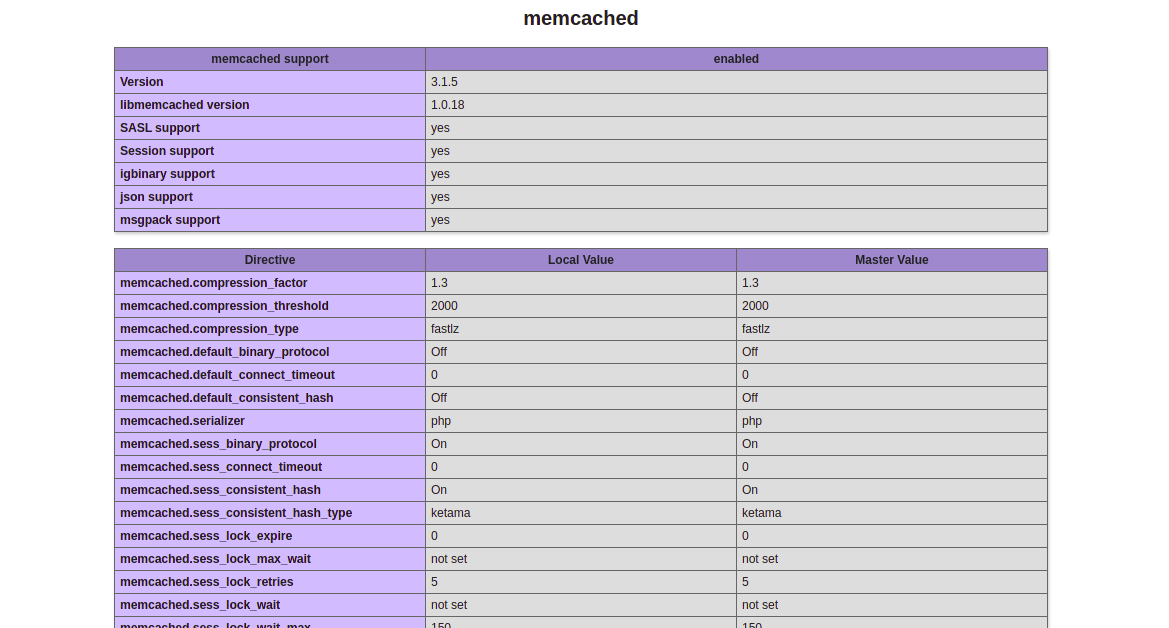
Save and close the file then open your web browser and access the URL http://your-server-ip/info.php. You should see that Memcached is enabled on the following test page:

Access Memcached CLI Interface

Memcached provides a command-line interface to interact with Memcached directly using the command line.

First, connect to Memcached using the following command:

telnet localhost 11211

Once you are connected, you will get the following output:

Trying ::1...
Trying 127.0.0.1...
Connected to localhost.
Escape character is '^]'.

Now, check the status of the Memcached using the following command:

stats

You should see some important information such as uptime, number of items in the cache, and the number of client connections to the instance in the following output:

STAT pid 28398
STAT uptime 222
STAT time 1635761765
STAT version 1.6.9
STAT libevent 2.1.12-stable
STAT pointer_size 64
STAT rusage_user 0.049028
STAT rusage_system 0.049054
STAT max_connections 1024
STAT curr_connections 1
STAT total_connections 2
STAT rejected_connections 0
STAT connection_structures 2
STAT response_obj_oom 0
STAT response_obj_count 1
STAT response_obj_bytes 16384
STAT read_buf_count 2
STAT read_buf_bytes 32768
STAT read_buf_bytes_free 0
STAT read_buf_oom 0
STAT reserved_fds 20
STAT cmd_get 0
STAT cmd_set 0
STAT cmd_flush 0
STAT cmd_touch 0
STAT cmd_meta 0
STAT get_hits 0
STAT get_misses 0
STAT get_expired 0
STAT get_flushed 0
STAT delete_misses 0
STAT delete_hits 0
STAT incr_misses 0
STAT incr_hits 0
STAT decr_misses 0
STAT decr_hits 0
STAT cas_misses 0
STAT cas_hits 0
STAT cas_badval 0
STAT touch_hits 0
STAT touch_misses 0
STAT auth_cmds 0
STAT auth_errors 0
STAT bytes_read 7
STAT bytes_written 0
STAT limit_maxbytes 67108864
STAT accepting_conns 1
STAT listen_disabled_num 0
STAT time_in_listen_disabled_us 0
STAT threads 4
STAT conn_yields 0
STAT hash_power_level 16
STAT hash_bytes 524288
STAT hash_is_expanding 0
STAT slab_reassign_rescues 0
STAT slab_reassign_chunk_rescues 0
STAT slab_reassign_evictions_nomem 0
STAT slab_reassign_inline_reclaim 0
STAT slab_reassign_busy_items 0
STAT slab_reassign_busy_deletes 0
STAT slab_reassign_running 0
STAT slabs_moved 0
STAT lru_crawler_running 0
STAT lru_crawler_starts 3
STAT lru_maintainer_juggles 272
STAT malloc_fails 0
STAT log_worker_dropped 0
STAT log_worker_written 0
STAT log_watcher_skipped 0
STAT log_watcher_sent 0
STAT unexpected_napi_ids 0
STAT round_robin_fallback 0
STAT bytes 0
STAT curr_items 0
STAT total_items 0
STAT slab_global_page_pool 0
STAT expired_unfetched 0
STAT evicted_unfetched 0
STAT evicted_active 0
STAT evictions 0
STAT reclaimed 0
STAT crawler_reclaimed 0
STAT crawler_items_checked 0
STAT lrutail_reflocked 0
STAT moves_to_cold 0
STAT moves_to_warm 0
STAT moves_within_lru 0
STAT direct_reclaims 0
STAT lru_bumps_dropped 0
[mai mult...]