Soluții

Windows 10 Stuck on “Repairing Disk Errors”

The ‘Repairing disk errors‘ screen is often associated with a systemic corruption issue a hardware issue or a software conflict that’s affecting the booting sequence. This screen typically appears after an unexpected system BSOD crash.

We’ve managed to identify a series of common scenarios that might be the end cause of this stuck screen. Check out a few potential scenarios that might cause this behavior:

  • OS File Corruption  – The most desirable culprit that might cause the repair function on Windows 10 to remain stuck on the Repairing Disk Error screen is an underlying OS file corruption issue affecting the CHKDSK utility. If you find yourself dealing with this issue, forcing an Automatic Repair operation from a Windows CD or USB drive should allow you to fix the issue. In more serious circumstances, you might need to go for a repair install or clean install procedure.
  • Software conflict / Incomplete installation – If you started to see this problem after your PC crashed during the installation of a pending update or driver, chances are you’re dealing with some kind of conflict that is affecting the booting sequence. If this scenario is applicable, you should use the System Restore utility via the Recovery menu to bypass the problematic screen.
  • Failing HDD / SSD Drive – If you’re dealing with a hardware issue, none of the fixes recommended in this article will be effective in your case. In this case, you’ll need to test the health of your HDD or SDD and order a replacement if a critical hardware issue is discovered.

To simplify things for you, we’ve created a couple of sub-guides that will hopefully help you get to the bottom of the ‘Repairing disk errors‘ screen:

[mai mult...]
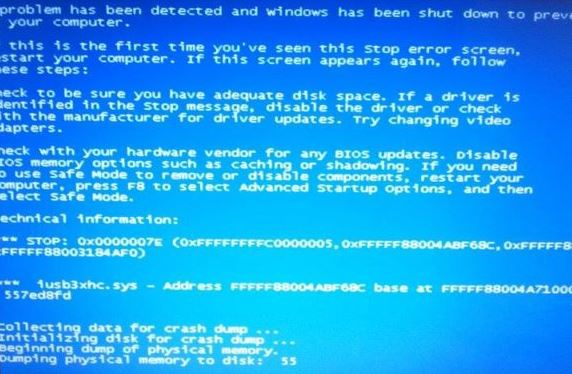
The iusb3xhc.sys blue screen error

The blue screen of death or BSOD is always an unwelcome sight. BSODs appear when Microsoft Windows encounters a critical error from which it can’t recover, usually the result of low-level software (or drivers) crashing or faulty hardware.

Blue screens are generally caused by problems with your computer’s hardware or issues with their hardware driver software. Sometimes, they can be caused by issues with low-level software running in the Windows kernel. Regular apps usually won’t be able to cause blue screens. If an app crashes, it will do so without taking the operating system out with it. A blue screen occurs when Windows encounters a “STOP Error.” This critical failure causes Windows to crash and stop working. The only thing Windows can do at that point is to restart the PC. This can lead to data loss, as programs don’t have a chance to save their open data.

When a blue screen occurs, Windows automatically creates a “minidump” file that contains information about the crash and saves it to your disk. You can view information about these minidumps to help identify the cause of the blue screen.

Blue screens also look a bit different, depending on what version of Windows you’re running. In Windows 7 and previous versions, the blue screen looked much like a terminal screen, displaying all manner of information. In Windows 8 and 10, blue screens are much simpler. That’s really not as big a deal as it sounds, though. Even in previous versions, blue screens tended to go by fast enough that reading that information was difficult, anyway. And there are easier ways to get all the details you need for troubleshooting.

What is causing the iusb3xhc.sys BSOD crashes?

What is causing the iusb3xhc.sys BSOD crashes

We investigated this particular issue by looking at various user reports and the repair strategies that are commonly being used to fix this particular error message. As it turns out, there are multiple causes that could lead to a BSOD of this kind. Here’s a shortlist of potential culprits that can cause constant iusb3xhc.sys blue screens:

Corrupted / Incompatible USB Host Controller drivers – As it turns out, this particular issue can also occur due to a corrupted or incompatible Host USB Controller driver. If this scenario is applicable, you should be able to resolve the issue by uninstalling the Host USB controller drivers via Device Manager and reinstalling them at the next system startup.

Intel Chipset drivers are not installed – Missing Intel Chipsets can also be a potential cause for this issue – especially if you’re using a motherboard that is designed to work with these drivers. In this case, you should be able to resolve the issue by using the Intel Support Assistant utility to install the missing firmware.

System file corruption – System file corruption is another possible cause that might lead to unexpected BSOD crashes related to the iusb3xhc.sys file. If this scenario is applicable to your particular case, you can resolve the issue by fixing the corrupted system file with a utility like DISM or SFC.

Overprotective security suite – Judging from various user reports, this particular issue can also be caused by an AV or firewall that is interfering with the host controller driver. In most cases, Karsperksly is singled out as a culprit capable of quarantining a dependency of the Host controller driver. In this case, you can resolve the issue by uninstalling the 3rd party security suite and removing any remnant files.

Cached memory issue – Another possibility is that you’re dealing with badly cached data regarding the usage of your memory. If this scenario is applicable, you will be able to resolve the issue simply by opening the case of your unit and taking out the CMOS battery.

[mai mult...]

4 comenzi CMD de retea utile

1.Netstat

Comanda netstat ne ajuta sa verificam ce porturi TCP sau UDP sunt deschise pe calculatorul nostru.

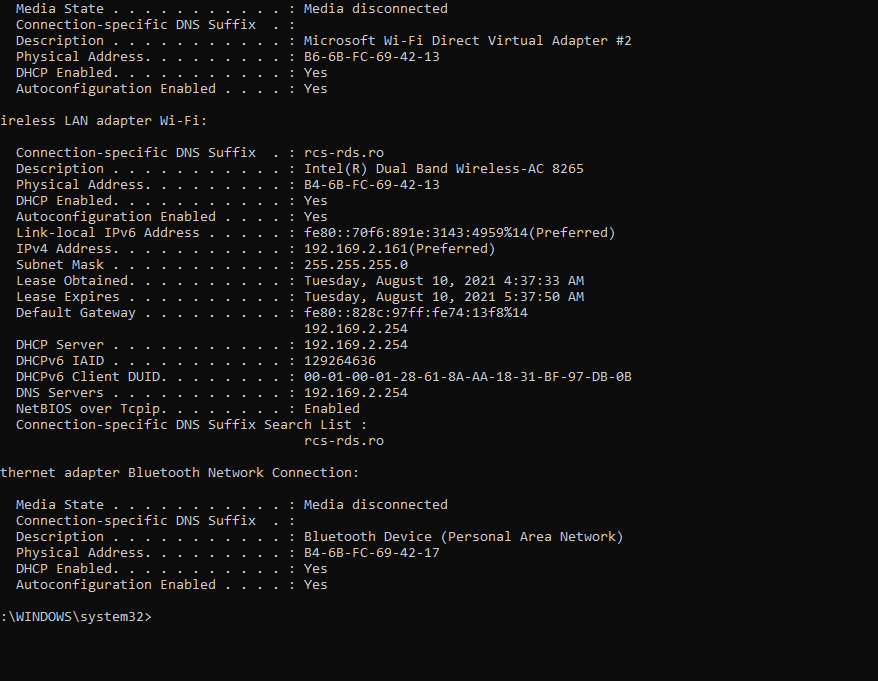
2.Ipconfig /all

Aceasta comanda ne ajuta sa vedem toate informatiile din reteaua noastra +mac-ul dispozitivului.

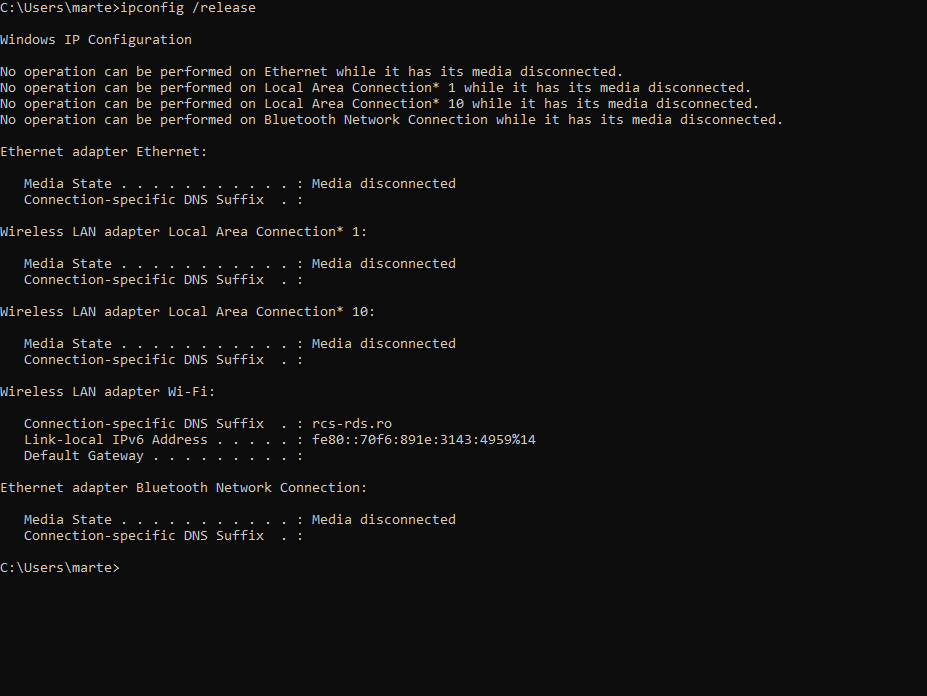
3.Ipconfig /release si ipconfig /renew
ipconfig /release – aceasta comanda face ca adaptorul de retea sa execute comanda disable/enable
ipconfig /renew –  este comanda care ii cere dhcp-ului (Dynamic Host Configuration Protocol) din router un alt ip pentru calculatorul nostru.

 
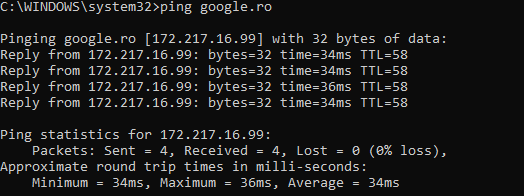
4.ping

Ping-ul trimite un pachet catre o destinatie si astepta raspuns, cu aceasta comanda putem verifica daca avem pierderi in retea.

[mai mult...]

How to use WhatsApp web

You are at working remotely from home and checking the phone all the time for message notifications from your work group? Well,you can use the Web version of WhatsApp and have it open at all times on your computer making it more accessible and easier to use.

[mai mult...]