How To Install Sony ACID Pro on Windows 10
Please note: you should Download and install Sony ACID Pro app for Windows installation files only from trusted publishers and retail websites.
[mai mult...]
Soluții pentru problemele tale IT

Please note: you should Download and install Sony ACID Pro app for Windows installation files only from trusted publishers and retail websites.
[mai mult...]You may not think of Google Drive as a place for spam, but it is a real problem. Spammers can share malicious or spam-filled documents with you and they end up in your list of files. Thankfully, it’s possible to block people.
[mai mult...]One of the quirky things about Google TV—which is different than Android TV—is the Play Store. It’s still present, but Google has integrated it deeply into the home screen. We’ll show you how to open it like normal. The Play Store on Google TV devices is hidden away in favor of an “Apps” tab on the home screen. You still use the Play Store when installing apps, but not in the typical way. There’s actually no “Play Store” app that you can launch. It’s still there, though.
[mai mult...]Gathering people around your phone to show off a picture or video can be a pain, but thanks to Android and Chromecast, it doesn’t have to be. We’ll show you how to wirelessly mirror your Android phone or tablet’s screen to a TV. Before we get started, it should be mentioned that mirroring your screen might not be the best method to share content on a TV. Many video and photo apps allow you to “cast” to a Chromecast-enabled device. This will be a much nicer experience than mirroring your screen.
For all of those other situations, mirroring your screen is a handy trick to know. There are a few things that you’ll need:
Restaurarea Windows folosind o partiție de recuperare:
La selecția Choose an option, selectați Troubleshoot, și apoi selectați una din cele două variante. (Dacă nu vedeți această opțiune – Choose your option, înseamnă că PC ul nu este configurat să poată boota de pe un drive extern. Verificați pe site-ul producătorului pentru informații despre schimbarea ordinii la boot.
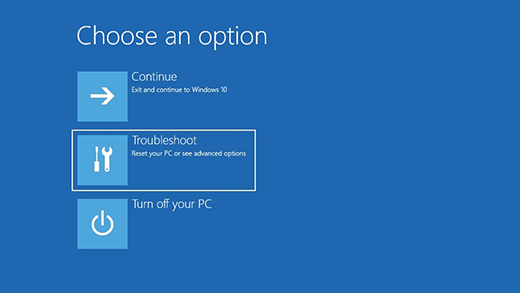
Pentru a reinstala Windows 10, selectați Advanced Options > Recover from a drive. Aceasta va șterge fișierele personale, aplicațiile și driverele instalate, precum și modificările făcute în setări.
Ai facut upgrade de la windows 7 sau 8.1 la windows 10 si ai inlocuit placa de baza? Exista posibilitatea ca licenta digitala de windows 10 sa nu mai fie recunoscuta.
[mai mult...]