Soluții

How to Enable Secure Boot and TPM 2.0 to install Windows 11

We cannot list all BIOS/UEFI versions in the article. Vendors equip their motherboards with different BIOS versions, UI, layouts, and capabilities. In this article, we provide you with general terminology and an idea of what to look for to enable Secure Boot and TMP 2.0 to install Windows 11. Also, we assume you know how to enter BIOS in Windows 10. If you do not know, do the following:

[mai mult...]

How to Beta Test iOS Apps with TestFlight

Have you ever wanted to try out beta versions of your favorite apps? Perhaps, you want to get early access to certain app features that the developers are working on? TestFlight makes it easy to beta test apps on iPhone and iPad, so let’s review how it all works.

For the unfamiliar, Apple offers an app called TestFlight that allows developers, beta testers, and even regular users to try out test versions of apps that haven’t been published on the App Store yet. This essentially gives you early access to new features weeks or sometimes even months ahead of the public release. Even though they tend to be buggy and prone to crashes, a lot of iOS and iPadOS users seem to be interested in installing beta versions of their favorite apps.

Before you get started, we’d like to point out you can’t access beta tests just like that. You’ll need either a private invite or a public Testflight link to gain access to the beta versions of the app. This depends completely on the app developer, though many developers have public betas to solicit feedback for their apps.

  1. First, download and install TestFlight from the App Store.
  2. TestFlight Icon
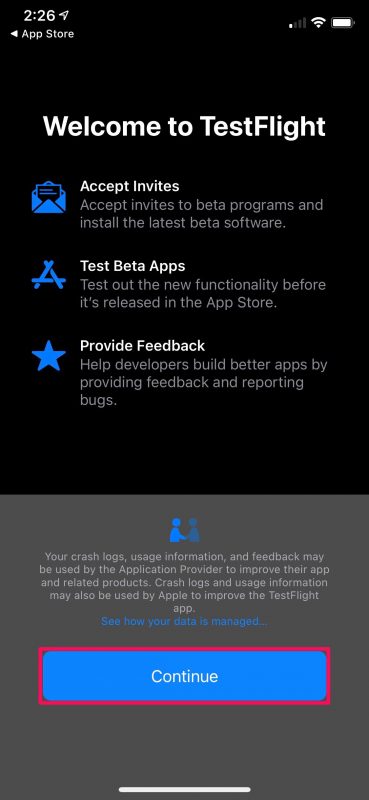
  3. Now, open the app and tap on “Continue” in the welcome page to access the main menu.
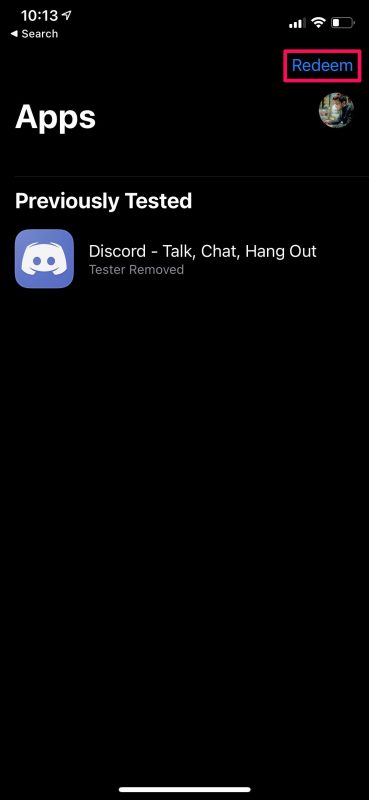
  4. Unlike the screenshot below, everything will be empty here. Now, if you have an invitation code which is usually sent via email, tap on “Redeem” located at the top-right corner.
  5. How to Beta Test iOS Apps with TestFlight
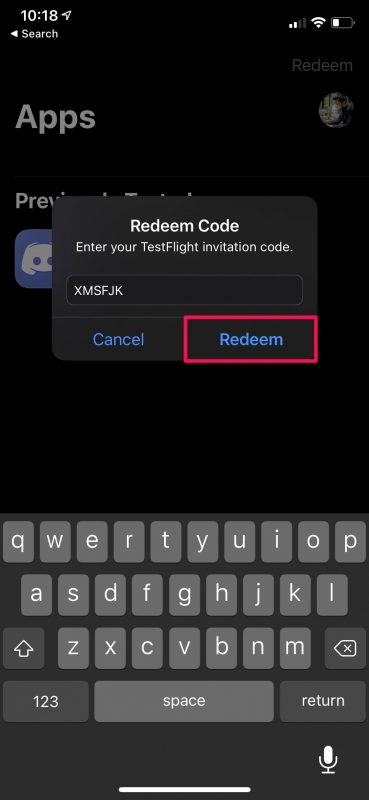
  6. Next, enter the code and tap on “Redeem”
  7. How to Beta Test iOS Apps with TestFlight
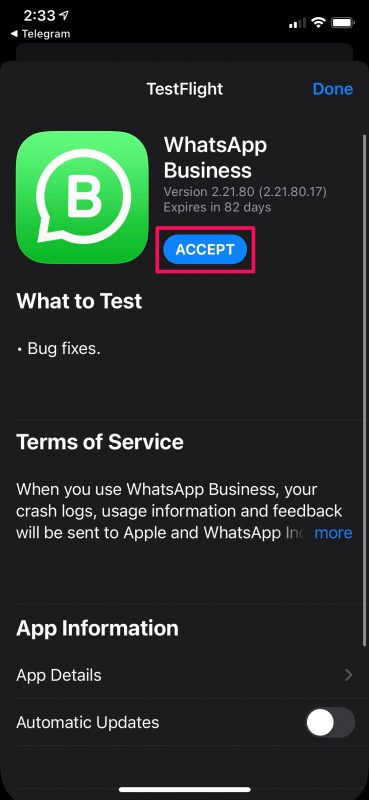
  8. If you’re a regular user, you’ll need to find a public TestFlight link. You can browse and find it with a simple Google search. When you have the link, just tap on it to open the invitation in TestFlight. You’ll see a similar page as indicated here. Tap on “Accept”.
  9. How to Beta Test iOS Apps with TestFlight
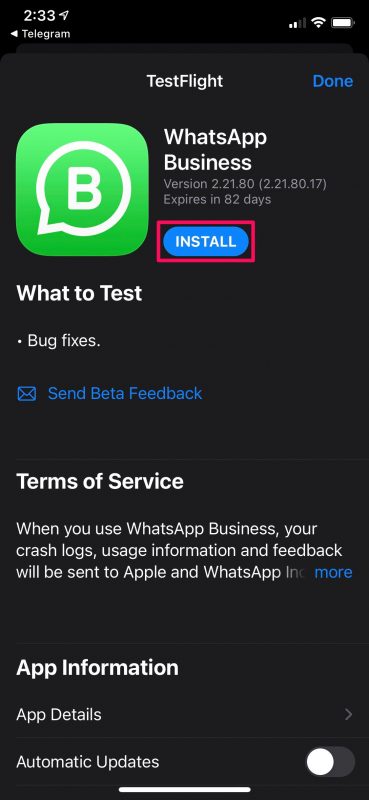
  10. Now, wait for a couple of seconds and the Accept option will change to Install. Just tap on “Install” to continue.
  11. How to Beta Test iOS Apps with TestFlight
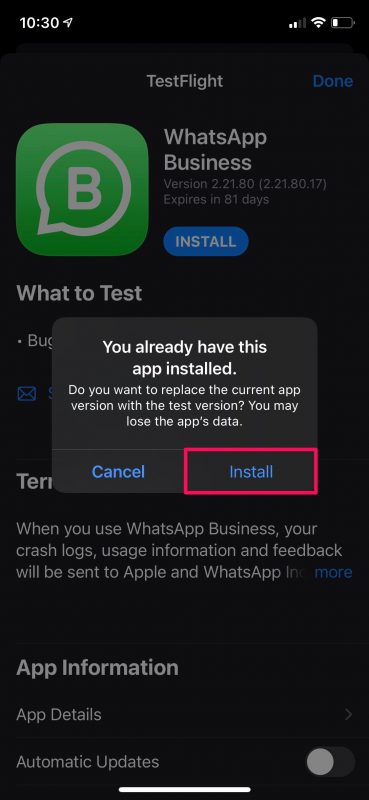
  12. If you have the public version of the app installed on your device, you’ll get the following prompt to replace the current version with the test version. To confirm and proceed with the installation, simply choose “Install”.
  13. How to Beta Test iOS Apps with TestFlight

There you go. You’ve successfully installed the beta version of the iOS app on your iPhone.

[mai mult...]

How to Factory Reset M1 Mac to Wipe & Reinstall macOS

Do you have an M1 Mac that you’d like to factory reset as if it were brand new? The process of factory resetting the M1 Mac line to restore the Mac to factory defaults basically erasing all data and reinstalling a blank macOS.

Before you go ahead with the steps mentioned below, make sure you back up the Mac and all the important files and data you want to keep as they will be permanently erased during the factory restoration. Without a backup, you will not be able to get those files back.

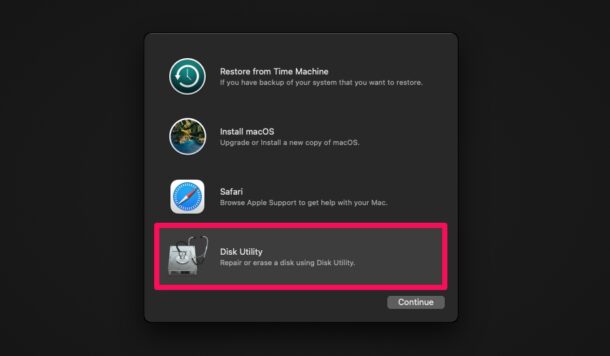
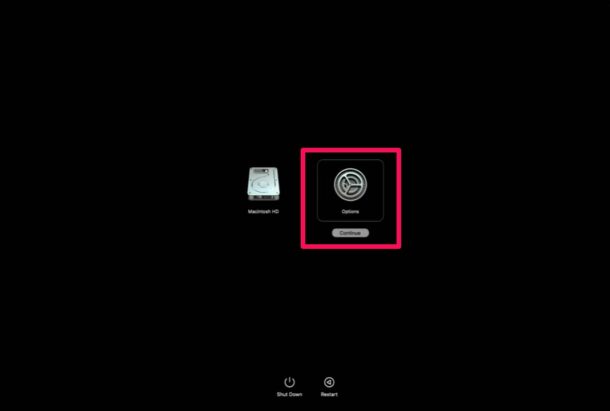
  1. Entering recovery mode is different on Apple silicon Macs. You need to shut down your Mac and then hold down the Touch ID/power button until you see “Loading startup options”. Now, choosing “Options” will take you to macOS Utilities. Here, select “Disk Utility” and click on “Continue” to get started.
  2. How to Factory Reset M1 Mac
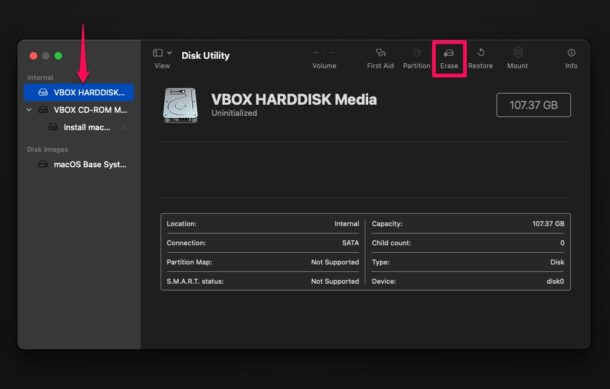
  3. Next, select the hard drive where macOS is currently installed from the left pane, typically “Macintosh HD”, and click on the “Erase” option located at the top of the window.How to Factory Reset M1 Mac
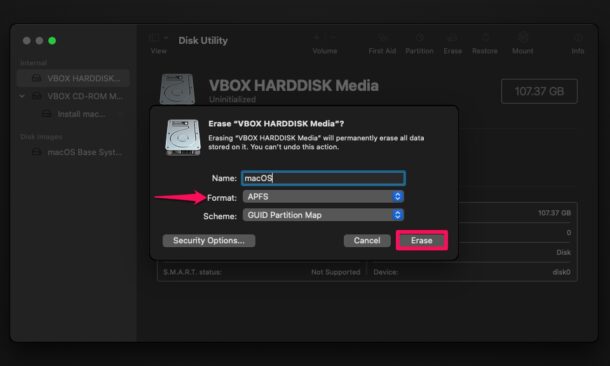
  4. Next, select the drive format as “APFS” and click on “Erase Volume Group” (or “Erase” if that is not available).
  5. How to Factory Reset M1 Mac
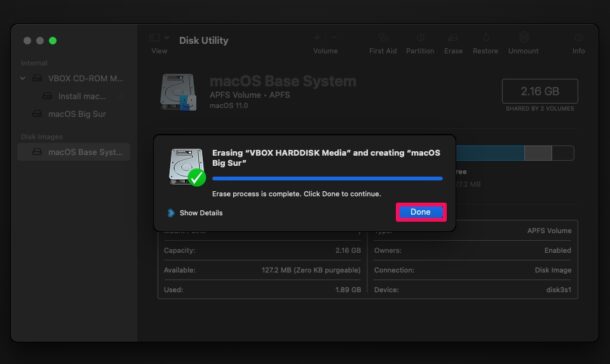
  6. This will initiate the drive wipe. It may take a few seconds to complete. Click “Done” to continue.How to Factory Reset M1 Mac
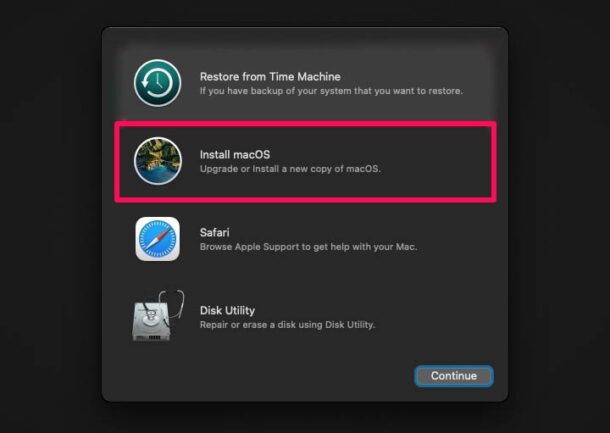
  7. Now, go back to the macOS Utilities screen, select “Install macOS” and click on “Continue”. You’ll be prompted to select the drive where you want to install macOS. Make the selection and click on “Install” to begin installing the factory version of macOS.How to Factory Reset M1 Mac

That’s all you need to do to perform a factory reset. At this point, you just need to patiently wait for the installation process to complete which could take a while. After the factory reset, you’ll need to go through the initial set-up screen like it’s a brand new Mac.

[mai mult...]

How to Use Disk First Aid with M1 Macs

For those who aren’t aware, Disk Utility has been an integral part of macOS since the beginning of Mac OS X. In addition to allowing users to erase and format their Mac’s storage drive before reinstalling macOS, it’s also capable of searching for errors related to the formatting and directory structure of the disk. Be cautious about disk errors though, as they can often lead to unexpected system behavior, and sometimes major errors can even prevent your machine from booting completely. Thus, using the repair function may be useful.

Before you go ahead with the following procedure, make sure you have made a Time Machine backup of your Mac so that you don’t permanently lose files that may be damaged during the process or if Disk Utility detects errors that it can’t repair. You’ll need to boot into recovery mode, a process that is different with ARM Apple Silicon Macs compared to Intel.

  1. If your Mac is turned on, you’ll need to shut down your Mac first. Once you’re done, press and hold the Touch ID / power button on your Mac to boot it up. Keep pressing the power button until you see “Loading startup options” right below the Apple logo. This will take you to the Startup Disk and Options screen. Hover the cursor over “Options” and click on “Continue”.
  2. How to Repair the Startup Disk on M1 Apple Silicon Macs
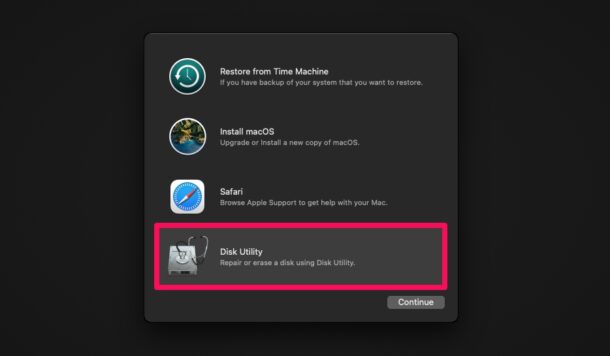
  3. Now, you’ll be taken to the macOS Utilities screen. Here, select “Disk Utility” and click “Continue” to get started.
  4. How to Repair the Startup Disk on M1 Apple Silicon Macs
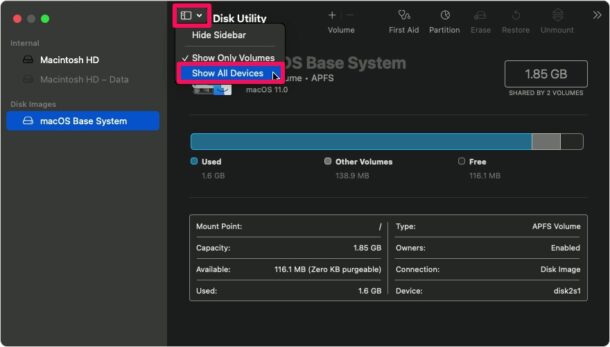
  5. Here, click on the View icon next to Disk Utility and choose “Show All Devices” as indicated in the screenshot below.
  6. How to Repair the Startup Disk on M1 Apple Silicon Macs
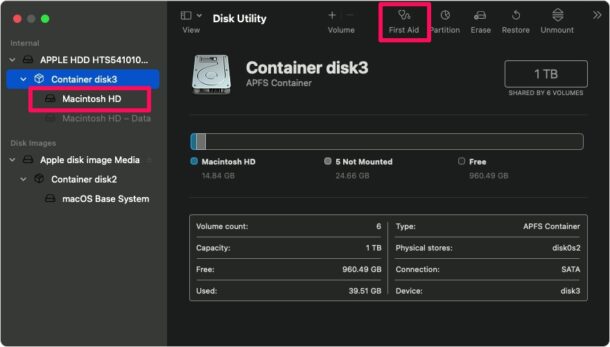
  7. Now, all the internal and external disks, their volumes and containers will show up on the left pane. The startup disk is located at the top of the sidebar and you’ll need to expand it to access its containers and volumes. Next, you need to select a particular volume as shown below and then click on the “First Aid” option located at the top of the window.How to Repair the Startup Disk on M1 Apple Silicon Macs
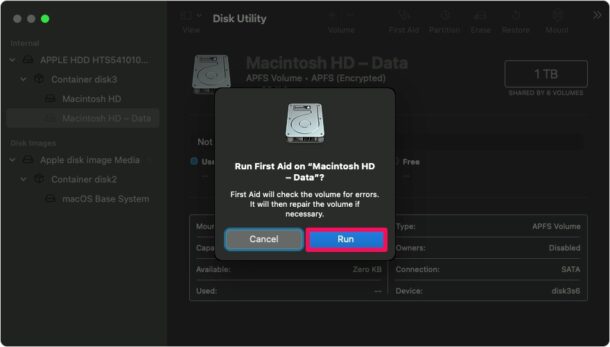
  8. When you’re prompted to confirm your action, choose “Run” to begin checking the volume for errors and repair if necessary.
  9. How to Repair the Startup Disk on M1 Apple Silicon Macs
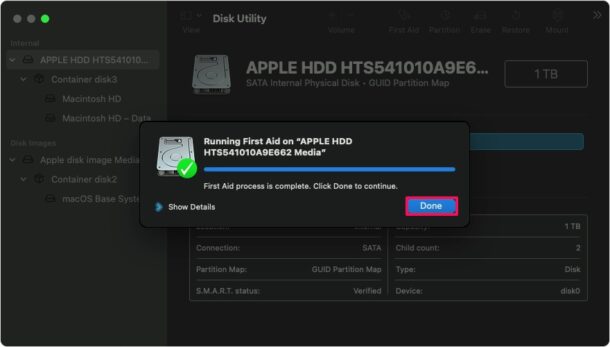
  10. Once it’s complete, click on “Done” and repeat the above steps to run First Aid on the other volumes, containers, and disks.
  11. How to Repair the Startup Disk on M1 Apple Silicon Macs

Once you’re done repairing your disk, you can exit out of macOS Utilties by clicking on the Apple logo from the menu bar and choosing “Restart” to reboot your Mac normally.

[mai mult...]