Soluții

How to Stop Android Notifications from Popping up on Your Screen

Android notifications are great, but they’re not perfect. The way that some notifications pop up on the screen can be annoying, especially if they’re not important. Thankfully, you can stop this from happening.

The bad news is that there’s no way to turn off pop-up notifications all at once. You’ll have to do it individually by app. The process is easy, though, so if you do it every time an annoying notification comes in, you’ll have things cleaned up in no time.

[mai mult...]

Cum putem asculta un fisier mp3 cu HTA si VBScript

Cum putem asculta un fisier mp3 cu HTA si VBScript

Pasul 1

Copiem urmatorul cod intr-un editor de text:

<html>
<head>
<title>Start and Stop music</title>
<SCRIPT Language=”VBScript”>
Sub PlayMusic(LOC)
Call DisableButton1()
Dim STRHTML
STRHTML = “<br>”
STRHTML = STRHTML & “<bgsound src=”& loc &” loop=””infinite””>”
MyMusic.InnerHTML = STRHTML
End Sub
‘******************************************
Sub DisableButton1()
button1.disabled = True
button2.disabled = False
End Sub
‘******************************************
Sub DisableButton2()
button2.disabled = True
button1.disabled = False
End Sub
‘******************************************
Sub StopMusic()
Call DisableButton2()
MyMusic.InnerHTML = “”
End Sub
‘******************************************
</SCRIPT>
</head>
<body>
<input type=”button” name=”button1″ value=”Start the Music” onclick=’PlayMusic(“E:\Users\Desktop\a.mp3″)’>
<input type=”button” name=”button2″ value=”Stop the Music” onclick=”StopMusic()”>
<span id =”MyMusic”></span>
</body>
</html>

Pasul 2

Modificam calea catre mp3 (E:\Users\Desktop\a.mp3)

Pasul 3

Salvam fisierul cu numele dorit si extensia .hta

[mai mult...]

How to Hide or Remove New Downloads Flyout Menu in Microsoft Edge

How to Hide or Remove New Downloads Flyout Menu in Microsoft Edge

We told you earlier that the new versions of Microsoft Edge web browser come with a new redesigned Download Manager which shows all downloads in form of a flyout menu or popup in Edge toolbar. When you start downloading a file in Microsoft Edge, a new Downloads button appears in Edge toolbar which opens a flyout menu showing download status and file information.

Following screenshot shows new Downloads toolbar button and flyout menu in Microsoft Edge:

There are some people who like the new Download Manager functionality but they don’t like the new flyout menu which automatically appears as soon as they start downloading any file. Many people find the new flyout menu annoying and they want to permanently disable it.

Fortunately, it’s possible to keep the new Download Manager feature and disable the flyout menu in Edge toolbar. I have received many emails from readers who want to get rid of the new Downloads flyout menu but don’t want to restore classic download panel in Edge.

Following steps will help you in disabling or hiding new Downloads flyout menu in Microsoft Edge toolbar:

1. Open Microsoft Edge browser and click on the 3-dots menu button present at the right-side of the toolbar. Now select Settings option from the main menu.

Alternatively, you can press ALT+F keys together to show Edge Menu and then press S key to open Settings page. You can also directly open Edge Settings page using edge://settings/ URL in address bar.

2. Now click on Downloads tab in left sidebar.

PS: You can skip 1 and 2 steps and directly open Downloads tab in Edge Settings page by clicking on 3-dots menu present in Downloads flyout menu and selecting Downloads settings option.

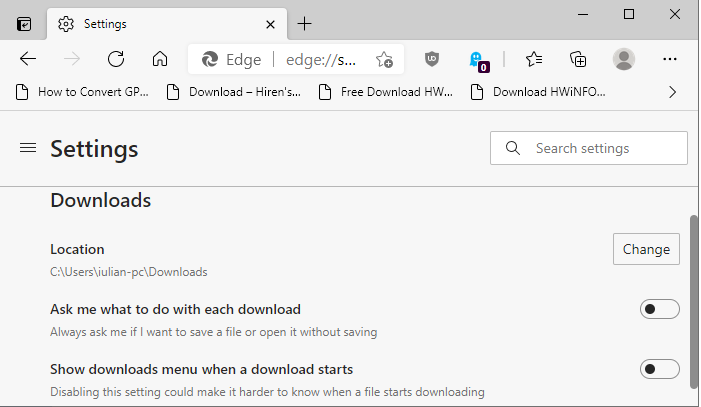
3. In right-side pane, you’ll see Show downloads menu when a download starts option.

The option is enabled by default which means Edge will always show new flyout menu in toolbar whenever you download a file. To disable new flyout menu, turn off the option i.e. set the option to OFF.

[mai mult...]