Soluții

How to Refund a Game on Steam

One of the problems with video games is that it’s hard to know if we’ll like a game until we buy it and play it. That’s why it’s a good thing that Steam, the biggest digital game retailer around, offers refunds for purchases you’re not satisfied with.

If you’re unlucky enough to experience buyer’s remorse early in your gameplay experience, Steam will painlessly return your money. All you have to do is submit a request, and the game will be taken out of your library, and your money will be refunded.

1 Go to “Steam Help.” Log into your Steam account. Click on the “Steam Help” tab near the top of the screen.

2 Specify you need help with a purchase. When you click on “Steam Help,” you will be redirected to a list of options. Near the bottom of the list, you should see the option “A Purchase.” Click on this.
3 Select the game you want to refund. After you click “A Purchase,” you should be directed to a list of games you purchased on Steam. Select the game you’re looking to refund.

Explain the problem. You will then be presented with options to specify the problem with your purchase. Select the reason you’re refunding the game. Options include things like “Gameplay or technical issue” or “I purchased this by accident.

[mai mult...]

How to Stop “Your Phone” From Opening at Startup on Windows 10

The Your Phone feature in Windows 10 is a handy way to link your PC with your smartphone. Sometimes, Your Phone might keep popping up at startup when you don’t want it to. If so, there’s a way to disable the Your Phone popup.

First, open Task Manager. To do so, right-click your taskbar. In the menu that appears, select “Task Manager.”

In the Task Manager window, click “More details” if you start with a simple view, then click the “Startup” tab.

In the “Startup” tab, locate “Your Phone” in the list and select it. Next, click the “Disable” button in the lower-right corner of the window.

After clicking disable, you’ll see “Disabled” in the “Status” column beside Your Phone in the Task manager Startup list. When you’re done, close Task Manager. From now on, Your Phone will no longer launch on Startup.

[mai mult...]

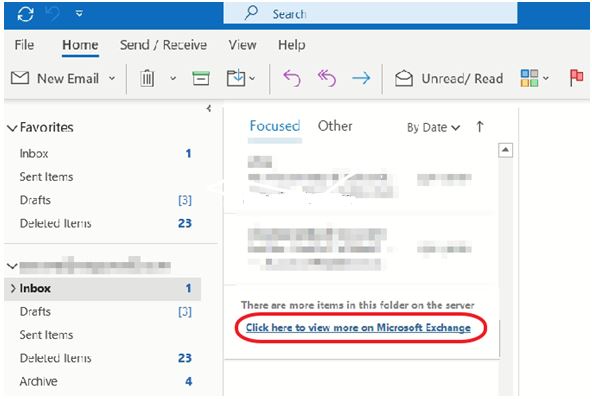
How to Remove the click here to view more on microsoft exchange option in Outlook

Dacă nu doriți de fiecare dată să faceți click pe hyperlinkul „Click here to view more on Exchange” în Outlook,
pentru a vedea toate e-mailurile stocate pe Exchange, continuați să citiți mai jos.

  • Hyperlinkul „Click here to view more on Exchange” în Outlook, apare deoarece folderele de e-mail afișează numai elementele mai noi (e-mailuri). Acesta este un comportament implicit, deoarece atunci când utilizați Microsoft Outlook 2019, Outlook 2016, Outlook 2013 sau Outlook pentru Office 365 pentru a vă conecta la cutia poștală Exchange Server, Outlook afișează unul dintre e-mailurile din anul trecut.

[mai mult...]

Reset Network Settings on Samsung Devices

While most manufacturers are moving to Android uniformity with the “stock” interface, Samsung is one of the few manufacturers that continues to use its own interface (most recently named “One UI”) for Android smartphones and tablets.

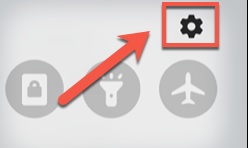
If you’re trying to reset your network settings on a Samsung Android device, start by tapping the “Settings” app in your app drawer. Alternatively, swipe down from the top of your screen to view the notifications shade, then tap the gear icon.

In the “Settings” menu, tap the “General Management” option.

In the “General Management” menu, select the “Reset” option to view the available options for resetting your device.

Tap the “Reset Network Settings” option in the “Reset” menu to proceed to the next stage.

Resetting your network settings on Android will wipe all previous settings for your Wi-Fi and mobile data connections as well as any previously connected Bluetooth devices.

[mai mult...]