Soluții

How to lower the WhatsApp data usage

The following guide provides you with instructions on lowering the data usage of the popular messaging application WhatsApp.Created for Android devices, you can use the guide if you run WhatsApp on another mobile operating system as well.

Applications that you run regularly on your mobile devices can use a considerable amount of data when they are running.Many apps continue to run in the background once they have been started on a device. This is certainly true for most messaging applications, as they check regularly for new messages and other content to notify you the moment it is detected.

How to lower the WhatsApp data usage

First thing you need to do is verify WhatsApp’s data usage on your device. How that is done depends largely on your device. On my Xiaomi Mi4c, I select Security > Data Usage to find out about the data usage of the app. You may find data usage in a different location on your device, for instance under Networks > Data Usage.

If you cannot find that option, or don’t have it, then you may need to install a third-party data tracking application. You can use My Data Manager for that for instance. I suggest you run it at least a week before you check WhatsApp’s data usage during that time.

Once you have the number, you need to decide whether it is too high, or acceptable. If you think it is too high, you can modify some WhatsApp settings to lower the application’s data usage.

  1. Select WhatsApp > Menu > Settings.
  2. Select the Data Usage menu when the Settings page opens.

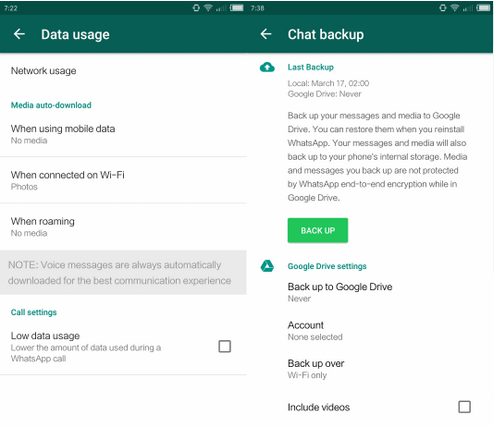
There you find the following options to lower WhatsApp’s data usage:

Configure media auto-download. You may configure this independently for mobile data, WiFi data, and roaming.

The default setting downloads photos when on mobile, all attachments when connected to a Wifi, and nothing at all when roaming.

To lower the usage, consider blocking all downloads from being processed automatically on mobile and / or on WiFi. The latter depends on whether the wireless networks that you connect the mobile device to are limited in regards to bandwidth.

Note that you may still download any attachment manually. WhatsApp displays a placeholder for attachments that have not been auto-downloaded by the app. A tap on the placeholder downloads the attachments to your device.

Low data usage. This setting enables the low data usage mode during WhatsApp calls. Please note that this goes hand in hand with a reduction in call quality. If you use WhatsApp for calls regularly, you may want to test the setting to see if you can live with the quality reduction, and whether reducing it has a big enough impact on the data usage of the app to make it worthwhile.

Chat Backup settings are another thing that you may want to check. While not configured by default to send data to a cloud provider, WhatsApp may be configured to do that.

Go to Menu > Settings > Chat > Chat Backup to get started. You find the “back up to Google Drive” option on the page. If it is enabled, consider disabling it as WhatsApp will transfer data to Google Drive regularly when it is enabled.

You may change other preferences there, for instance so that videos are not backed up to Google Drive, or the frequency of backups.

[mai mult...]

How to delete WhatsApp messages that you sent

WhatsApp added a new feature to its messaging applications that you may use to delete messages that you sent already using the client.

Messages that you sent up until now could not not be deleted by you after the fact. There was no grace period to undo the sending, and it seems that users requested such a feature which works similarly to how email providers like Gmail provide undo options for a short period of time after sending messages.

This changes with the new deleting messages for everyone functionality that is implemented in the most recent versions of the WhatsApp client for Android, iOS and Windows Phone.

Deleting WhatsApp messages

The new feature has requirements that need to be met.

  1. Messages can only be deleted remotely (read: for everyone), if seven minutes have not passed since they were sent.
  2. Sender and recipients need to use the most recent version of the WhatsApp client.

WhatsApp won’t notify you if the deleting of the message is not successful. It may still be deleted on the device that you are using, but it may not have been deleted on the recipients device. Also, recipients may still see the message before it is deleted.

So, how do you delete messages that you sent using WhatsApp?

The process is simple:

  1. Open the chat and scroll to the message that you want deleted.
  2. Long-tap on the message that you want to delete.
  3. Optional: you may tap on additional messages to mark them as well and delete them in one go.
  4. Tap on the trashcan icon in the interface.
  5. Select the “delete for everyone” option to have WhatsApp delete the selected message locally and remotely.

Deleted messages are marked as such in the conversation history along with the time they were deleted. There is no option to restore deleted messages however.

[mai mult...]

How to Install the watchOS 7 Public Beta on Apple Watch

Apple doesn’t normally release a public beta of its upcoming Apple Watch software, but with watchOS 7, the company appears to have had a change of heart. That means anyone with a compatible ‌Apple Watch‌ can get a taste of the latest new ‌Apple Watch‌ features, such as sleep tracking, new watch faces, watch face sharing, new workout types, and more.

[mai mult...]