Soluții

Mozilla installs Scheduled Telemetry Task on Windows with Firefox 75

Mozilla installs Scheduled Telemetry Task on Windows with Firefox 75

Observant Firefox users on Windows who have updated the web browser to Firefox 75 may have noticed that the upgrade brought along with it a new scheduled tasks. The scheduled task is also added if Firefox 75 is installed on a Windows device. The task’s name is Firefox Default Browser Agent and it is set to run once per day. Mozilla published a blog post on the official blog of the organization that provides information on the task and why it has been created.

According to Mozilla, the task has been created to help the organization “understand changes in default browser settings”. At its core, it is a Telemetry task that collects information and sends the data to Mozilla.

Here are the details:

  • The Task is only created if Telemetry is enabled. If Telemetry is set to off (in the most recently used Firefox profile), it is not created and thus no data is sent. The same is true for Enterprise telemetry policies if they are configured. Update: Some users report that the task is created while Telemetry was set to off on their machine.
  • Mozilla collects information “related to the system’s current and previous default browser setting, as w2ell as the operating system locale and version”.
  • Mozilla notes that the data cannot be “associated with regular profile based telemetry data”.
  • The data is sent to Mozilla every 24 hours using the scheduled task.

Mozilla added the file default-browser-agent.exe to the Firefox installation folder on Windows which defaults to C:\Program Files\Mozilla Firefox\.

Firefox users have the following options if they don’t want the data sent to Mozilla:

  • Firefox users who opted-out of Telemetry are good, they don’t need to make any change as the new Telemetry data is not sent to Mozilla; this applies to users who opted-out of Telemetry in Firefox or used Enterprise policies to do so.
  • Firefox users who have Telemetry enabled can either opt-out of Telemetry or deal with the task/executable that is responsible.
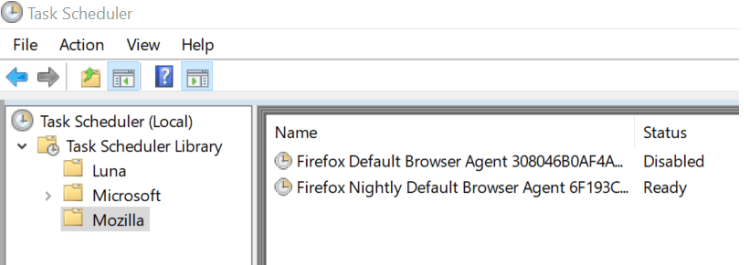
Disable the Firefox Default Browser Agent task

Here is how you disable the task:

  1. Open Start on the Windows machine and type Task Scheduler.
  2. Open the Task Scheduler and go to Task Scheduler Library > Mozilla.
  3. There you should find listed the Firefox Default Browser Agent task.
  4. Right-click on the task and select Disable.
  5. Note: Nightly users may see the Firefox Nightly Default Browser Agent task there as well and may disable it.

The task won’t be executed anymore once it is disabled.

Closing Words

The new Telemetry task is only introduced on Windows and runs only if Telemetry is enabled (which it is by default). Mozilla is transparent about the introduction and while that is good, I’d preferred if the company would have informed users about it in the browser after the upgrade to Firefox 75 or installation of the browser and before the task is executed the first time.

[mai mult...]

What is pingsender.exe on Windows?

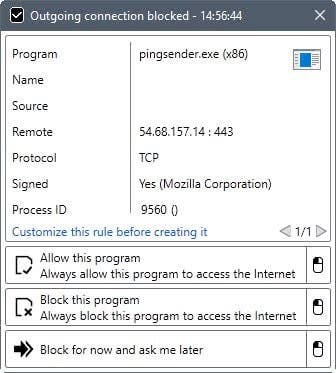
If you monitor the connections your computer makes, you may have noticed that a program called pingsender.exe is making regular connections to the Internet. Depending on the program or service that you use to monitor connections, you may get additional information right away. Windows Firewall Control for instance displays the remote IP address of the connection attempt, and the organization that signed the executable files.

That organization is Mozilla Corporation, and the IP address belongs to Amazon’s cloud service AWS.

  • Pingsender.exe

You may have noticed as well that pingsender.exe springs to action whenever you close the Firefox web browser. The article “Getting Firefox data faster: the shutdown pingsender” by Alessio Placitelli provides additional information on the executable file.

Firefox collects data if telemetry collecting is enabled. The browse transfers the data regularly to Mozilla in intervals. A big chunk of data was sent to Mozilla on the start of the next browsing session up until recently.
The issue was that this could mean that Mozilla would get the data hours, days or even weeks after it had been collected by the browser.
Pingsender is activated from the second browsing session on. It is launched as a separate process during Firefox shut down, and attempts to send the telemetry data that was collected during the browsing session to Mozilla.
Mozilla managed to reduce the sending time significantly. According to Placitelli, 85% of pings reach Mozilla within an hour, and 95% do so within the first 8 hours. Only 25% of pings reached Mozilla in the first hour without pingsender, and it took 90 hours to reach the 95% level of pings without pingsender.
In short: Pingsender is a separate process that Firefox spawns on shut down to send telemetry data to Mozilla.
Firefox users may load about:telemetry in the browser’s address bar to check the data that Mozilla is collecting.
Those who don’t want to provide Mozilla with data can turn the data off under about:preferences#privacy.

Another option is available. If Pingsender.exe is the problem, you may turn that feature off in the following way:

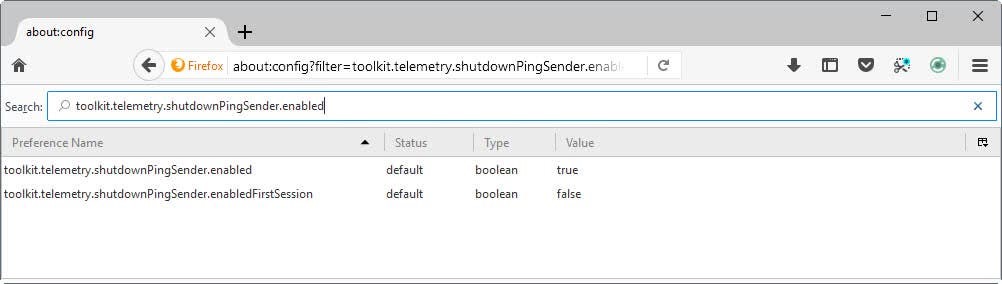
  1. Load about:config?filter=toolkit.telemetry.shutdownPingSender.enabled in the browser’s address bar. This opens the advanced Firefox configuration dialog.
  2. The preference toolkit.telemetry.shutdownPingSender.enabled determines whether Pingsender is used or not. You can disable it by setting its value to False. Simply double-click on the preference to do so.
  3. The preference toolkit.telemetry.shutdownPingSender.enabledFirstSession enables Pingsender for the first session as well.
[mai mult...]