
Soluții

Audit and Review NTFS Permissions

Whether you have an existing file server or are setting up a new one it is important to review your NTFS permissions, this at times can even be a requirement of an audit. To simplify this task I recommend using an NTFS Permissions Report Tool that can scan all folders and show you who has access to what. With a reporting tool, you can list all folder permissions, verify users have the correct permissions, check inheritance, find insecure permissions, verify directory rights, and export the report to CSV, Excel, or PDF.
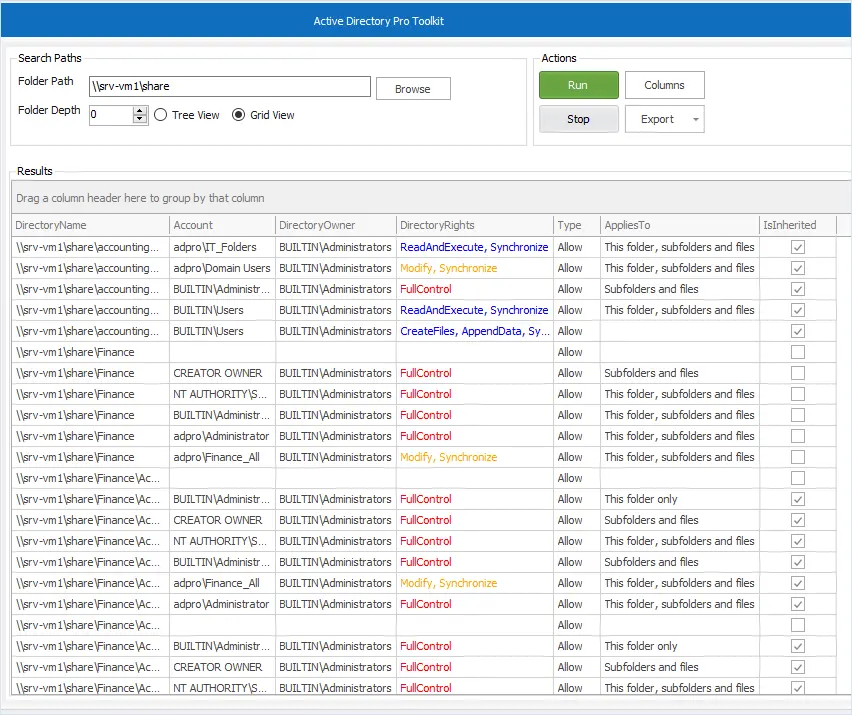
Secure NTFS Permissions with Security Groups

It is a best practice to create security groups to set NTFS permissions rather than using individual user accounts. Security groups have the following advantages:

  • Easier to manage permissions for a group of users
  • Easily remove user’s permissions
  • Easily grant users access to a file or folder
  • Makes it easier to identify who has access to what
  • Simplifies auditing and compliance reports

Let me walk through an example of how using security groups simplifies NTFS permissions management.

Say you have 100 employees that need access to the accounting folder, 80 need read/write permissions, and the other 20 need read-only access. To set these permissions you only need to create two security groups, and then configure the permissions for these two groups. Example below.
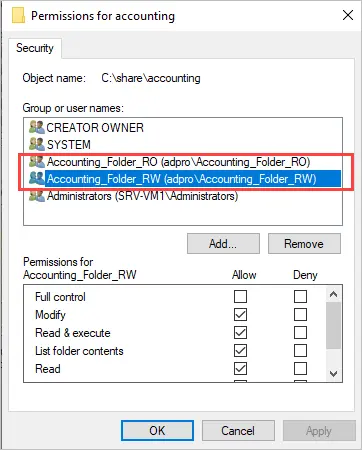
Example of using security groups to manage NTFS permissions.

Now as new employees are hired, all you need to do is add the user to one of these groups to give them access. To remove access you would just remove them from the group. If you did not use security groups for the NTFS permissions you would have to add all 100 users to the ACL, this would be very time consuming and difficult to manage. Example below.
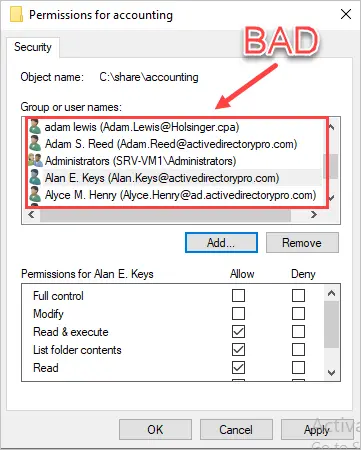
Example of setting individual accounts on NTFS ACL permissions. This is a bad design. Always use security groups to manage the ACL on NTFS permissions.
[mai mult...]

What is a TS File?

While using your computer, you might run into a file with a .TS extension. Unlike most extensions that represent a specific kind of data, a file with “.ts” extension can be either a video file or a TypeScript code file. So, what’s the difference between them, and what’s a TS file anyway?

What Is a Transport Stream (TS) File?

The meaning of a TS file depends on what kind of content it holds. For instance, if you come across a TS file while working with videos and DVDs, then it stands for Transport Stream. These files use the MPEG-2 compression algorithm to achieve maximum efficiency and compatibility across various media types, including internet streaming and broadcasting.

You’ll commonly find these files on DVDs, Blu-ray discs, and digital broadcasting systems like DVB, ATSC, and IPTV. The data stored in these files (video, audio, subtitles, etc.) is broken down into small chunks. You’ll have a tiny piece of video, followed by a tiny piece of audio, and then maybe a subtitle chunk. Each of these chunks carries some extra data that helps detect errors within them. This data also tells each chunk when it’s supposed to play.

This way of representing data includes extra information that isn’t useful for storage but has advantages for broadcasting. Since all the data is broken into small pieces, you can send each piece over a connection in real time. And if there’s any error in a chunk, the receiver can use the extra data present in each chunk to detect the error and skip over it.

The most important thing to note is that the receiver doesn’t need the entire stream. It can easily start from anywhere in the middle of the transmission, assemble the data from that point on, and use it in real time.

[mai mult...]

Batch Script – Echo Command

In batch scripting, the echo command can be used to display a message, variable value, or system information on the console. The command can be followed by a message or text string enclosed in double quotes. For example, echo “Hello, World!” will display the message “Hello, World!” on the console.

Why use Batch Script – Echo Command?

Here are a few reasons why the echo command is commonly used:

  1. Displaying messages: The echo command can be used to display messages or information on the console or in a text file. This is useful for providing feedback to the user, displaying error messages, or providing instructions.
  2. Displaying variables: Batch scripts often use variables to store information or data. The echo command can be used to display the value of a variable on the console or in a text file, making it easier to debug and troubleshoot scripts.
  3. Debugging: The echo command can be used to debug scripts by displaying the values of variables, commands, or system information. This can help identify errors and improve the efficiency of scripts.
  4. File output: The echo command can be used to redirect output to a file, making it easier to save and share information. This can be particularly useful when generating reports or logs.
  5. Script automation: Batch scripts can automate repetitive tasks, making them more efficient and less prone to human error. The echo command can be used to provide feedback and ensure that scripts are running as expected.
[mai mult...]

Batch Script – Logging

Batch Script is a file that consists of various commands which need to be sequentially executed. It is not like coding and is not frequently used, in order to communicate with the OS through a command prompt, the user can use Batch Script. The commands are known as Batch commands.

Logging refers to the process of converting the command line scripts into .log files or text files. The command processor creates real-time activity logs which collect all the information regarding batch commands and statistics.

[mai mult...]

Batch Script – Input / Output

We are going to learn how to take input from users using Batch Script.

Taking User Input:

@echo off
echo Batch Script to take input.
set /p input= Type any input
echo Input is: %input%
pause

Explanation:

  • The first ‘echo’ command is used to print a string.
  • In the next line, ‘set  /p’ command is used to take user input followed by a variable that will hold user input.
[mai mult...]