
Soluții

How to find your Printer’s IP Address on Windows 10

If you have a network printer connected to your Windows 10 PC and you’d like to configure or troubleshoot it, you will have to find your printer’s IP address. Here are several ways to do it. If you have installed the drivers for your printer on your PC already, use the Control Panel method to find the printer’s IP address.

Find Your Printer’s IP Address in Control Panel

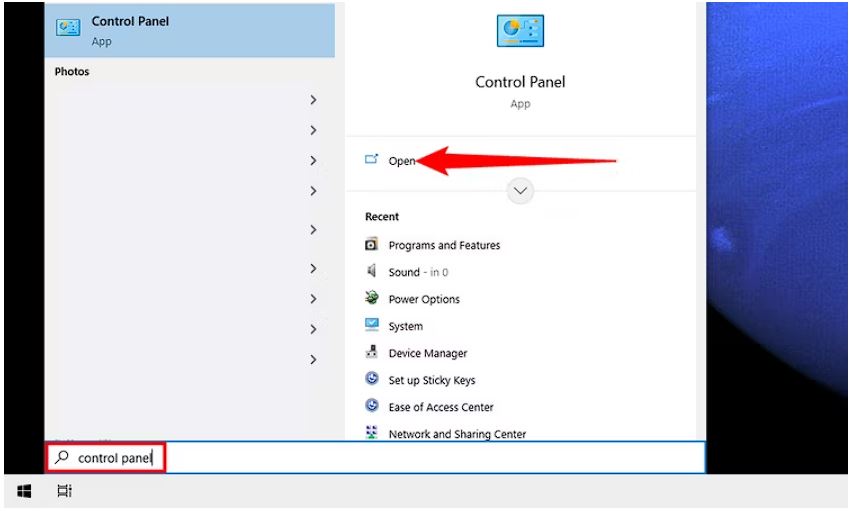
To view your installed printer’s IP address in Windows 10, first, open Control Panel. Do this by accessing the “Start” menu, searching for “Control Panel,” and clicking it in the search results.
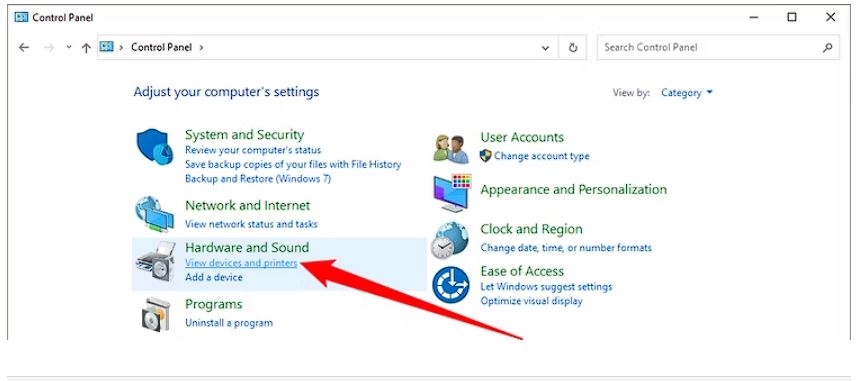
In Control Panel, under the “Hardware and Sound” section, click “View Devices and Printers.”
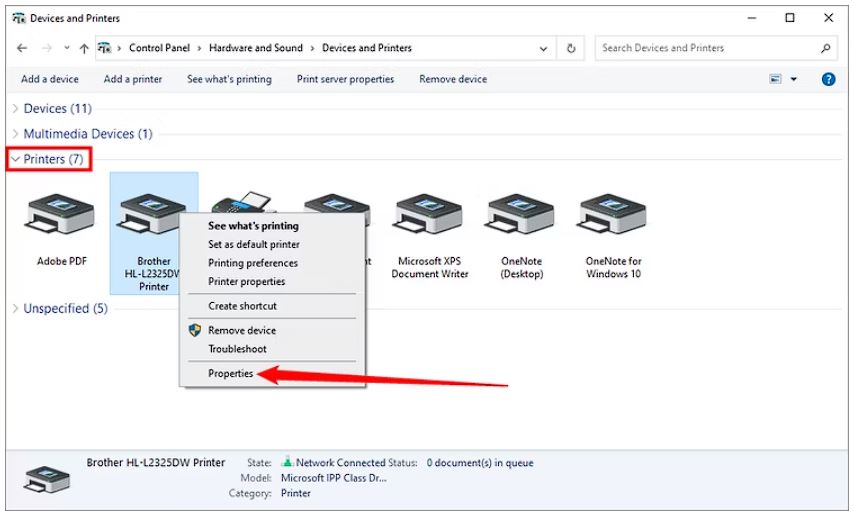
On the “Devices and Printers” window, in the “Printers” section, find your printer. Right-click its icon and select “Properties” from the menu.
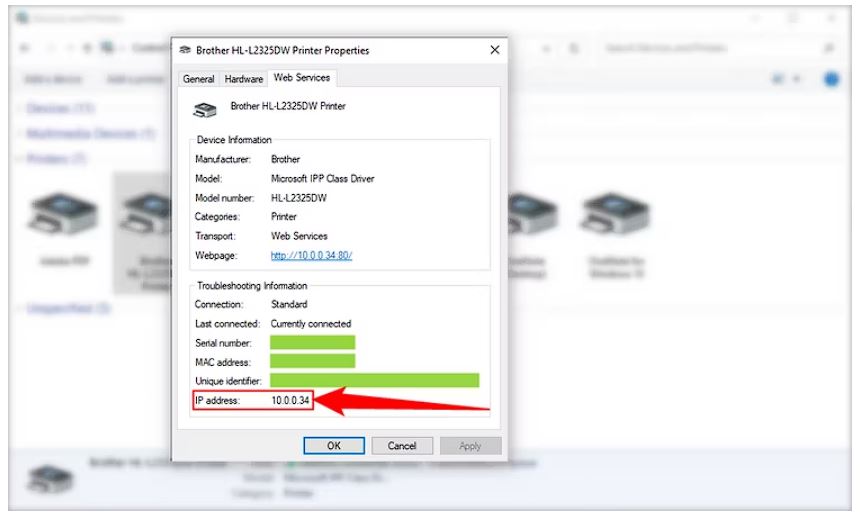
On the printer’s “Properties” window, at the top, click the “Web Services” tab. At the bottom of this tab, next to “IP Address,” you can see your printer’s IP address.
By the way, if your printer allows web tweaking, you can enter this IP address in your web browser to access its settings page.

[mai mult...]
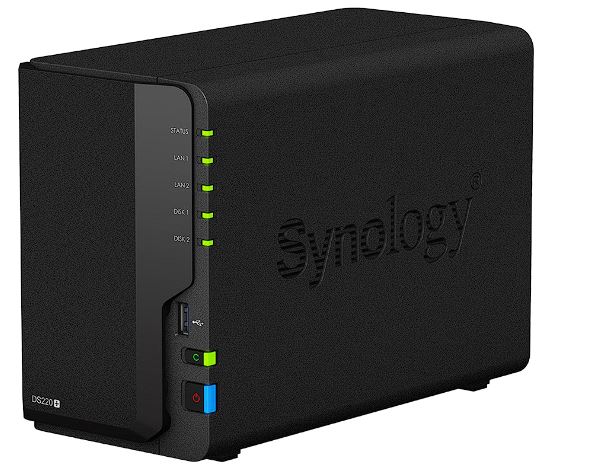
Cum alegem un NAS (Network Attached Storage), recomandare Synology

Ce trebuie să căutați la un NAS

În timp ce fiecare NAS îndeplinește funcția de bază de conectare a spațiului de stocare la rețea, aici se termină asemănările. Un hard disk NAS este, în esență, un computer specializat și la fel ca toate computerele, vine în multe varietăți. Aspectele cheie pe care trebuie să le luați în considerare înainte de a cumpăra unul pot fi împărțite în câteva categorii generale.

Numărul de locașuri pentru unități este prima decizie pe care trebuie să o luați. Un NAS cu un singur bay (sau chiar un simplu hard disk extern) este bun pentru utilizatorii care doresc doar să facă streaming media, să creeze copii de rezervă de bază sau să aibă o stocare partajată locală rapidă. Cu toate acestea, cu un singur bay, toate datele sunt pierdute în cazul în care unitatea se defectează.

Un model cu două compartimente permite oglindirea discului și este o alegere mai bună, asigurând că datele rămân intacte. Pentru a trece de două compartimente pentru discuri, trebuie să alegeți combinația dorită de capacitate maximă, viteză și redundanță.

Atunci când alegeți un produs, specificațiile de performanță ale dispozitivelor NAS sunt la fel de importante ca și cele ale unui computer personal. NAS-ul are un procesor, memorie RAM, viteze specifice ale porturilor Ethernet și specificații maxime ale unităților de disc pe care va trebui să le cunoașteți. De exemplu, dacă aveți nevoie de un NAS pentru a transcoda video 4K sau pentru a edita fișiere video direct în rețea, acesta are nevoie de puterea hardware necesară pentru a face acest lucru posibil.

Capacitatea de modernizare este, de asemenea, un factor important de luat în considerare. Dacă nevoile dvs. vor crește în timp, atunci un NAS care poate fi extins reprezintă o achiziție mai bună. Memoria RAM este o componentă obișnuită care poate fi actualizată, dar unele dispozitive NAS vă permit, de asemenea, să instalați un SSD pentru a acționa ca o memorie cache de mare viteză, îmbunătățind în mod dramatic performanța transferului de date.

În cele din urmă, suportul pentru aplicații poate fi crucial. Dispozitivele NAS utilizează, de obicei, sisteme de operare diferite față de un computer standard. Unele sisteme de operare pot fi personalizate, în timp ce altele ar putea fi puțin mai mult decât o instalare standard de Linux. Suportul pentru aplicații specifice, cum ar fi serverele web sau software-ul de streaming media, poate varia foarte mult, așa că verificați dacă un anumit dispozitiv NAS suportă aplicațiile specifice pe care aveți nevoie să le rulați.


Recomandare NAS: Synology 2 Bay NAS DiskStation DS220+ (fără HDD)

Synology DS220+ are multe avantaje. Arată atractiv și funcționează atât acasă, cât și în mediul de afaceri. Prețul nu este scăzut, dar nici excesiv. Cu două locașuri pentru unități, obțineți cel mai important nivel minim de redundanță cu suport RAID 1.

Cele două porturi Gigabit Ethernet vă oferă opțiunea de a le agrega pentru o performanță maximă sau de a utiliza o configurație de failover pentru a vă asigura că datele dvs. sunt întotdeauna disponibile. Unitatea centrală de procesare este suficient de rapidă pentru majoritatea nevoilor utilizatorilor, iar alocarea de memorie RAM poate fi îmbunătățită dacă este necesar. Fiind un nume cunoscut pe piața NAS, Synology oferă, de asemenea, aproape 100 de aplicații pentru DS220+.

CARACTERISTICI GENERALE

Procesor Intel Celeron J4025
Licente camere IP Maxim 25 ( Inclus: 2)
Capacitate 2 GB
Numar Hard disk-uri 2
Capacitate maxima HDD 32 TB
Operatii RAID RAID 1 RAID 0 Basic JBOD Synology Hybrid RAID (SHR)
Porturi 2 x USB 3.0 2 x RJ-45
Retea 10/100/1000
Dimensiuni (D x H x W) 232.2 x 165 x 108 mm
Hard disk-uri incluse Nu
Media server support DLNA Certified
Networking protocols SMB1 (CIFS), SMB2, SMB3, NFSv3, NFSv4, NFSv4.1, NFS Kerberized sessions, iSCSI, HTTP, HTTPs, FTP, SNMP, LDAP, CalDAV
Racire 1 x 92mm fan
Alimentare 100 – 240 V
Backup solutions Synology Hyper Backup
Securitate Kensington Security Slot
Accesorii incluse 1 x manual de utilizare 1 x NAS 1 x adaptor de curent alternativ 1 x cablu alimentare AC 1 x Cablu RJ-45

Imagini Synology DS220+

Pret recomandat: ~ 2200 RON.

[mai mult...]

How to create Emoji Wallpaper on a Google Pixel

Android offers many customization tools, but the personalized thing you probably see the most is the good ol’ wallpaper. If you have a Google Pixel phone, you’re lucky to have a cool tool for creating custom wallpapers from your choice of emojis.

The emoji wallpaper feature was originally shown off as being a part of Android 14, but it actually rolled out to Pixel devices before that. The idea is similar to the custom wallpapers that were added to the iPhone and IOS 16. Essentially, you pick out a handful of your favorite emojis, choose a pattern and color, and you’re all set.

[mai mult...]

Best ways to fix corrupt SD Card/Memory Card

Symptoms of Corrupt SD card
  • Error message saying ‘SD card is not accessible. The file or directory is corrupted and unreadable.’

Here’s how you can check your SD card for physical damage.

  • Check the exterior of the SD card. Look out for cracks, scratches, or dents.
  • Inspect the metal connectors on the back of the card to see if they are bent or misaligned.
  • In case, you can’t find any visible physical damage, insert the SD card into a card reader. Or you can insert it into another device. Check if the new reader detects your SD card.
  • If the SD card still does not get recognised by your device, there might be internal damage to the card.

If you can see signs of physical damage try these based on the situation:

  • Card is being recognized by the device or card reader: Try to recover the data using data recovery software.
  • If the card is not being recognized, try inserting it into a different device or card reader to confirm the issue.
  • If the metal connectors are dirty, they can be cleaned with a soft, dry cloth.
[mai mult...]

Seagate Backup Ultra Touch Not Working?

If your Seagate Backup Ultra Touch Is Not Working, do not jump to conclusions, and try the following:

Quick Fix Reason
1. Try a different USB port on your computer, or if you are using a dongle, try connecting directly to the computer. The problem may lie with the driver of the port or the port itself.This is a great way to fix Seagate Backup Plus Drive Not Showing up errors.
2. Try connecting using a different HDD cable. To make sure that your USB drivers are not the problem, connect another USB device and see if it works. If not, try using a different cable to connect your HDD to the computer.
3. Connect the HDD to a different computer. Fixes 1 and 2 show us the problem is not with your computer. To ascertain if the problem is with the drive, connect it to another computer and see if it shows up.
[mai mult...]