Soluții

Clonare Windows de pe HDD pe SSD folosind Macrium Reflect

Procesul de clonare va dura în funcție de conexiunea USB și de dimensiunea unității laptopului.

Pasul 1: Macrium Reflect (ediție gratuită)

Pentru a incepe transferul, poți să folosești aplicația Macrium Reflect în versiunea gratuită. Când faceți dublu click pe instalare, veți vedea de fapt un ecran care arată mai degrabă ca un instrument de descărcare.

Nu trebuie să schimbați nicio opțiune pe acest ecran. Trebuie doar să faceți click pe butonul „Descărcați” și să urmați toate indicațiile.

Pasul 2: Configurarea clonei

Pentru a începe, trebuie doar să faceți click pe linkul „Clonați acest disc” de sub hard diskul dvs. principal, care ar trebui selectat implicit. În ecranul care apare, faceți click pe  „Selectați un disc pe care să o clonați” și alegeți noul dvs. SSD.

S-ar putea să aveți la fel de multe partiții ca în exemplu; s-ar putea să ai mai puține. Indiferent câte aveți, va trebui să le selectați pe toate pentru a le transfera pe noul dvs. SSD, cu „copiați partițiile selectate”. După ce ați făcut asta, faceți clic pe „Next”.

Pasul 3: Pornirea clonării

Veți vedea un ecran care prezintă, într-un mod destul de detaliat, toate operațiunile pe care Macrium Reflect le va face odată ce va începe procesul de clonare. Puteți revizui aceste setări dacă doriți, iar apoi trebuie să apăsați pe „Finish”, pentru a începe procedura:

Pasul 4: Instalarea noului SSD

Dacă vă înlocuiți hard disk-ul vechi cu noul dvs. SSD, deconectați hard disk-ul vechi de pe desktop sau laptop (probabil un cablu SATA și de alimentare) și conectați-vă noul dvs. SSD în locul unității vechi. Nu trebuie să reglați nimic altceva în BIOS-ul sistemului dvs. Ar trebui să porniți direct partiția Windows principală pe noul dvs. SSD.

Dacă vă păstrați vechiul hard disk, reconectați-l la un alt port SATA din sistemul desktop.Asigurați-vă că computerul nu îl pornește din greșeală în locul noului dvs. SSD. Dacă porniți pe vechiul dvs. hard disk în locul celui nou, va trebui să schimbați comanda de bootare a sistemului în BIOS.

După ce computerul pornește cu noul dvs. SSD, intrați în Start și apăsați pe Disk Management, găsiți hard disk-ul vechi, faceți click dreapta pe diferitele partiții și selectați „Șterge volumul” pentru fiecare. Acest lucru vă va permite să ștergeți vechile volume și să folosiți hardul vechi ca mediu de stocare de date.

Pasul 5: Verificare SSD corectă

Pentru a confirma că Windows 10 recunoaște corect noul dvs. SSD și îndeplinește în mod regulat toate funcțiile corecte de TRIM , faceți click pe butonul Start, tastați „Defragment” și selectați prima opțiune: „Defragmentare și optimizare drivere”.

[mai mult...]
How to disable the automatic saving of photos and videos from the Instagram application on the phone?

How to disable the automatic saving of photos and videos from the Instagram application on the phone?
  • Open the Instagram application from your phone.
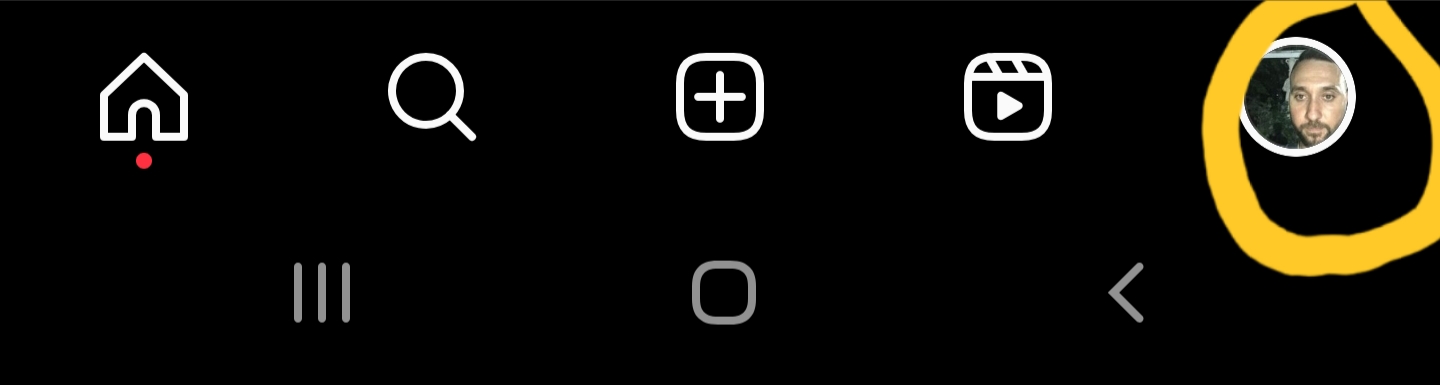
  • Click on the profile picture in the lower right corner

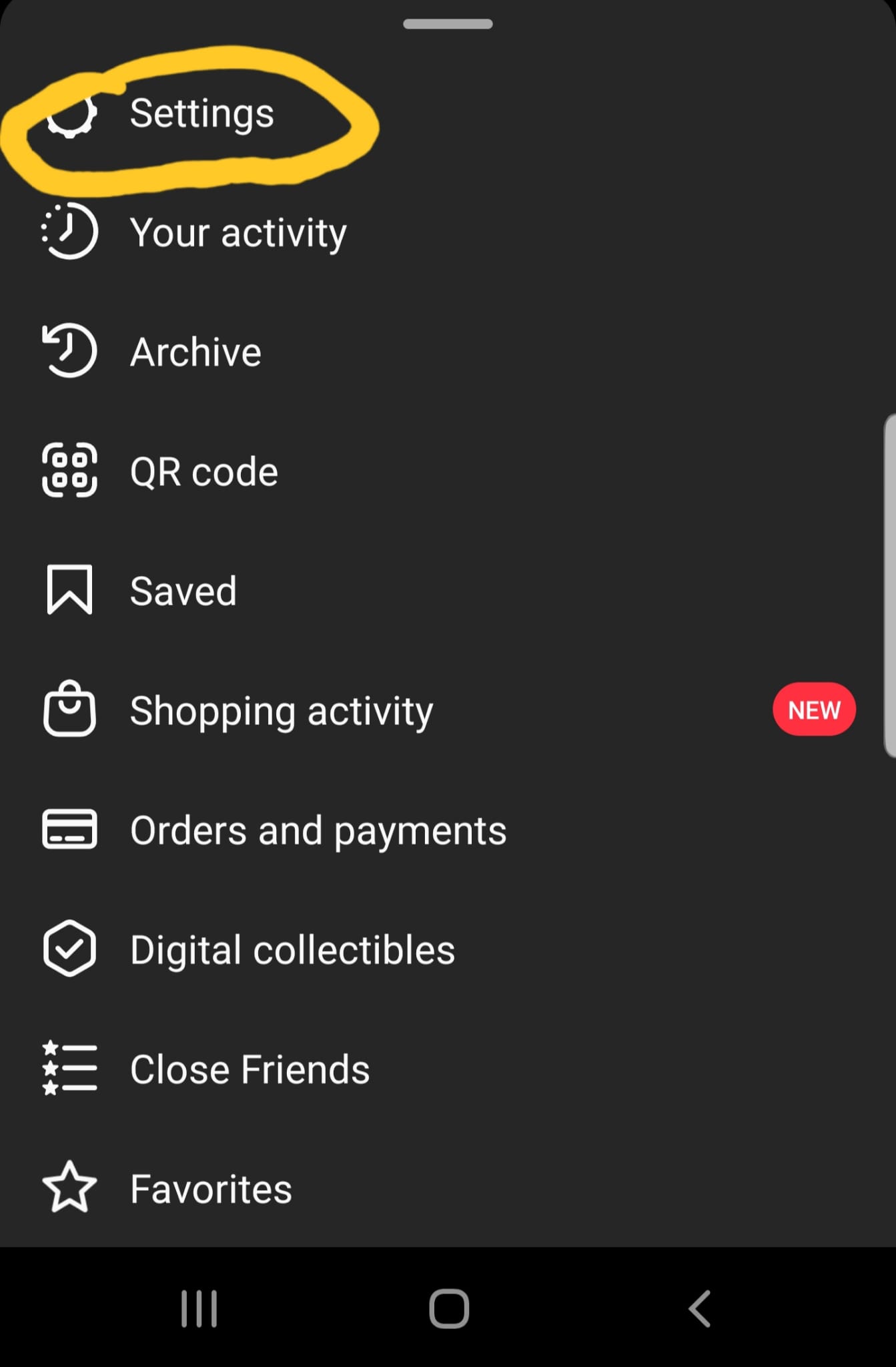
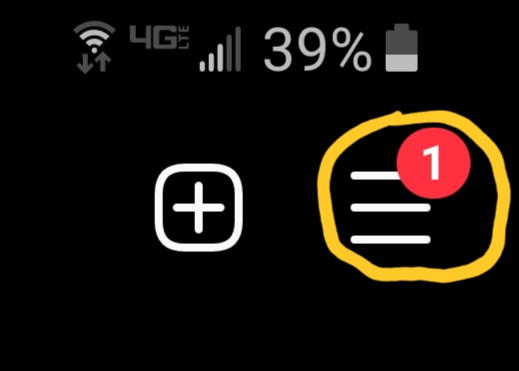
  • Click on the 3 stripes on the right of the screen.

  • Go to Settings

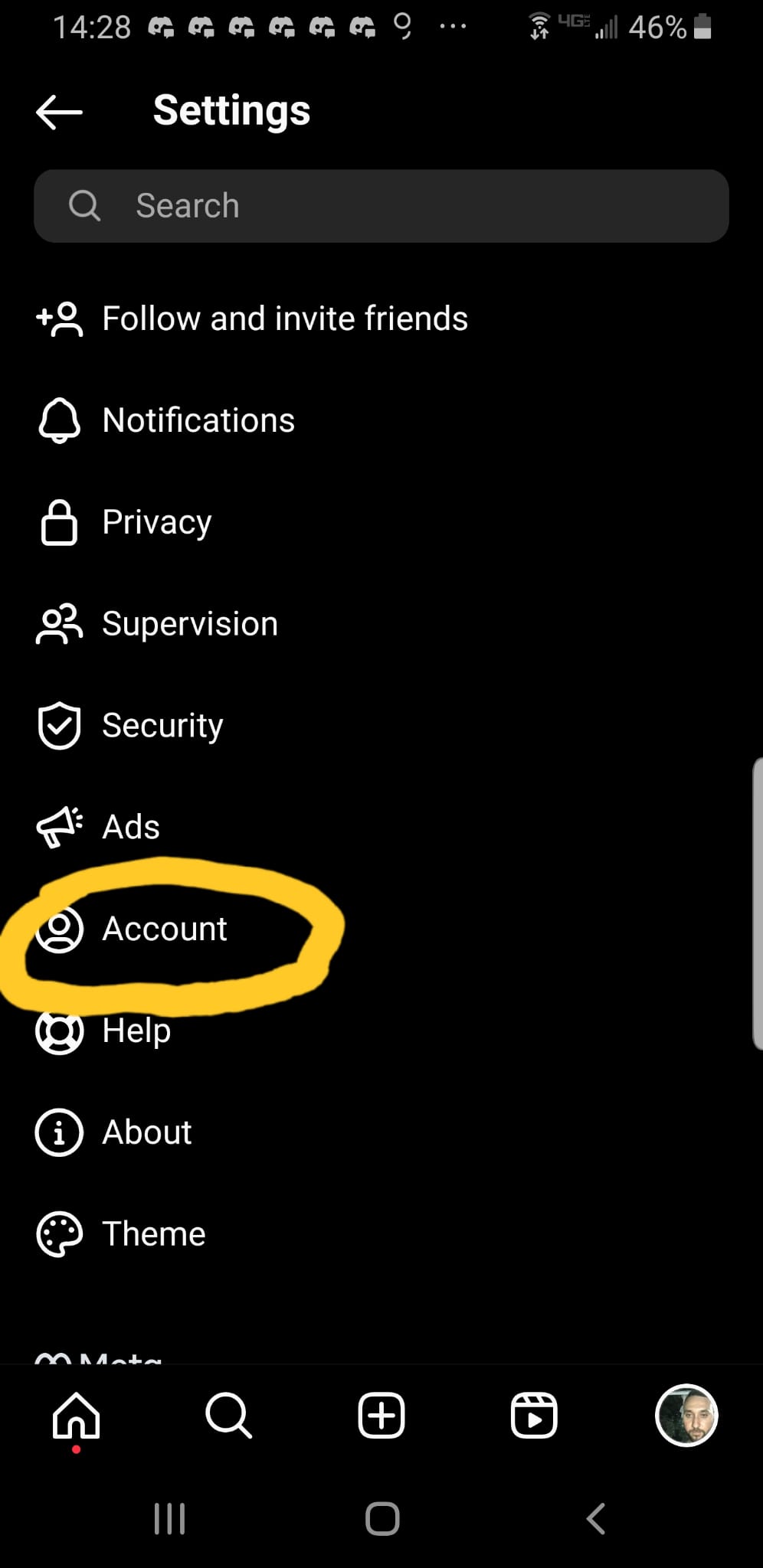
  • Select the account

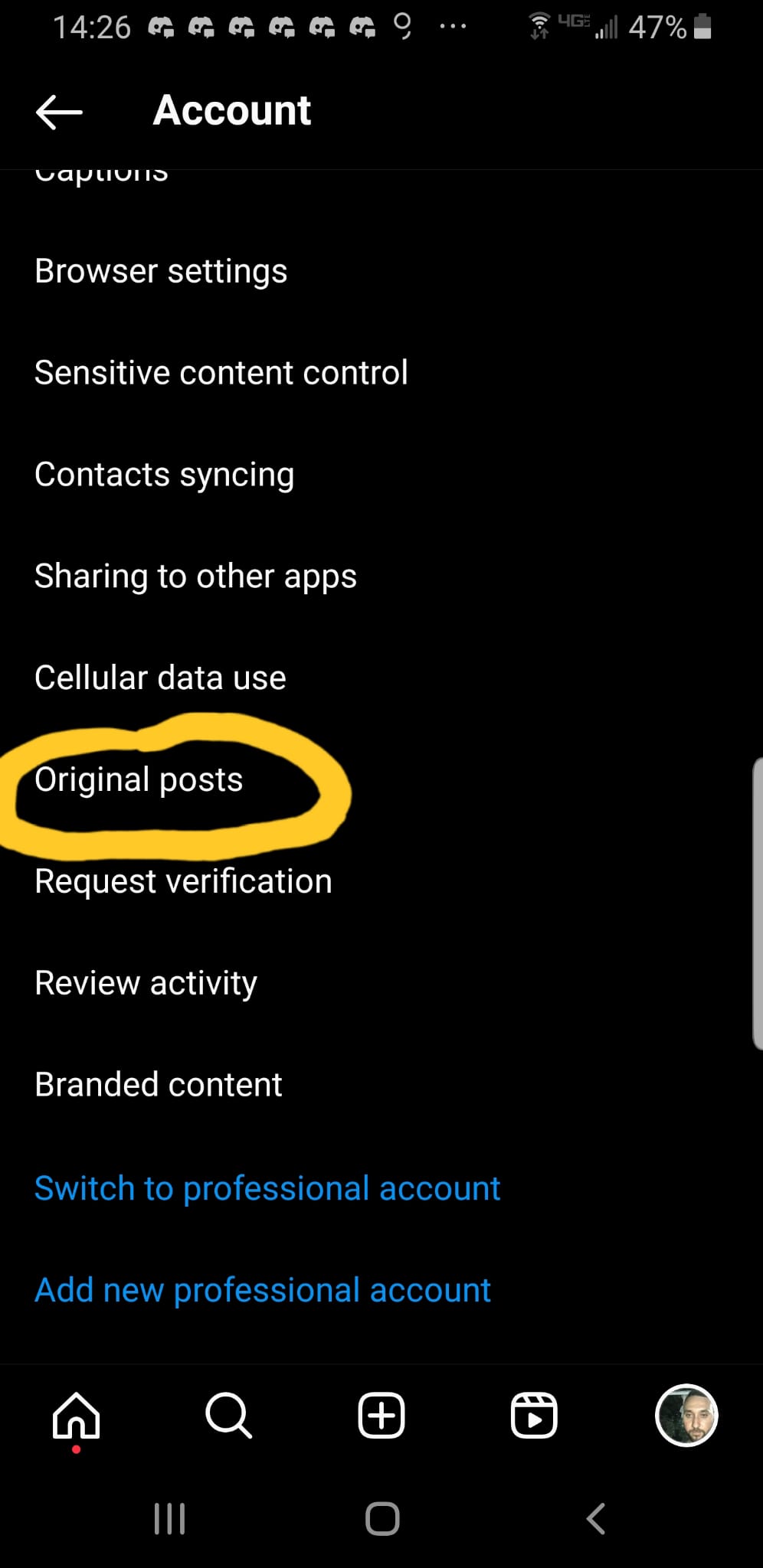
  • Then go to Original Posts

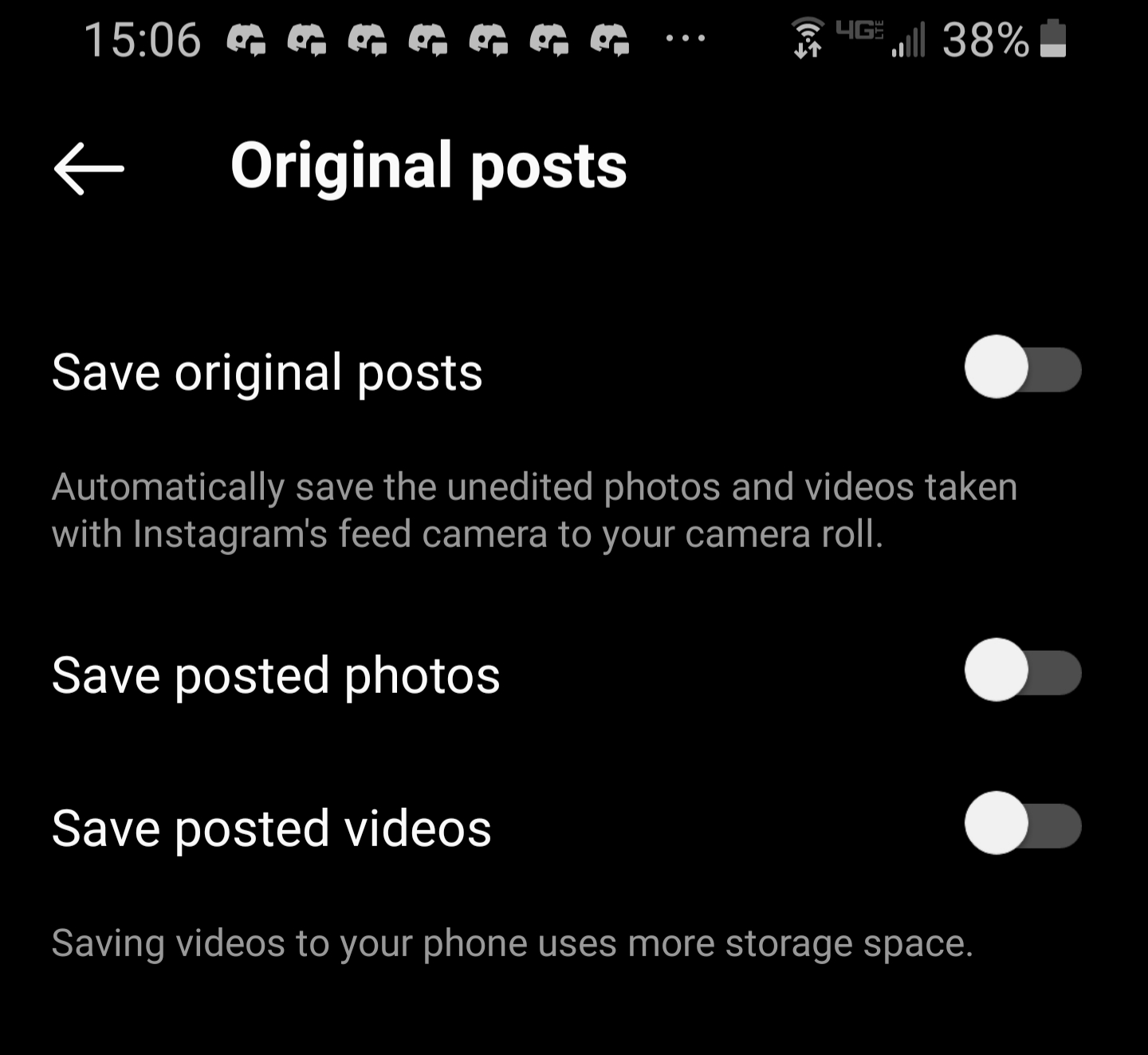
  • We disable all 3 columns

From now on, you will no longer take up space on your phone with photos and videos from Instagram.

[mai mult...]

How to extend your Samsung Galaxy battery life

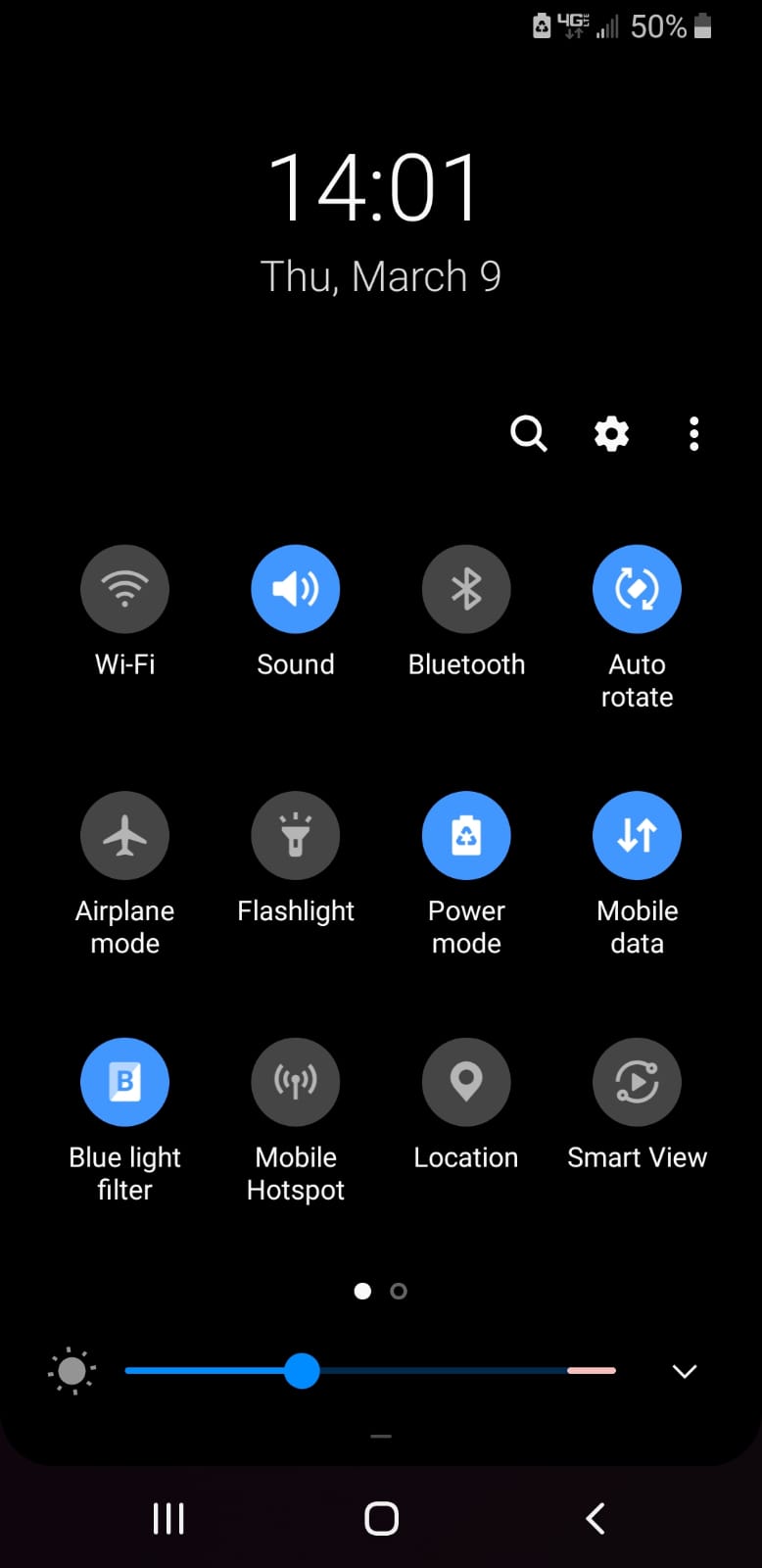
1. Reduce display brightness level

High display brightness and long screen time-out setting will increase battery drain. One of the simplest way to prolong your device battery life is to reduce the screen brightness, and here’s how you can do it:

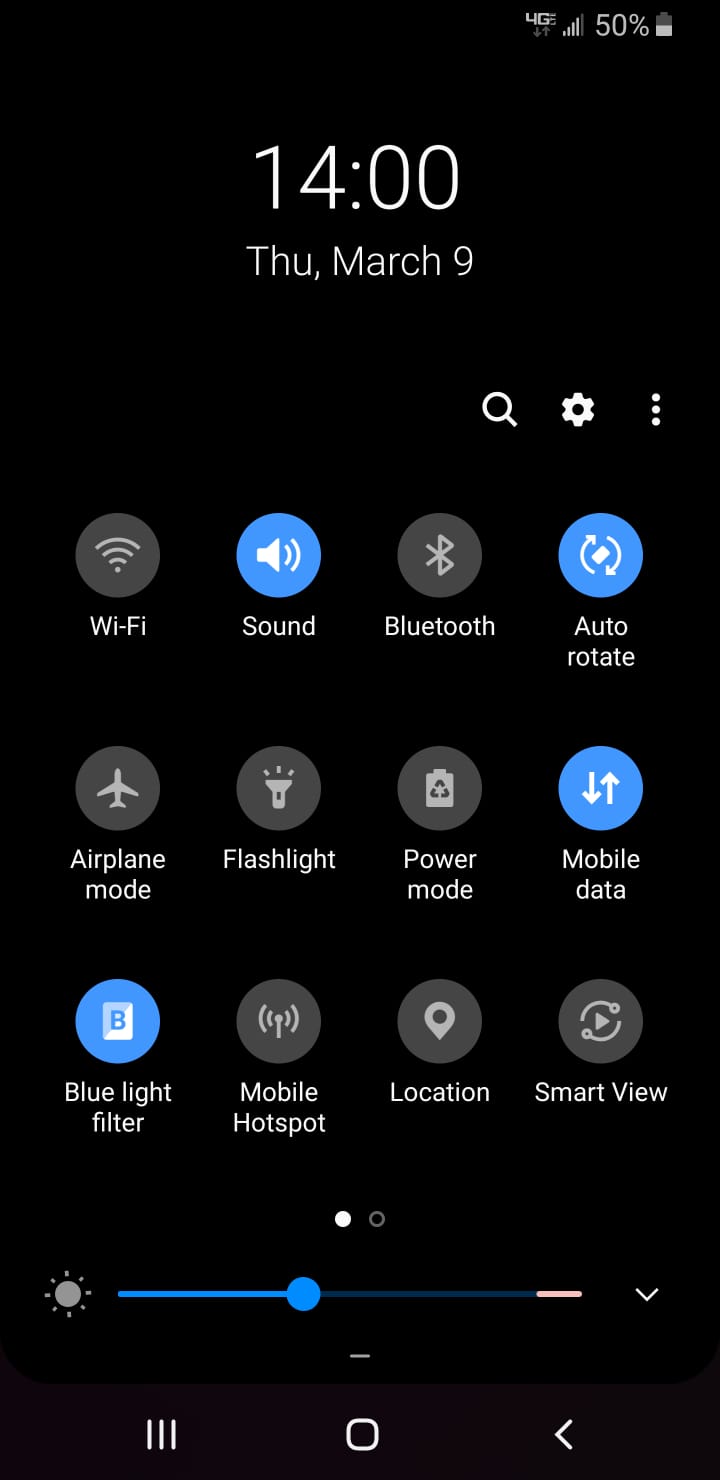
1) From the home screen > swipe down from the top to view the notification panel

2) Drag the brightness slider towards the left

3) At the same time, adjust the screen time-out setting > Tap the gear icon at the top > Select My Device tab > Select Display

4) Tap Screen timeout > Set your time-out preferences

Special Tip: Try setting your screen timeout to 30 seconds and display brightness to Auto.

2. Close, disable or uninstall unused Apps

Some apps may run background processes that deplete your battery. Once you’re ready to uninstall your unused apps, there are a few ways to go about it.

Fastest way to uninstall apps:

1) On your home screen > long-press on the app
2) Tap the Uninstall icon > Followed by OK

For more control over your apps:

1) Go to Settings > Apps.
2) Tap the overflow icon on the top right to sort apps by size or required permissions.
3) To uninstall, simply tap on the app name followed by the Uninstall icon.

Disable apps to increase battery life:

Unfortunately, some apps cannot be uninstalled on the certain Galaxy devices like Samsung Galaxy S9/S9+. However, you can disable the apps to increase battery life. To disable apps, simply follow either of the paths above and select Disable.

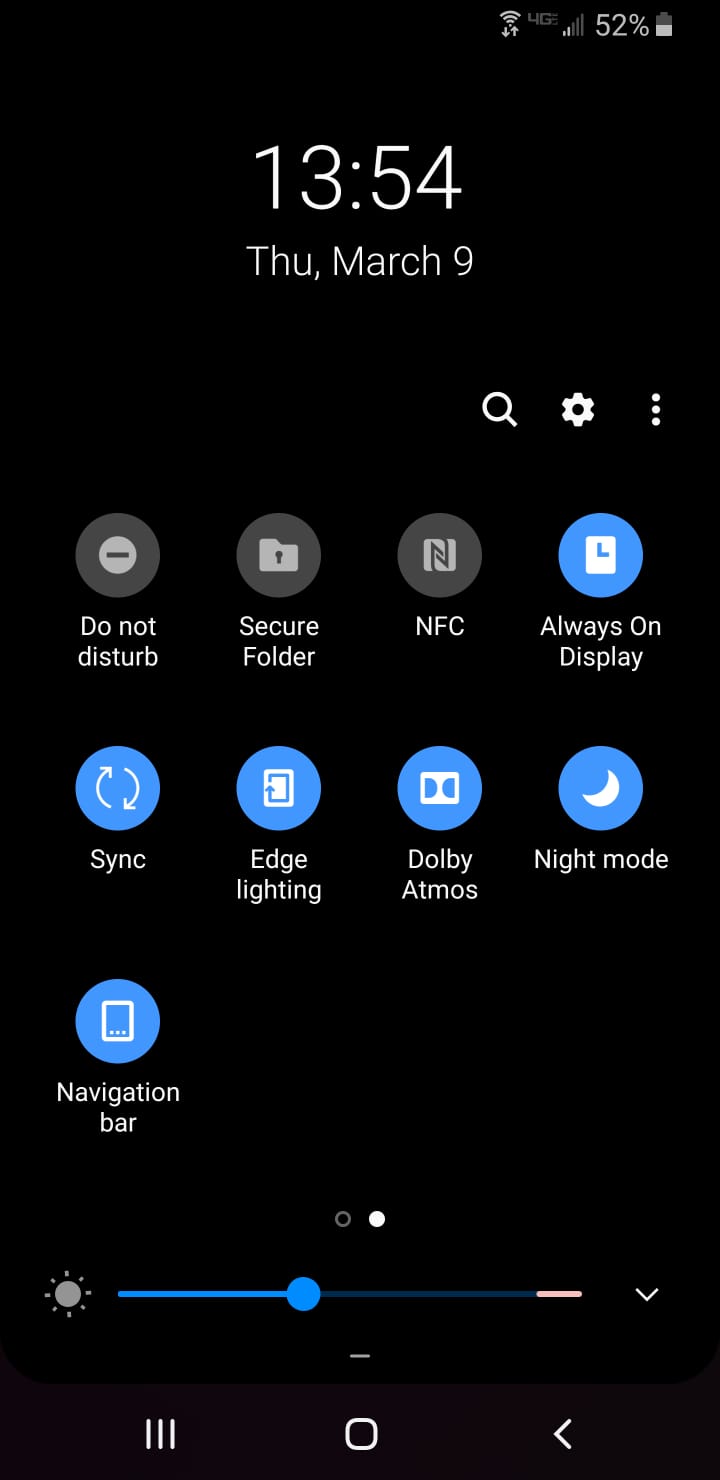
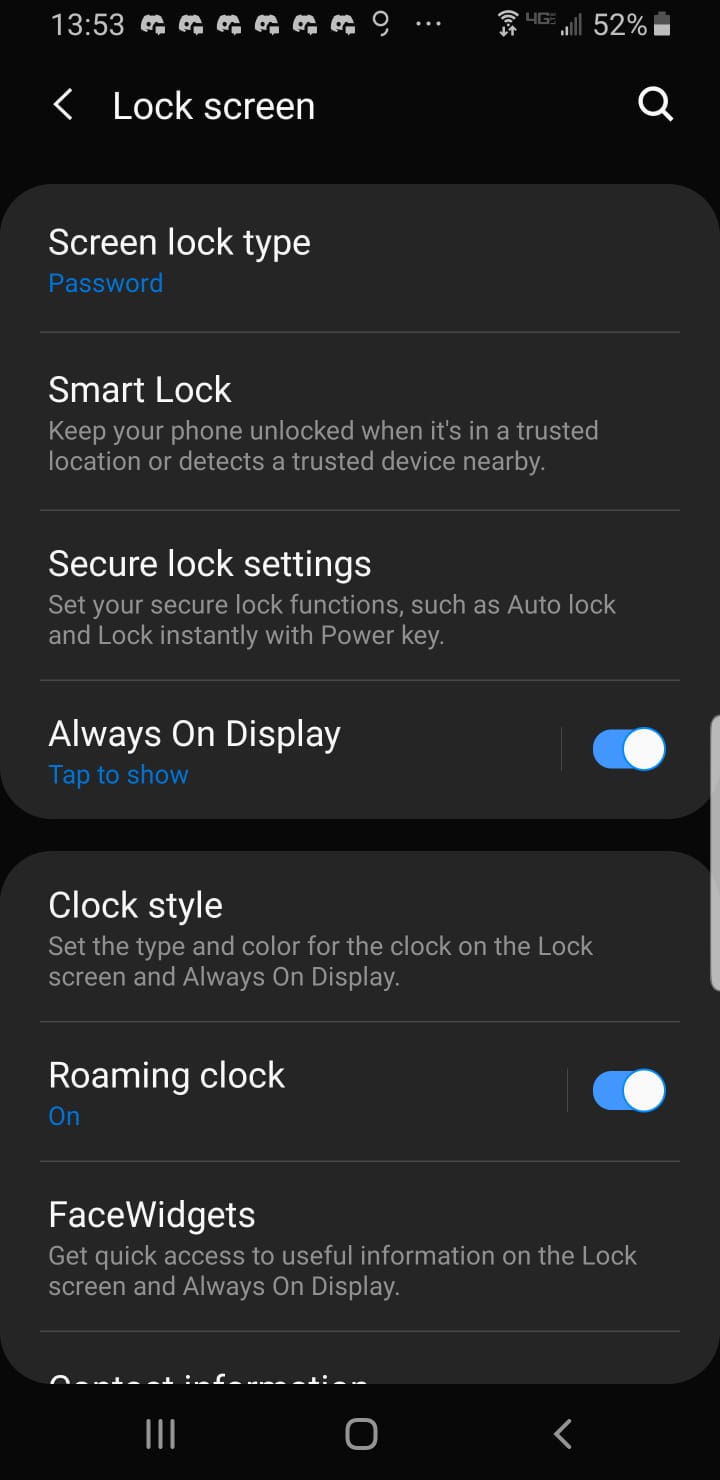
3. Turn off Always On Display (AOD) or set schedule

Always On Display or AOD uses AMOLED displays to show you certain information when your screen is “off”. It allows you to easily check basic information such as date and time without activating the display. Naturally, any activity that makes your screen turn on all the time will consume some power from your battery. You can choose to turn off AOD or set a time schedule for AOD to turn on/off.

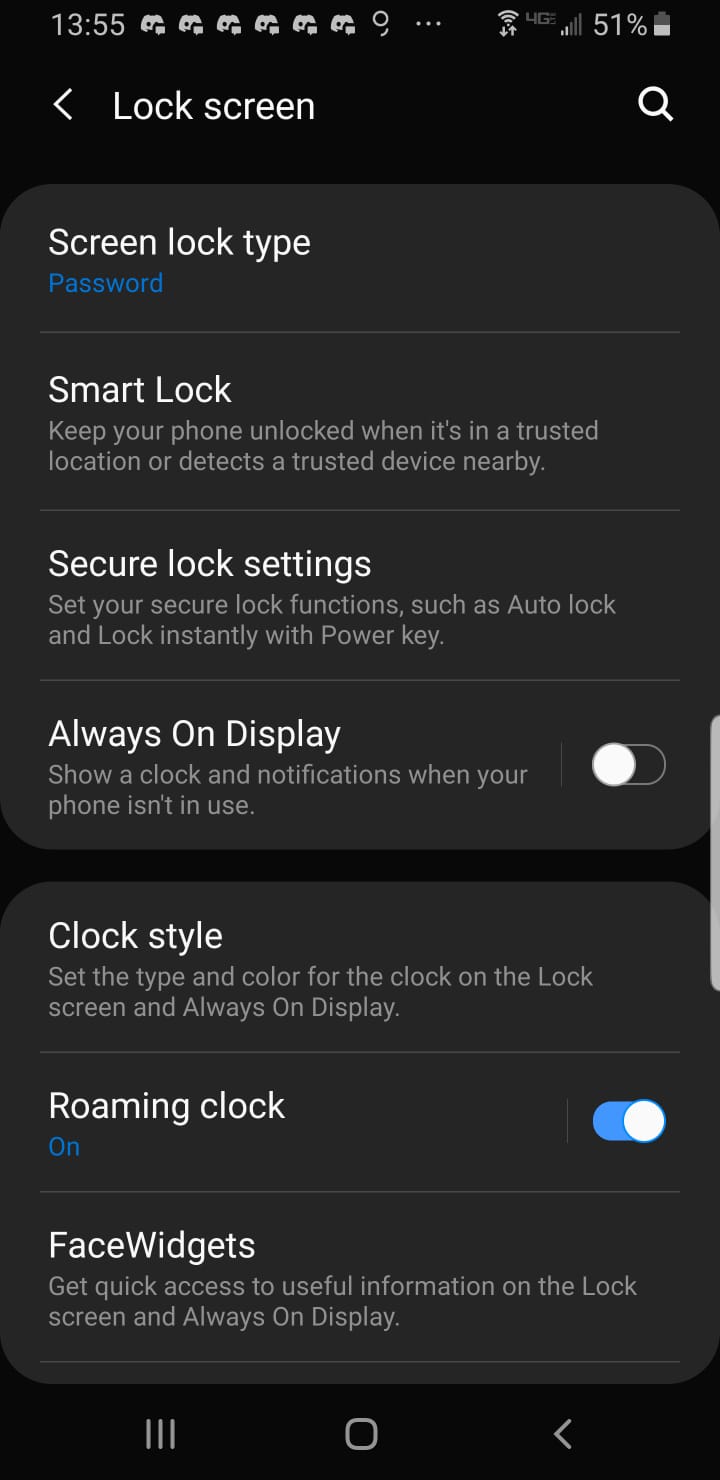
To turn off AOD:  

1) Go to Settings > Lock screen and security > Lock screen and Always On Display
2) Turn off AOD by tapping on the AOD slider (circle will move to the left)

4. Toggle off WiFi, Bluetooth and GPS when not in use

Switch off Wi-Fi, Bluetooth and GPS if you don’t need them, as each regular checks for a signal uses power. You can switch each of these off by pulling down the notification panel (drop down menu) and tapping the relevant icon.

5. Turn on Power saving mode

Power saving mode conserves battery power by limiting mobile device CPU performance, reducing screen brightness, turning off the touch key light and vibration feedback. This mode differs slightly between devices but generally it will close all unnecessary apps and screens so that you can substantially increase your battery time. You can turn on Power saving mode manually, or you can set your device to go into Power saving mode automatically.

Go to Settings > Device maintenance > Battery.

6. Download the latest device software
  • Check your latest device software by going to Settings > About phone.
  • Upgrade your software using either FOTA (‘Firmware Over The Air’, i.e. wirelessly) or via Samsung Kies.
7. Check your device Signal bars

Check the number of bars that you normally see on your handset while at home or work. Using the handset in areas with very low signal uses a lot of power and should be avoided where possible.

8. Check how often your device synchronises data

If like most people, you have a number of apps on your device such as email or social media, these apps will frequently sync, or check for new emails or updates. Frequently syncing can reduce your battery life. Check the sync settings on your apps or email, and ensure they only sync as often as you need them to.

9. Avoid fully discharging your battery

On much older types of batteries, the advice used to be to discharge them completely. However, completely discharging the battery on modern smartphones devices may reduce its life. It’s best not to let your battery go under 20%.

10. Store your device properly

If you do not intend to use your device for some time and pack it away, ensure that it has at least 50% battery.  Minimise hot and cold exposure.

[mai mult...]

Cum reducem dimensiunea fisierelor JPEG fara a compromite calitatea

Sunt foarte multe situatii in care suntem nevoiti sa reducem dimensiunea pozelor, insa si calitatea imaginii se reduce odata cu dimensiunea. JPEGmini reduce semnificativ dimensiunea fotografiilor (pâna la 80%), pastrând in acelasi timp rezolutia si calitatea lor. Dimensiunile mai mici ale fisierelor de imagine ne permit sa incarcam si sa descarcam mai rapid imaginile cu rezolutie completa.
Pentru un site web bogat in imagini, paginile web se vor incarca mai repede, imbunatatind experienta utilizatorului.

[mai mult...]