
Soluții

How to turn on wi-fi guest network – Huawei

1. Connect your computer/phone to the router’s Wi-Fi(check the nameplate at the bottom of the router for the default Wi-Fi name, no password) , or connect the computer to the router’s LAN port using an Ethernet cable. Open your Internet browser. Enter the default IP address in your browser address bar to access the web-based management page(check the nameplate at the bottom of the router for the default IP address).

2. Go to More Functions > Wi-Fi Settings > Guest Wi-Fi to enter the Guest Wi-Fi settings page. Guest Wi-Fi can be enabled and disabled according to your preferences. You can also set Guest Wi-Fi network name, password, and the length of time you would like Guest Wi-Fi to remain enabled for.
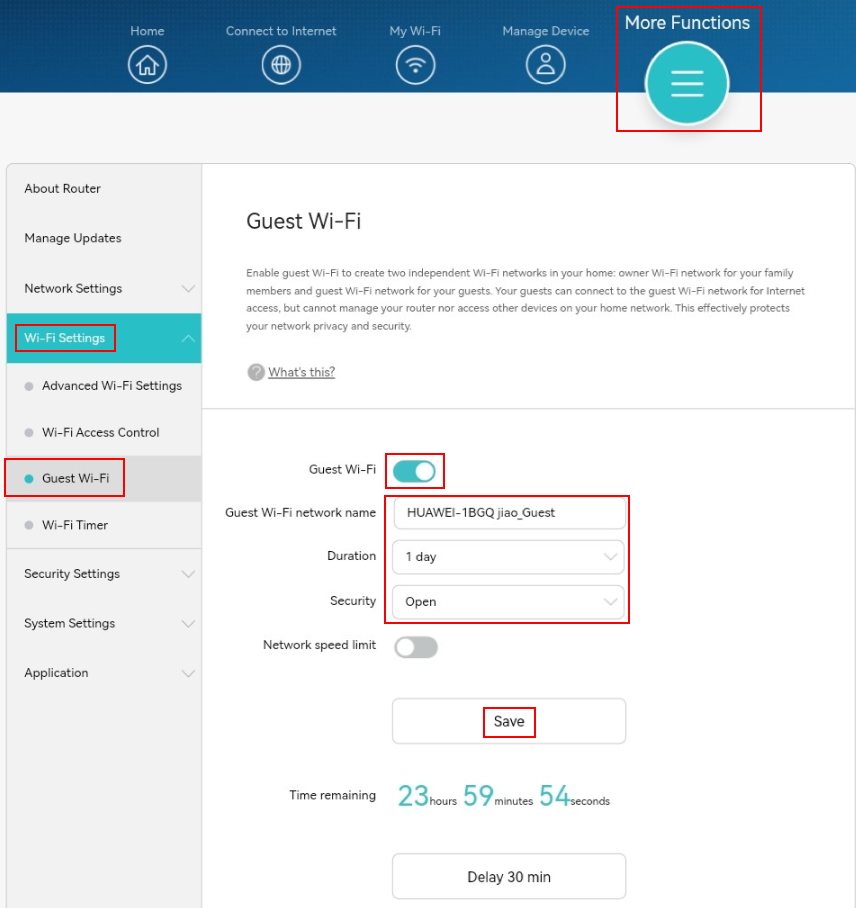
Your guests will be able to get online by connecting their wireless devices to the Guest Wi-Fi network.

  • From your router’s web-based management page, you can limit the speed of any device in the Manage Device page, including the devices from your Guest network.
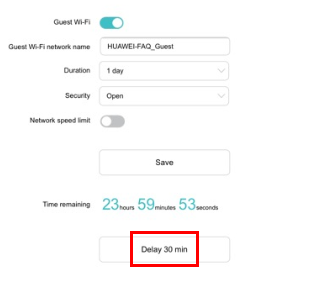
  • If you need to set a more precise time, you can first select a time such as 4 hours or 1 day as a starting point. You can then adjust the length of time guest Wi-Fi is enabled for by using the Delay 30 min option as many times as required.
[mai mult...]

How To Stop Phishing Emails: Outlook

  1. ‘Block Sender’ feature: Outlook’s ‘Block Sender’ feature under the ‘Junk’ Email folder blocks spam and prevents it from entering the user’s inbox.
    • Select the spam email by clicking on the right button
    • Choose Junk from the drop menu, and click Block Sender. Else, Select Home -> Junk -> Block Sender. Outlook marks and relocates it immediately.
  2. Setting Up A Blocked Sender List:
    Similar to blocking a sender, a list of senders can be blocked that appear legitimate at first glance. They can look like yahoo3.com or epaytm.my, and the user can block them with Home-> Junk -> Junk Email Options, this will show a Blocked Senders tab. Users can add a fake website, clicking on the ‘Add button’ and then on ‘OK’.
  3. Setting Up Rules:
    Outlook has an exclusive feature called ‘Create Rule,’ which offers custom email management in which users can assign specific rules to the email, which, when arrives, would beep or intimate the user in some other way.
    Steps:

    • Select the email to be moved to another folder.
    • Select Home > Rules > Create Rule.
    • In the dialog box, Outlook asks: When I get an email with the selected conditions (From, Subject, Sent To), do the following: Display in New Item Alert Window, Play Selected Sound, or Move Item to Folder.
    • In the bottom pane, check the boxes that perform the required actions
    • Click OK.
  4. Checking the spam folders often ensures efficient filtering.
[mai mult...]