Soluții
How to enable Local Security Authority protection on Windows 11
[mai mult...]Shortcut deschidere o noua instanta a unei aplicatii in Windows 10
Sa presupunem ca avem o fereastra de Firefox deschisa in taskbar si am vrea sa deschidem o alta fereastra, adica o alta instanta. Exista mai multe modalitati de a face acest lucru, dar cea pe care o voi descrie in cele ce urmeaza pare a fi cea mai rapida si la indemana.
[mai mult...]How to use Run as to start an application as an administrator in Windows
You can use Run as to start an application as an administrator if you want to perform administrative tasks when you are logged on as a member of another group, such as the Users or Power Users group.
Steps to start an application as an administrator
To use Run as to start an application as an administrator, follow these steps:
- Locate the application that you want to start in Windows Explorer, the Microsoft Management Console (MMC), or Control Panel.
- Press and hold down the SHIFT key while you right-click the executable file or the icon for the application, and then select Run as.
- Select The following user.
- In the User name and Password boxes, type the administrator account and password, and then select OK.
In Windows 8 and Windows 10 start menu, it is possible to run a program or command with elevated privileges by simply right-clicking on the entry in the start menu or in the start menu search results and choosing Run as Administrator:

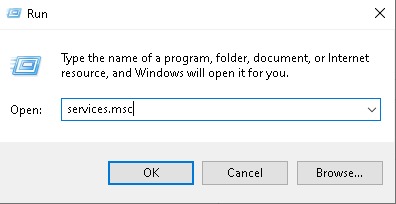
To launch a program with elevated rights via the Windows run dialog, follow the steps below:
1. Use windows key + R to launch the run dialog or Type run in windows search and select it.
2. Type in the name of the process you wish to launch with admin rights (for example, services.msc or cmd.exe, and then press (at the same time) ctrl + shift + Enter.
How to Gain Access to the System Volume Information folder
This procedure is to open the System Volume Information folder on the Windows XP computer.
- Click Start, and then click My Computer.
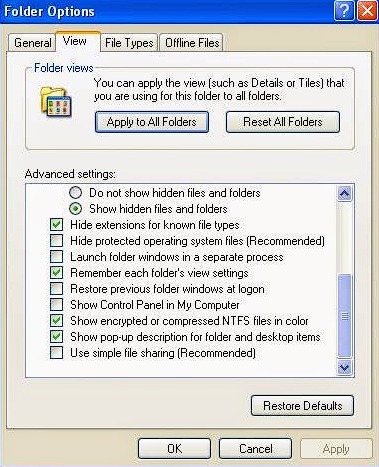
- On the Tools menu, click Folder Options.
- On the View tab, click Show hidden files and folders.
- Clear the Hide protected operating system files (Recommended) check box. Click Yes when you are prompted to confirm the change.
- Click OK.
- Double-click the System Volume Information folder in the root folder to open it.