
Soluții

Remediere eroare:Nvwgf2um.dll

Eroarea legată de fișierul Nvwgf2um.dll este asociată cu driverele grafice NVIDIA și apare de obicei din cauza problemelor cu driverul grafic, fișiere corupte sau incompatibilități între drivere și sistemul de operare.

Iată pașii de remediere pe care îi poți urma:

1. Actualizează driverul grafic NVIDIA

  • Accesează site-ul oficial NVIDIA
  • Introdu detaliile plăcii grafice și descarcă cea mai recentă versiune a driverului pentru sistemul tău de operare.
  • Dezinstalează driverul existent:
    • Deschide Manager Dispozitive (Device Manager): Win + X > Device Manager
    • Găsește placa grafică NVIDIA sub Display adapters
    • Click dreapta și selectează Uninstall device
  • Instalează driverul descărcat și repornește sistemul.

2. Repară fișierul corupt cu SFC și DISM

  • Deschide Command Prompt (ca administrator):
    • Tastează cmd în bara de căutare, click dreapta pe Command Prompt și selectează Run as administrator.
  • Rulează comanda SFC:
    sfc /scannow

    Aceasta verifică și repară fișierele corupte ale sistemului de operare.

  • Dacă eroarea persistă, rulează comanda DISM:
    DISM /Online /Cleanup-Image /RestoreHealt Aceasta repară imaginea sistemului.

3. Reînregistrează fișierul DLL

  • Deschide Command Prompt (ca administrator).
  • Rulează comanda:
    regsvr32 /u Nvwgf2um.dll Urmată de:     regsvr32 Nvwgf2um.dll

4. Dezinstalează și reinstalează aplicațiile implicate

Dacă eroarea apare doar în anumite aplicații (ex: jocuri sau software care folosește accelerare grafică):

  • Dezinstalează aplicația problematică.
  • Reinstaleaz-o cu cea mai recentă versiune compatibilă cu driverele actualizate.

5. Verifică integritatea hardware-ului

  • Verifică dacă placa grafică este corect conectată în slotul PCIe.
  • Dacă folosești o placă grafică veche, verifică dacă există supraîncălzire sau deteriorări fizice.
[mai mult...]

Arzopa A1 Portable Monitor

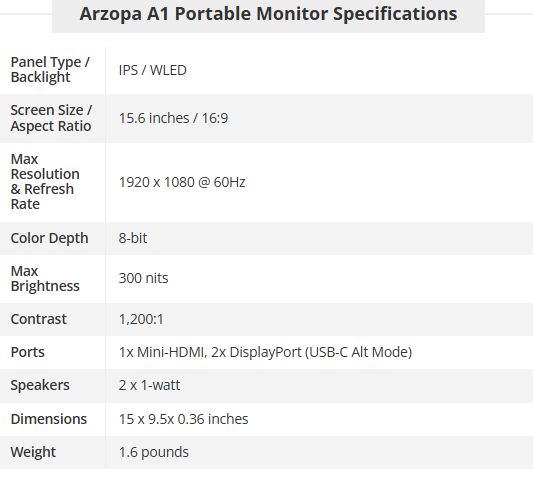
When it comes to the best portable monitors, multiple manufacturers seem to be testing the lower limits of what’s possible regarding pricing. Arzopa has added some nice touches to this portable monitor, making it an excellent bargain for anyone seeking a secondary monitor for travel use.

The A1 sets itself apart from similar entries in this price segment due to its choice of materials for the chassis. While most value-priced portable monitors use a plastic chassis to keep costs down, the A1 uses an aluminum frame instead. This imparts a sense of quality you can’t get from cheap, thin plastic that flexes easily. The chassis is rigid and finished in matte black.

Thin bezels run along the sides and top, while a more significant “chin” resides below the 15.6-inch panel, which features Arzopa branding. We love to see integrated kickstands on portable monitors, and Arzopa includes one on the A1. It’s a long, rectangular kickstand that is top-hinged. The stiff hinge lets you configure the monitor to your ideal angle for the best viewing experience.

The A1 features three ports on its left side: two USB-C (DisplayPort Alt-Mode supported) and an HDMI port. Arzopa also includes USB-C to USB-C, USB-C to USB-A (for auxiliary power), and HDMI to Mini-HDMI cables in the box. There are three buttons located at the top left of the S1. There’s a multi-function power/input switch/return button, a rocker switch (which navigates the OSD or controls brightness/volume), and an OSD button.

The most popular size and resolution in the portable monitor space is 15.6 inches and Full HD (1920 x 1080). Not surprisingly, this is how Arzopa specs the A1, including a 60Hz panel refresh rate.

[mai mult...]

Lenovo ThinkPad X1 Carbon (Gen 13)

Lenovo’s ThinkPads are known for their superior build quality, industry-leading keyboards, unique TrackPoint nubs and excellent performance and battery life. The X1 Carbon has long been the flagship ThinkPad, thanks to its light weight, plethora of ports, and luxurious carbon fiber / magnesium chassis.

The 13th generation Carbon – dubbed the ThinkPad X1 Carbon (Gen 13) Aura Edition – shaves the already-low weight down by an impressive 0.25 pounds to just 2.17 pounds while leaving in place everything that makes this series great. Designed to compete with the best ultraportable laptops, it also upgdates to an Intel “Lunar Lake” Core Ultra processor, which allows for longer battery life but limits its RAM to 32GB. This is also one of a few “Aura Edition” laptops, which means that it has a handful of harmless, but not particularly exciting software features that Lenovo developed in collaboration with Intel.

The ThinkPad X1 Carbon (Gen 13) brings the typical ThinkPad aesthetic, with “eclipse” black, soft-touch material – mostly recycled carbon fiber and magnesium – used throughout the shell. A bright red status light adorns the ThinkPad logo on the lid, and there are touches of red on the inside – the TrackPoint pointing stick, the red stripes on the TrackPoint buttons, and the red dot in the ThinkPad logo on the deck. This is not an original look but it is a classy one, particularly when you feel the soft-touch material.

At 12.31 x 8.45 x 0.56 inches (312.8 x 214.75 x 8.08-14.37 mm) and 2.17 pounds (986g), the X1 Carbon (Gen 13) is very thin and light. Its dimensions are about the same as the Gen 12 model that preceded it, but it’s a full 0.25 pounds lighter. By comparison, the Dell XPS 13 (0.58 inches thick, 2.7 pounds) and ThinkPad T14s (0.67 inches thick, 2.72 pounds) are both larger.

Considering its svelte form factor, the X1 Carbon (Gen 13) has room for all the ports you might need, including two USB Type-A ports, two Thunderbolt 4 / USB-C ports, a 3.5mm audio jack, and a full-size HDMI port. The power button is located on the right side so you can easily power on the laptop, even if the lid is closed and it’s docked.

As usual, the ThinkPad X1 Carbon (Gen 13) is designed to withstand some abuse. According to Lenovo, it is tested against 12 MIL-STD durability tests, including those for extreme vibrations, humidity, sand / dust, and mechanical shock.

[mai mult...]