Functia EXACT in Excel
Se doreste sa se verifice continutul a 2 celule excel si continutul acestora sa fie exact la fel
[mai mult...]
Soluții pentru problemele tale IT
Se doreste sa se verifice continutul a 2 celule excel si continutul acestora sa fie exact la fel
[mai mult...]Se doreste transformarea cuvintelor scrise cu litere mici in cuvinte scrise cu litere mari
[mai mult...]Incepand cu data de 2 August 2019, Amazon ofera posibilitatea de a controla aceasta optiune.
[mai mult...]Este cunoscut faptul ca atat Google cat si alte companii folosesc functia de Voice Assistant Recordings prin care sunt inregistrate conversatiile si folosite cuvinte cheie pentru recomandari ulterioare.
[mai mult...]Dacă ai folosit Windows 10 pentru un timp, probabil că ai observat că nu mai poți să apeși pe tastele F8 sau pe Shift + F8 pentru a intra în modul Safe Mode (Mod de siguranță). Aceste metode au încetat să mai funcționeze deoarece procedura de pornire din Windows 10 este mult mai rapidă decât în trecut. Dar asta nu înseamnă că Windows 10 nu dispune de un Safe Mode (Mod de siguranță). Diferența este că, pentru a ajunge la modul de siguranță, trebuie să urmezi alți pași. Hai să vedem toate metodele prin care putem porni Safe Mode (Mod de siguranță) în Windows 10:
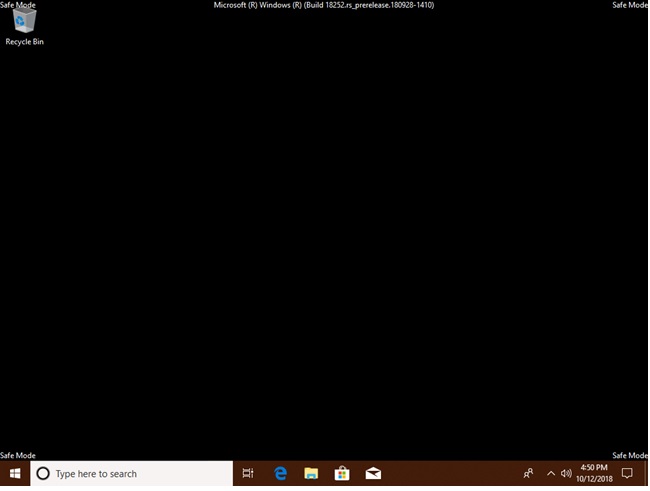
Când intri în Safe Mode (Mod de siguranță) în Windows 10, sistemul de operare încarcă o interfață de utilizare minimală, doar cu driverele și serviciile de bază necesare pentru funcționarea sa. Acest mod face ușoară depanarea problemelor deoarece nu încarcă lucrurile care pot cauza erori în Windows 10. Iată cum arată Modul de siguranță:
The system files, installed applications, and personal data can easily eat up your M.2 SSD space and slow down your PC, especially when you are using an M.2 SSD with small storage capacity. When the low disk space appears, you need to clone an M.2 SSD to a larger M.2 SSD to upgrade the disk for better performance.
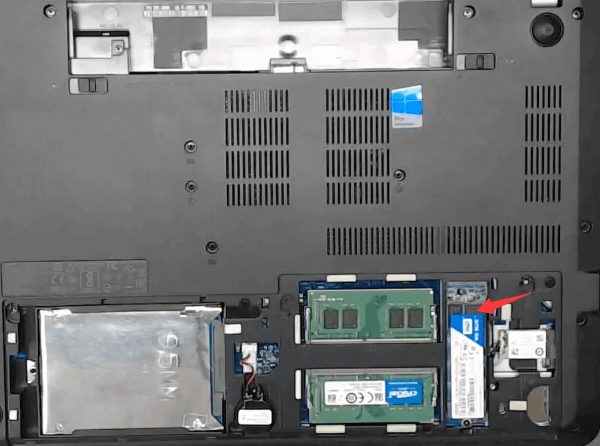
Before you install the SSD drive though, first make sure that the SSD drive you bought is compatible with your laptop motherboard.
On a laptop
On a desktop computer
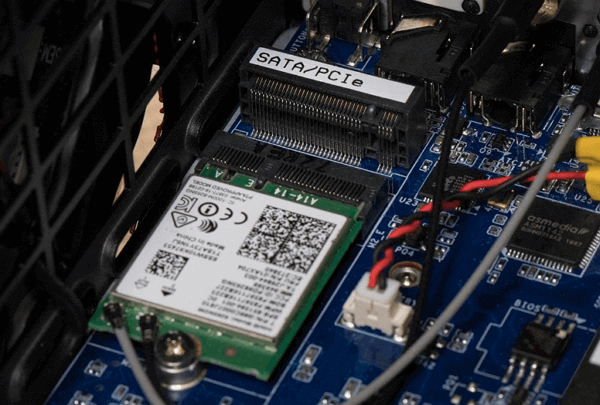
Make sure that both the SSDs are recognized by your computer. Download and install the essential disk cloning software, or you may treat it as an M.2 SSD to M.2 SSD duplicator
To clone one M.2 SSD to another larger M.2 SSD, follow these steps:
Step 1. Launch EaseUS SSD cloning software and choose “Clone” to start cloning one SSD to the other larger SSD.
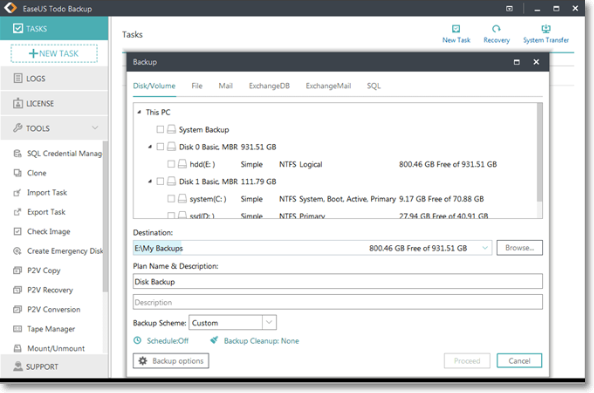
Step 2. Choose the smaller SSD as the source disk and click “Next”.
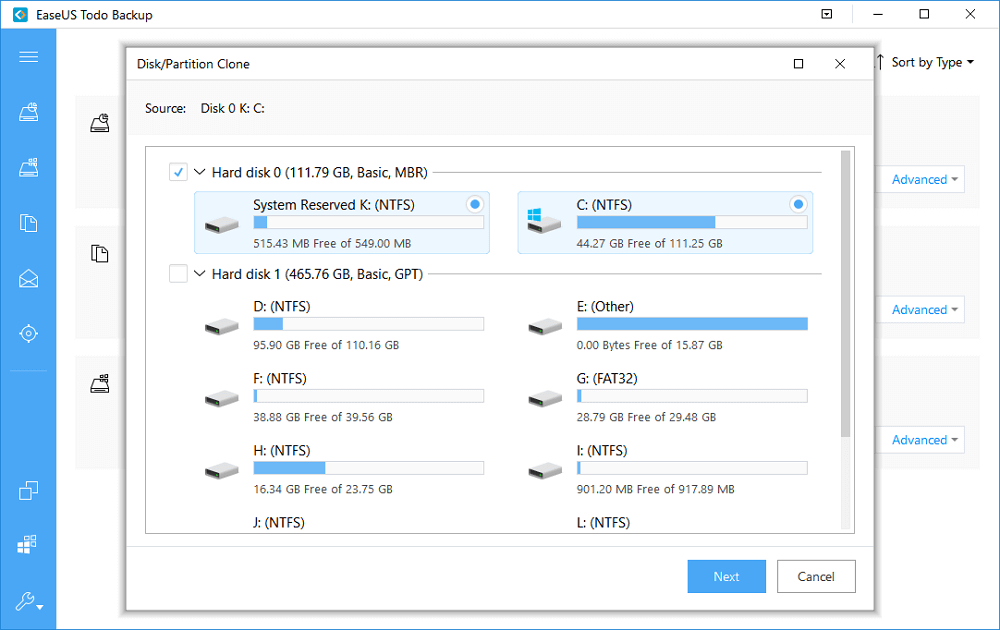
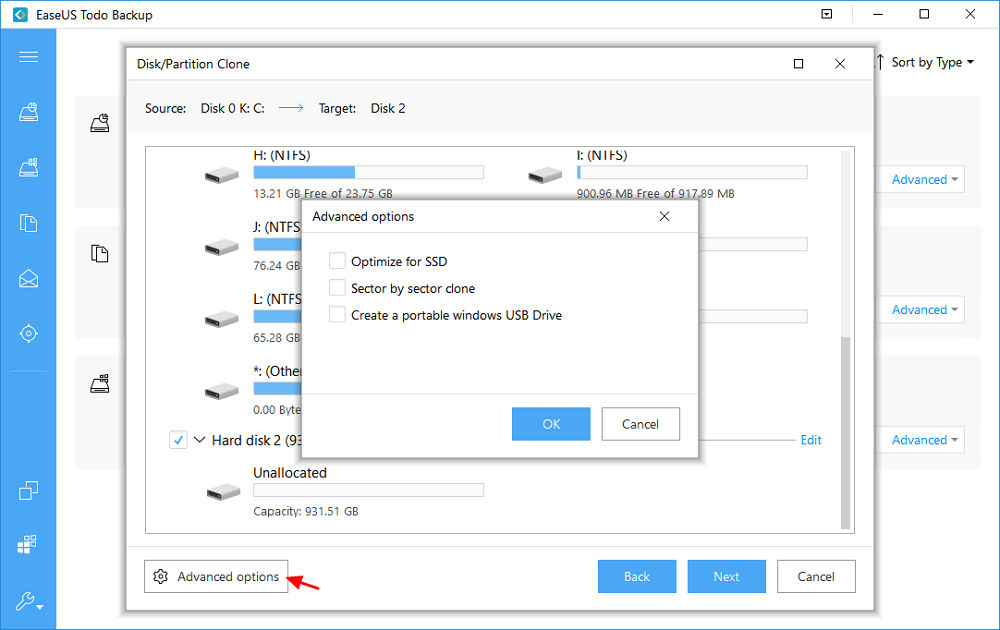
Step 3. Choose the larger SSD as the destination disk. Here, we highly suggest you tick the option “Optimize for SSD” within “Advanced options” in the bottom left corner. Click “OK” and then click “Next”.
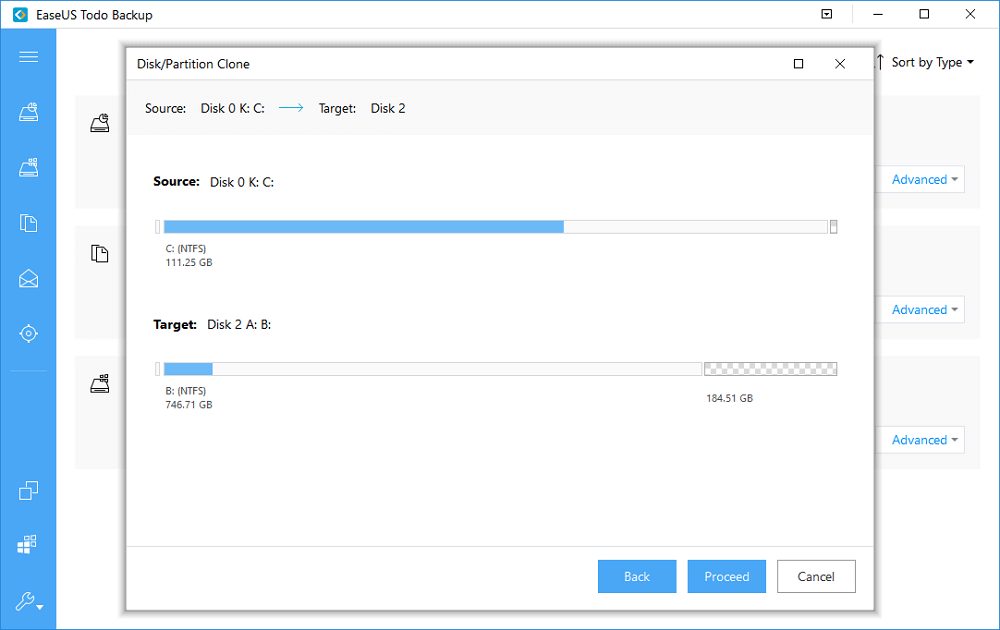
Step 4. If nothing’s wrong on the disk layout, click “Proceed”. It won’t take long to clone a smaller SSD to a larger SSD.
At last, if you cloned the operating system to the new SSD and wish to boot Windows from it, try to disconnect the old SSD from your computer.
[mai mult...]