How to Remove Personal Info from a PowerPoint Presentation Before Sharing

Save a Copy of Your File

First things first; if you plan to remove any of your personal information from a file, you might not be able to restore the data once it’s gone. With that in mind, it’s a good idea to have a backup file on hand. In addition to having a copy of your original document, be sure to give it a distinguishable name, so you know which file is which.

For example, you might have a slideshow that you presented at a sales conference. After the conference, you may need to send that presentation out to your clients. In this case, you would want to make a copy of the original file and then remove your personal info from the client copy. You’d also want to make sure you don’t send out the wrong copy, so give it a clear name!

Sales presentation plus client copy

Once you’ve saved a copy of your file, open it up and remove your information.

Inspect Your Presentation to Remove Personal Information

Once you’ve opened the copy of the file you’d like to remove your information from, select the “File” tab. Once selected, you’ll automatically be at the “Info” sub-tab. Here, click the “Check for Issues” button.

Check for issues

Select “Inspect Document” from the menu that appears.

Inspect Document

Once selected, the “Document Inspector” window will appear. Tell PowerPoint which types of content you’d like it to inspect by checking the box next to each option.

Once you’re ready, click “Inspect.”

Document Inspector

The inspection results will appear. If you see a green check mark next to a section, then no items were found, and no further action is required. However, if you see a red exclamation point, then that means information was found in that section. Review it, then select “Remove All” from each group that contains sensitive information.

Remove all personal info found from inspection

Now you’ll receive a message letting you know the information was successfully removed. As a matter of good practice, reinspect the document to ensure all of the data has been removed. Go ahead and click “Reinspect.”

Reinspect

It will go through the inspection process again. If it missed anything, it would let you know. During our reinspection, everything checked out. However, mistakes happen, and technology isn’t perfect. This further reinforces why it’s always a good idea to check and double-check before sending anything out—especially when it comes to your personal data.

Documentation inspection complete.

Finally, save your file. You may notice that the size of the PowerPoint file has been reduced. This is great since it’s not always possible to send extremely large documents via email. Speaking of, that’s your last step. So what are you waiting for? Share your presentation!

[mai mult...]
Rezolvati eroarea Office 365 0x8004FC12 in Windows 10

Eroarea MS Office 365 0x8004FC12 apare atunci când utilizatorii Windows încearcă să activeze Office 365, 2013 sau 2016.

Eroarea 0x8004FC12 are următorul mesaj de eroare: “Ne pare rău, ceva a mers prost și nu putem face acest lucru pentru tine chiar acum. Vă rugăm să încercați din nou mai târziu. (0x8004FC12). ” Unii utilizatori de Windows 10 au raportat că au primit această eroare, ceea ce le blochează de la activarea MS Office, după actualizarea recentă la platformă. Acesta este modul în care puteți remedia eroarea Office 365 0x8004FC12 în Windows 10.

[mai mult...]

Instalati KB4503267 pentru a rezolva problemele de autentificare cu Windows Hello

Actualizarea cumulativă KB4503267 este acum disponibilă pentru descărcare pe PC-urile care rulează Windows 10 v1607. În această actualizare din 2019, actualizarea Patch pregateste Windows 10 pentru a construi versiunea 14393.3025. În afară de actualizările de securitate pentru Edge și alte componente Windows, KB4503267 rezolvă unele probleme enorme de autentificare care afectează Windows Hello.


[mai mult...]

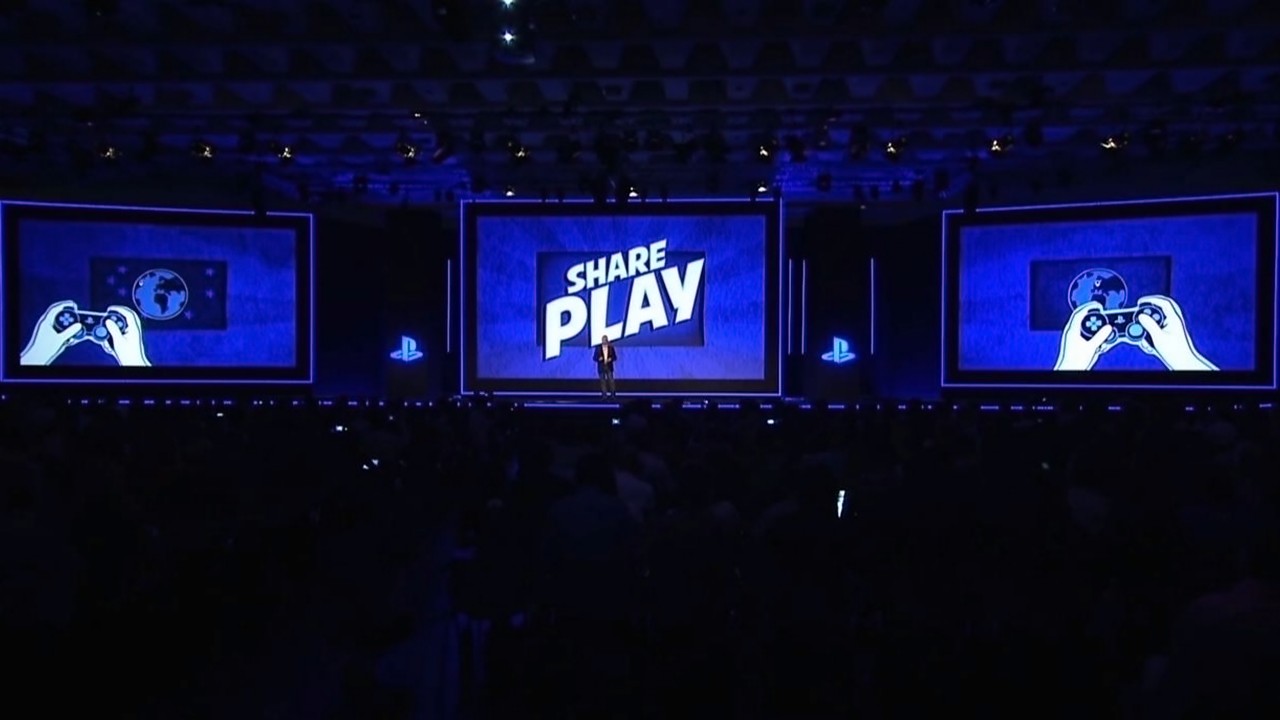
Share Play on PlayStation 4 and how it works

What is Share Play?


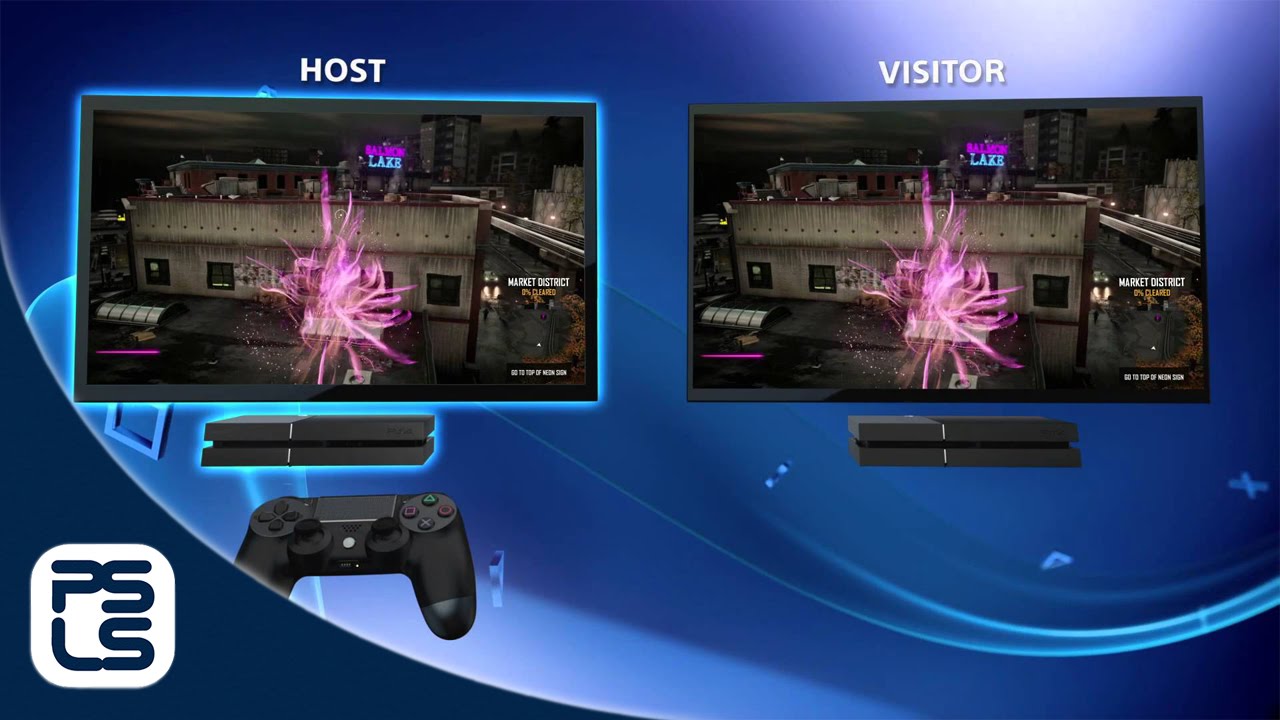
You can use Share Play to play with a friend as if you were in the same room. It allows you to invite a visitor to view your screen for up to 60 minutes a session. If you are stuck in a game or want the visitor to try a game, Share Play allows you to hand over your controller to a visitor so they can play instead. You can also invite your visitor to play a local multiplayer session over the internet even if the game does not support online multiplayer. The visitor does not need to own the game to use Share Play.


What is the minimum connection speed needed for Share Play?

To get the best experience from Share Play, both you and your friend will need a high speed internet connection. The conditions surrounding the home network of each player may also impact internet connectivity. As a guide a minimum connection speed of at least a 2Mbps is recommended. To check your upload speed, please check with your network service provider.

How do I hand over my controller?


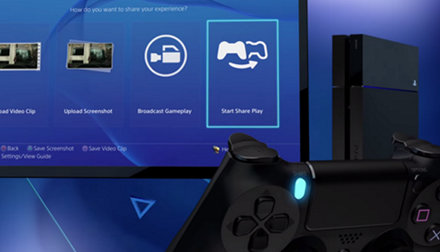
Simply press the SHARE button at any time, ‘Go to Party for Share Play’ and select the ‘Give Controller to Visitor’ option. On the next Screen you can chose to ‘Allow the Visitor to Play as You’. This hands over the controller and the visitor can now play the game while you watch. You can take back control at any time by pressing the SHARE button, accessing the Share Play menu and selecting ‘Take Back Controller’

How do I start a local multiplayer session via Share Play?


Access the Share menu by pressing the SHARE button and select “Go to  Party for Share Play”. Choose ‘Give Controller to Visitor’ and select ‘Play a Game Together’. Now an additional controller has been added to the game. You can play a game together or against each other. Depending on the title you might need to choose the controls in the games menu just as you were playing next to each other with two controllers.

What are Share Play’s Limitations?

  • The host and visitor have to be PlayStation Network friends.
  • The host and visitor have to be online.
  • The number of players who can use Share Play is 2.
  • Maximum length of one Share Play session is 60 minutes. When the session ends, you can restart Share Play immediately.
  • Only the host earns trophies.
  • Game saves will be saved only on the host’s PS4.


[mai mult...]