How to set the margins in OpenOffice by creating a template and set it as default
Follow the steps below to set the margins to a specific size as default in OpenOffice.
[mai mult...]
Soluții pentru problemele tale IT
Follow the steps below to set the margins to a specific size as default in OpenOffice.
[mai mult...]Follow the steps below to enable/disable grayscale in Windows 11.
[mai mult...]Follow the steps below to open a shortcut in maximized window.
[mai mult...]If you want to record audio in Windows 11, Microsoft provides a native app exclusively for recording. All you need to do is just access this application and start to record audio.
[mai mult...]Do you want to protect folders and files with a password?
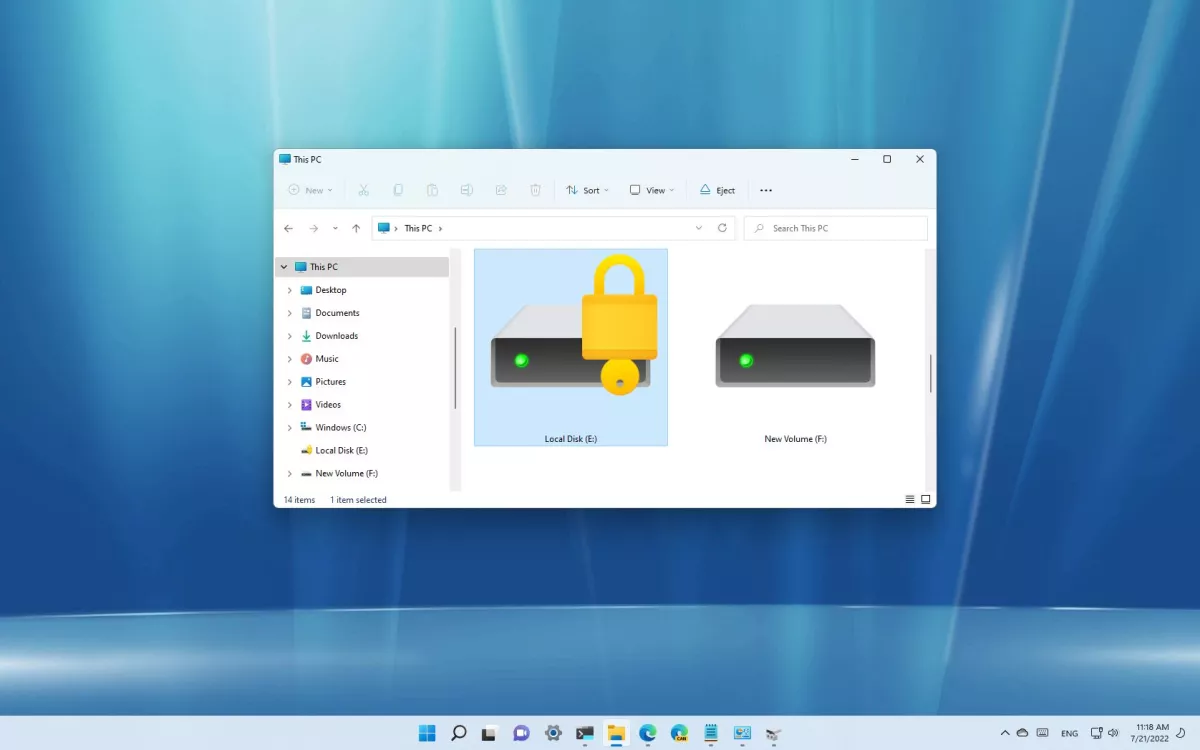
On Windows 11, you won’t find a feature to add a password to a folder to protect your files because your account is already protected with a password and encryption, and it’s assumed that you will be the only one using it.
However, if you share the computer with others, are concerned about unauthorized access, or want to add another layer of security, you can use the virtual hard disk feature along with BitLocker to protect files and folders with a password on Windows 11.
Windows 11 doesn’t have a feature to protect a folder with a password because the account is already protected with your profile credentials. However, you can use the virtual drive and BitLocker features to create a drive you can secure with a password, which works similarly to a password-protected folder.
Pentru a incepe intrati in Control Panel si alegeti “Network and Sharing Center”. Atentie! Trebuie sa aveti la View by: Large icons nu Small.

Se va deschide reteaua la care sunteti conectat
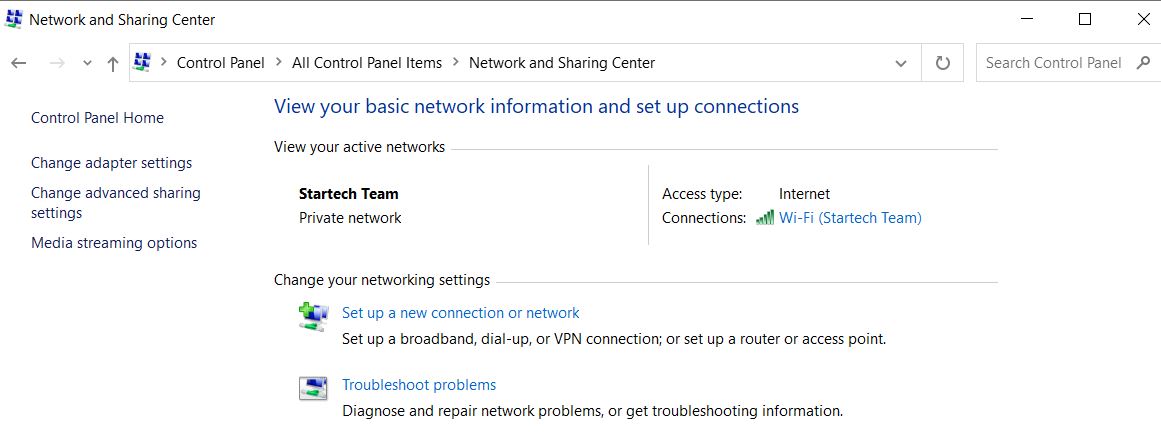
Selectati reteaua care apare in partea dreapta
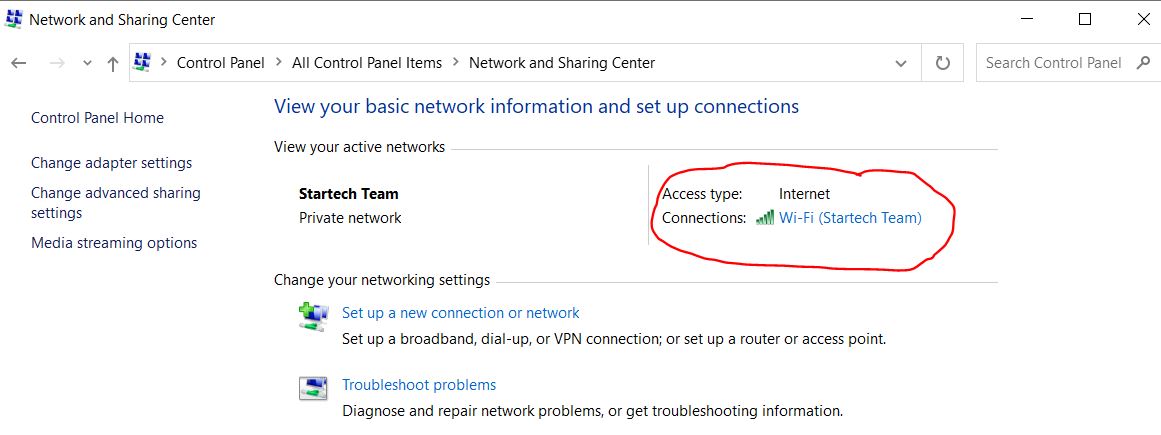
Se va deschide o fereastra cu Wi-Fi Status
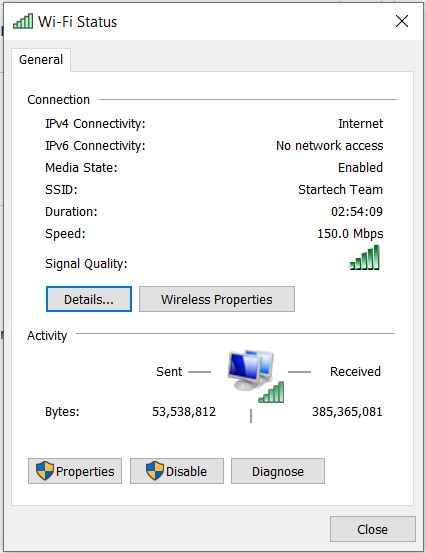
Selectati Wireless Properties
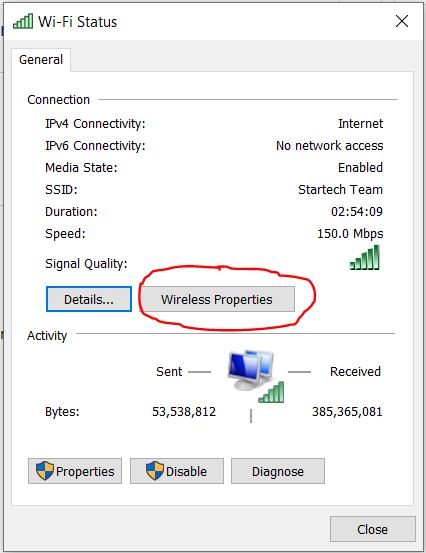
Se va deschide o noua fereastra cu Wireless Network Properties
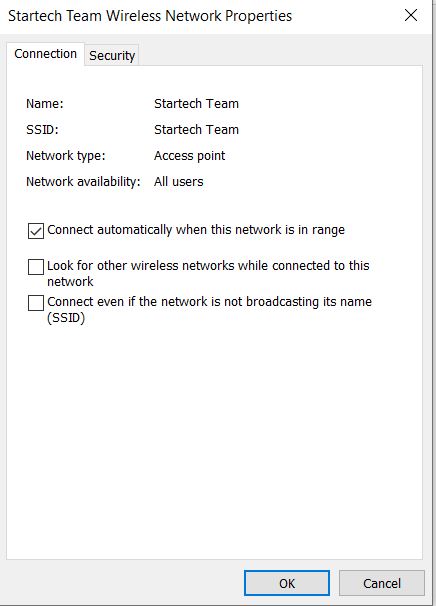
De aici selectati ,,Security’’ si bifati casuta,,Show Characters’’ de sub ,,Network Security Key’’
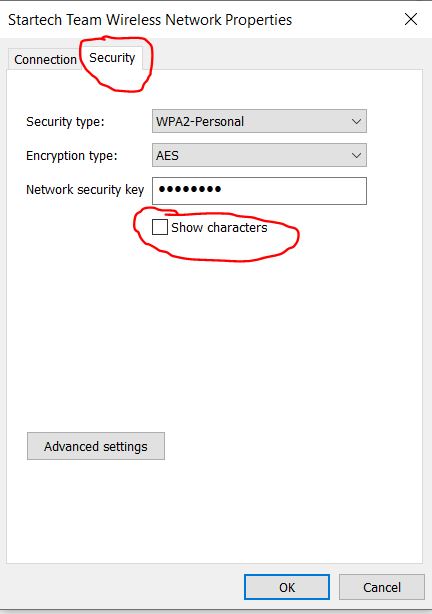
Acum trebuie sa afiseze parola de la retea Wi-Fi.
[mai mult...]