OS - Windows

Depanare VPN 4 Solutii

instalare printer 50 Solutii

Optimizare pc 50 Solutii

Optimizare PC 103 Solutii

Scanare cu malwarebyte 4 Solutii

shareuire si mapare 15 Solutii

adaugare la domeniu 5 Solutii

Migrare profil 9 Solutii

Instalare/reinnoire certificate 2 Solutii

Personalizare sistem operare 274 Solutii

Configureaza si verifica setarile de boot 11 Solutii

Transfer de date 21 Solutii

Configurare OS 109 Solutii

Reparare OS 47 Solutii

Punct de restaurare OS 8 Solutii

Windows Event Viewer 6 Solutii

Reinstalare/reconfigurare VPN 8 Solutii

Optimizare client e-mail 12 Solutii

Optimizare PC 30 Solutii

Optimizare PC 20 Solutii

Reinstalare / Reconfigurare VPN 6 Solutii

Reinstalare OS 32 Solutii

Reparare sistem de operare 45 Solutii

Programare sistem operare 12 Solutii

Puncte de restaurare sistem de operare 14 Solutii

Instalare imprimanta 44 Solutii

Mapare si partajare 13 Solutii

Modificari firewall 12 Solutii

Migrare profil 8 Solutii

Transferuri de date 33 Solutii

Upgrade sistem operare 12 Solutii

Windows Event Viewer 7 Solutii

Verificare HDD 32 Solutii

Spatiu partitie 31 Solutii

Scanare cu MalwareBytes 5 Solutii

Setari servicii sistem operare 42 Solutii

Setari retea sistem operare 25 Solutii

Setari partitii 19 Solutii

Actualizare sistem operare 15 Solutii

Clonare HDD 11 Solutii

Compatibilitate program 13 Solutii

Instalare / Reinnoire Certificate 6 Solutii

Configurare si verificare setari de BOOT 15 Solutii

Configurare Sistem de operare 1399 Solutii

Identificare DLL-uri lipsa 2 Solutii

Depanare 1006 Solutii

Editarea politicilor de grup ale sistemului de operare 13 Solutii

Drivere 50 Solutii

How to Enable Dark Mode in Microsoft Outlook on Windows

Tired of seeing the same, bright Outlook interface on your devices? If so, turn on dark mode and get a dark emailing experience in your favorite email client. We’ll show you how to do that in Outlook on desktop, mobile, and web.

Note: To use Outlook’s dark mode on desktop, you must be a Microsoft Office 365 subscriber. If you have another Office version, you can use a dark gray theme, which is the closest you can get to dark mode.

[mai mult...]

How to Factory Reset the Kwikset Kevo

If you’re planning on selling your Kwikset Kevo, or just moving to another house and don’t plan to take it along with you, here’s how to factory reset it so your digital keys are completely erased from it. Unfortunately, the process isn’t as obvious as Kwikset could have made it, since none of the buttons on the lock say “reset”, and there’s no way to reset the lock from the app. Luckily, we’re here to help (and it literally just takes 10 seconds).

Start by removing the black assembly cover by pushing it upward and sliding it out.

Locate the small button labeled “A”. It will be near the top-left corner of the lock.

Press and hold this button for about ten seconds until you hear the lock beep and the lights on the outside portion of the lock flash red.

Once this happens, release the button and you’ll be good to go! The Kevo is now ready for its new owner. Again, this will completely erase all of your current digital keys, as well as any fobs that you have connected to it. So make sure that you reset the lock after you’re positive that you won’t use it anymore.

[mai mult...]

How to Fix Annoying Nest Secure Notifications

Depending on how you have Nest’s Home/Away Assist feature set up, you might be receiving notifications to set you alarm even if you’re still home.

Start off by tapping the Settings button (the gear icon) in the top right corner of the main screen.

On the “Home” page, select the “Home/Away Assist” setting.

Next, tap the “What Decides If You’re Home” setting.

As you can see, our example phone’s location is not being used to determine whether “Home” or “Away” gets enabled. To change this, tap the “Use Phone Location” option.

And then turn on the toggle switch that appears. The Nest app will now switch to “Home” or “Away” status based on your phone’s GPS location.

You can also tap each individual sensor listed for your Nest Secure system and either include or exclude it from Home/Away Assist. If you disable everything, you’ll need to manually switch to “Home” or “Away” in the Nest app to set your status.

When you’ve set all that up, go back and tap the “Security” setting under the “When You Are Away” section of the main “Home/Away Assist” page.

The toggle switch at the top lets you determine whether or not the Nest app automatically arms or disarms your Nest Secure system when you set your status “Away” or “Home.”

Below that, you can choose the security level to associate with the “Home” and “Away” statuses.

Finally, the “Remind Me” lets your Nest send you a notification reminding you to arm your Nest Secure system when the Nest app detects that you’re not at home. This is the notification pictured at the very top of the article, only this time those notifications will work properly, since we’ve fixed the Home/Away Assist issue.

With a Nest Tag, it’s really easy to manually arm and disarm your Nest Secure system, so disabling Home/Away Assist entirely isn’t a bad idea. However, if you are a big fan of complete automation, these are the settings you’ll want to customize and mess around with.

[mai mult...]

Activare criptare folosint Bitlocker

BitLocker este un program de securitate și criptare a hard disk-ului lansat de Microsoft Corporation ca aplicație nativă în edițiile sale Windows 7 Enterprise și Ultimate, Windows Vista Enterprise și Ultimate și versiunile Windows Server 2008, R2 și 2012. Este un program de criptare de securitate a unității care protejează conținutul și datele unității de orice atac offline.

Pentru a activa Bitlocker va trebui sa urmam pasii de mai jos:

  1. Se merge in partea din stanga jos si se apasa pe iconita Start
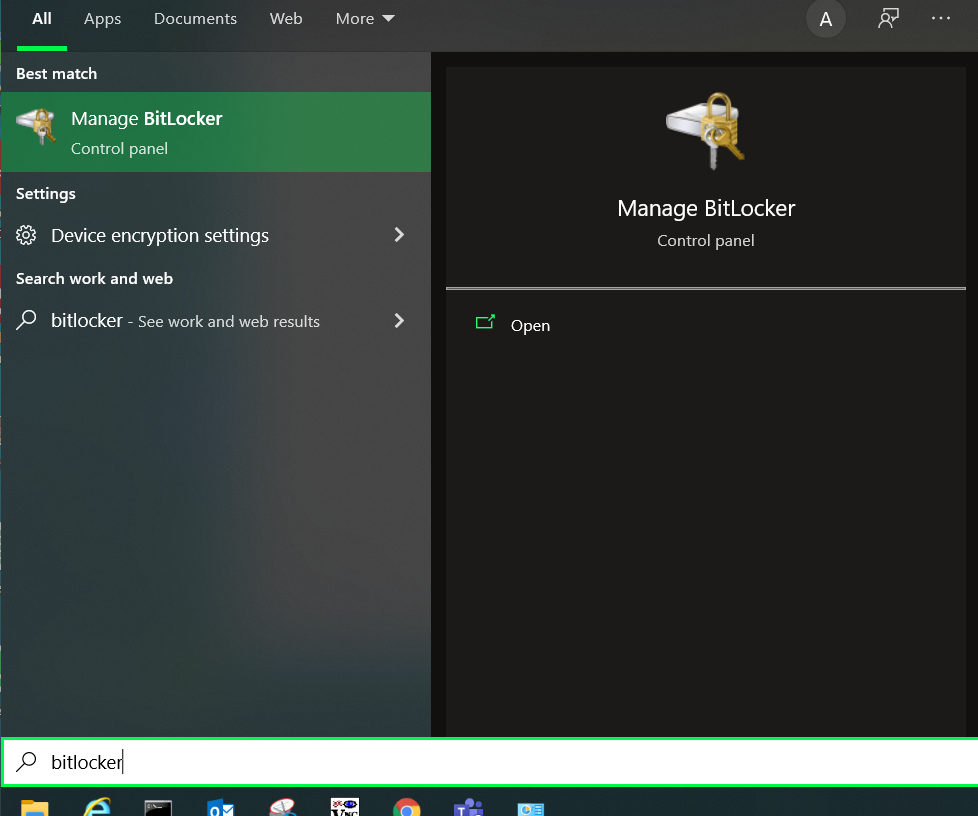
  2. Se cauta Bitlocker si prima optiune va fi cea de mai jos:

3. Se va deschide meniul de configurare Bitlocker unde va fi nevoie sa se selecteze “Turn On Bitlocker” si se urmeaza instructiunile.

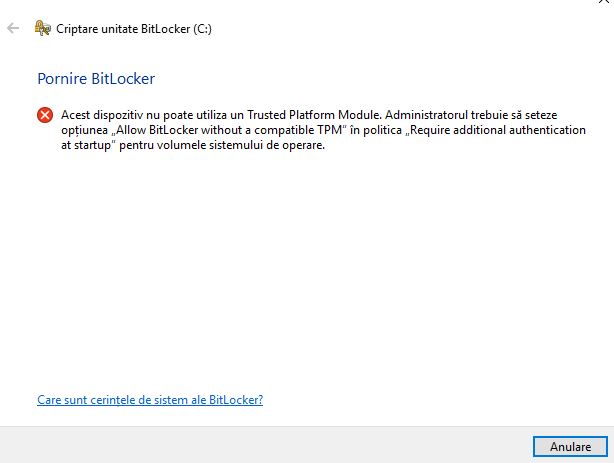
In cazul in care calculatorul nu este adaptat cu CIP TPM (Un cip TPM (Trusted Platform Module – Modul Platformă de Încredere) este un dispozitiv care generează chei criptografice sigure și unice, care sunt stocate ca date criptate, pentru a putea fi folosite în autentificarea dispozitivelor hardware. Cheile criptografice pot fi criptate și decriptate doar de cipul TPM care le-a creat). Atunci se va intampina eroarea de mai jos:

Pentru a remedia aceasta eroare va fi nevoie sa se urmeze pasii de mai jos:

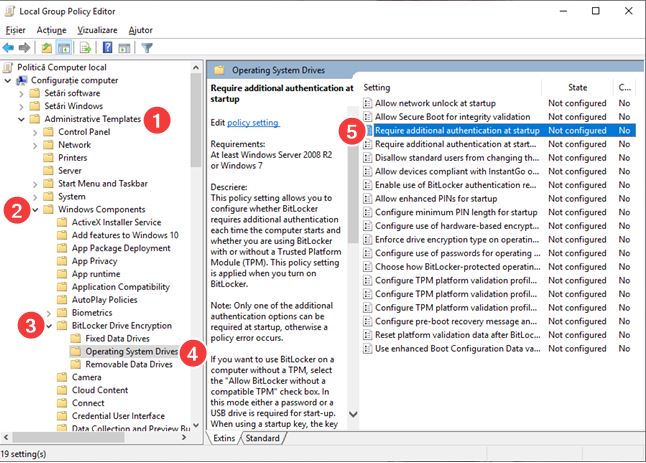
  • Se deschide din start Local Group Policy Editor folosind comanda (gpedit.msc) cu drepturi de Administrator
  • Se merge la seciunea Administrative Templates –> Windows Components–> Bitlocker Drive Encryption–> Operating System Drivers–> Require additional authhentication at startup (dublu click pentru a se deschide)

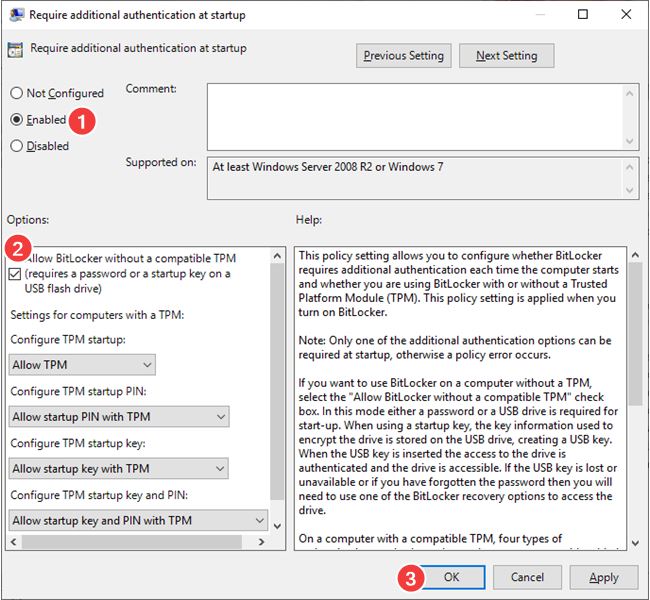
  • In fereastra de proprietati politici se bifeaza “Enable” si se bifeaza optiunea Allow Bitlocker without a compatible TPM)

Mai departe se pot urma pasii anteriori pentru a se initializa criptarea.

[mai mult...]