How to block the Windows 11 update using Local Group Policy Editor
You can block release updates and manually allow only the updates you want to make sure Windows 11 doesn’t get installed on your Windows 10 PC.
[mai mult...]
Soluții pentru problemele tale IT
You can block release updates and manually allow only the updates you want to make sure Windows 11 doesn’t get installed on your Windows 10 PC.
[mai mult...]You can block release updates and manually allow only the updates you want to make sure Windows 11 doesn’t get installed on your Windows 10 PC.
[mai mult...]Windows 11 now allows you to center or left align the Start button and pinned taskbar programs on the taskbar.
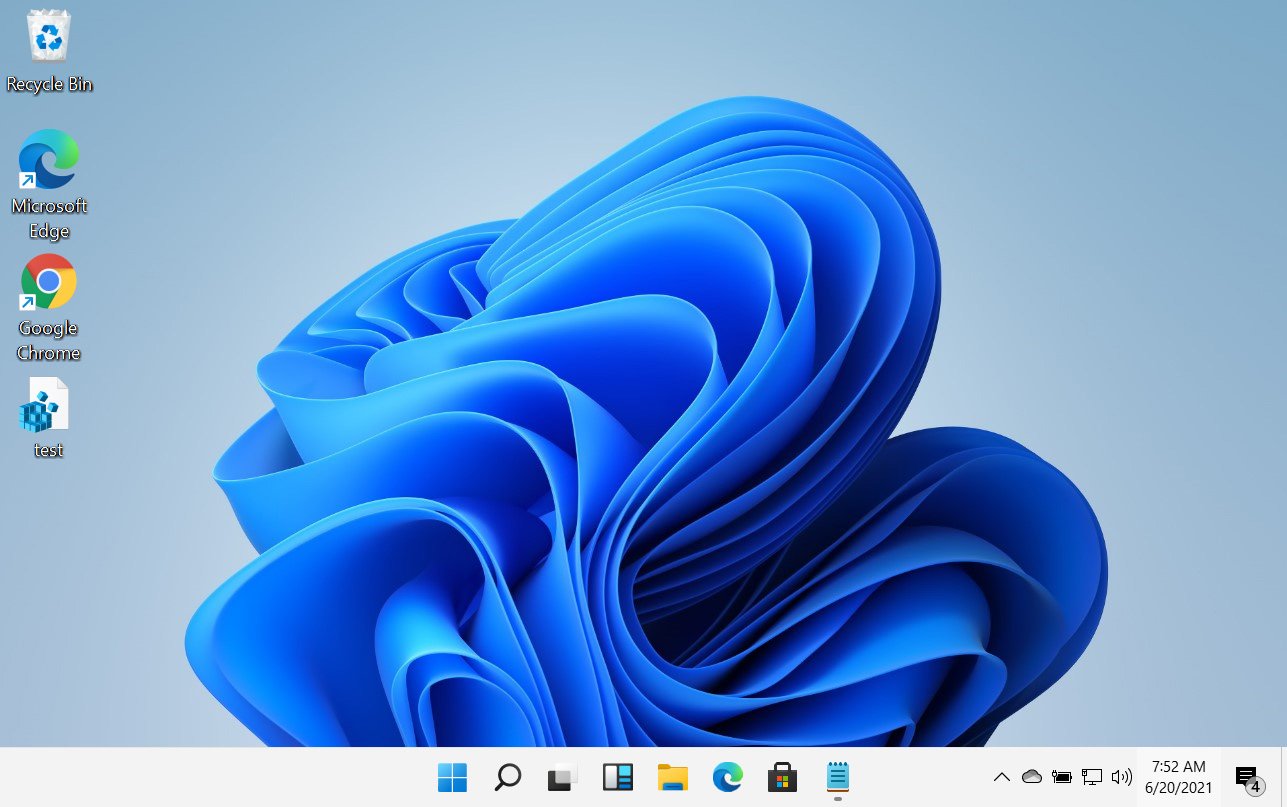
To control the alignment of the Windows 11 taskbar, Microsoft introduced a new ‘TaskbarAl ‘ Registry value.
[mai mult...]When the preview build of Windows 11 was leaked online, one of the most controversial changes was the new Windows 10 Start Menu.
With Windows 11, Microsoft did away with the Start Menu we associated with Windows and replaced it with a new one based on the now shelved Windows 10X. While some people like the new Windows 11 Start Menu, many do not and wish they could switch back to the Windows 10 version.
The good news is that Microsoft has added a ‘Start_ShowClassicMode’ Registry value that allows you to enable what they call “Classic Mode” that uses the Windows 10 Start Menu.
[mai mult...]Think a recently installed update is causing any issues on your Windows 11 PC? You can roll back the update and undo all the changes that it made to your computer. We’ll show you how to uninstall both updates and builds in Windows 11.
In Windows 11, you get two types of updates: builds and regular updates. A build is a major update that brings new features and appearance changes. A regular update, on the other hand, patches bugs and vulnerabilities. You can remove both of these kinds of updates if you find them problematic on your Windows 11 PC.
[mai mult...]
Formatting a hard drive or SSD in Windows 11 erases any existing data on a drive and prepares the disk for use. Luckily, formatting is very easy to do directly from File Explorer.
[mai mult...]