OS - Windows

Depanare VPN 4 Solutii

instalare printer 50 Solutii

Optimizare pc 50 Solutii

Optimizare PC 103 Solutii

Scanare cu malwarebyte 4 Solutii

shareuire si mapare 15 Solutii

adaugare la domeniu 5 Solutii

Migrare profil 9 Solutii

Instalare/reinnoire certificate 2 Solutii

Personalizare sistem operare 274 Solutii

Configureaza si verifica setarile de boot 11 Solutii

Transfer de date 21 Solutii

Configurare OS 109 Solutii

Reparare OS 47 Solutii

Punct de restaurare OS 8 Solutii

Windows Event Viewer 6 Solutii

Reinstalare/reconfigurare VPN 8 Solutii

Optimizare client e-mail 12 Solutii

Optimizare PC 30 Solutii

Optimizare PC 20 Solutii

Reinstalare / Reconfigurare VPN 6 Solutii

Reinstalare OS 32 Solutii

Reparare sistem de operare 45 Solutii

Programare sistem operare 12 Solutii

Puncte de restaurare sistem de operare 14 Solutii

Instalare imprimanta 44 Solutii

Mapare si partajare 13 Solutii

Modificari firewall 12 Solutii

Migrare profil 8 Solutii

Transferuri de date 33 Solutii

Upgrade sistem operare 12 Solutii

Windows Event Viewer 7 Solutii

Verificare HDD 32 Solutii

Spatiu partitie 31 Solutii

Scanare cu MalwareBytes 5 Solutii

Setari servicii sistem operare 42 Solutii

Setari retea sistem operare 25 Solutii

Setari partitii 19 Solutii

Actualizare sistem operare 15 Solutii

Clonare HDD 11 Solutii

Compatibilitate program 13 Solutii

Instalare / Reinnoire Certificate 6 Solutii

Configurare si verificare setari de BOOT 15 Solutii

Configurare Sistem de operare 1399 Solutii

Identificare DLL-uri lipsa 2 Solutii

Depanare 1006 Solutii

Editarea politicilor de grup ale sistemului de operare 13 Solutii

Drivere 50 Solutii

How to always open Google Chrome in Incognito mode on W10

Google Chrome keeps track of every move you make on the web. If you want to stop this behavior, you can always start the browser in Incognito mode. In this guide, you will learn how. On Chrome, Incognito mode is a feature that loads the browser with a specific set of settings that do not track your activities, including browsing history, site data, and cookies, and it does not save any information you enter in forms.

However, it is worth noting that this feature does not prevent websites, your organization, internet provider, and other third-party entities from tracking your activities.

[mai mult...]

How to use Eco mode in apps to improve performance on W10

On Windows 10, “Eco mode” is an experimental feature available in the Task Manager starting with build 21364. And it is meant to give you an option to reduce the number of resources an app can access to fix high memory, processor, and disk usage.

Usually, you would use this feature when you notice that an app is using a lot of system resources and you want to reduce its consumption to improve energy efficiency and improve performance.

While this is an optional feature, some apps like Microsoft Edge and Google Chrome can automatically show up with the “Eco mode” status. If this happens, the system is automatically testing lowering base priority and using specific power efficiency policies to improve performance and battery life.

[mai mult...]

How to Reset a ProtonMail Password

ProtonMail logo

Since ProtonMail is a secure email service that prioritizes privacy and security, resetting your password is a bit different from “regular” webmail providers like Gmail. You can do it, but here’s what you need to know.

ProtonMail has two password modes: single-password mode and two-password mode. If you haven’t enabled two-password mode, you don’t need to worry about this, as you’ll be using the default single-password mode.

In single-password mode, the same password is used to log in and decrypt your inbox. In two-password mode, you have one password for logging in (your account password) and another for decrypting your mailbox (your mailbox password). ProtonMail itself does not have access to any of your passwords, regardless of which mode you’re using.

ProtonMail Two-Password Mode

If you’re using two-password mode, changing either of your passwords will default you to single-password mode. When the password used to decrypt your mailbox is changed, you will no longer be able to read your old emails. If you remember it later, you can restore access to your older emails by recovering the decryption key.

Regardless of which password mode you’re using, changing your password will result in your older emails no longer being readable. You will still be able to see unencrypted data like the sender, subject line, and metadata, but you won’t be able to read the message body or access attachments.

When you create a new password, you’ll also create a new key used to decrypt data stored in your inbox. You will only be able to read any emails sent or received after the reset, since they will be encrypted using the new key.

Reset Your ProtonMail Password via Recovery Email

This method assumes that you set up a recovery email when you registered your ProtonMail account. To reset your account password, visit mail.protonmail.com and click on the “Get help” link below the “Login” button.

ProtonMail Login

Using two-password mode? To reset your mailbox password, log in using your account password. Then, on the “Decrypt Mailbox” screen, use the “Forgot Password” link, and follow the rest of the process as normal.

Reset ProtonMail Password

Click on “Reset Password” and enter your ProtonMail username and a recovery email. This email must match the one that you specified when signing up in the first place.

ProtonMail Recovery Email and Username

Confirm your decision in the box that appears and make sure that you understand that proceeding will prevent you from being able to decrypt the contents of your inbox. In the next step, you will be sent a recovery code, but be sure to leave the recovery web page open while waiting for the email to arrive.

Warning: This will wipe all the emails in your account. You’ll be able to access your account again, but all of your previously received emails will be gone. You will still receive emails sent to the address in the future.

confirm your password reset

Once you have the email, enter the recovery code, followed by the “Reset Password” button. Another window will appear warning you about what will happen to your inbox when you proceed with the next step.

ProtonMail Reset Password Recovery Code

Enter the word “DANGER” in capital letters into the box to confirm your decision, followed by the “Reset” button.

ProtonMail Confirm Reset

Finally, enter a new password, and make a note of it in a secure place (like a password manager). Hit “Reset Password” to complete the process. You can now head back to mail.protonmail.com and log in with your new password.

Reenable Additional Security When You’re Done

Resetting your password will disable two-password mode and two-factor authentication. If you want to carry on using these features, make sure that you reenable them via Settings > Account (two-password mode) and Settings > Security (two-factor authentication).

Enable Two-Factor Authentication in ProtonMail

[mai mult...]

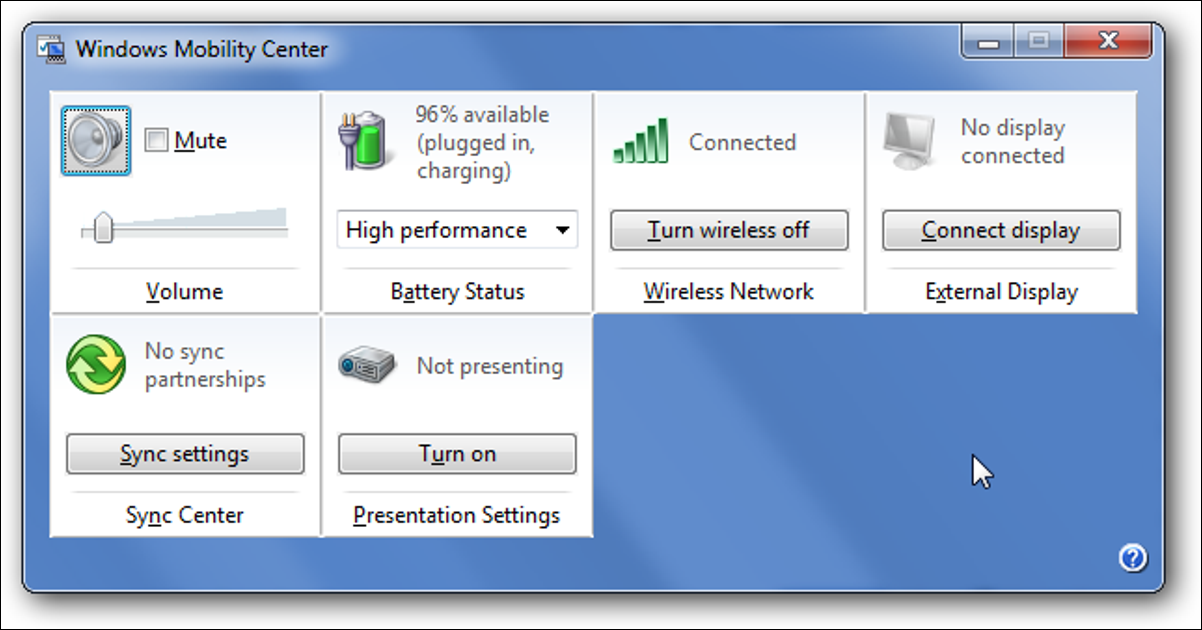
Disable Windows Mobility Center in Windows 7

Windows Mobility Center is a fairly useful tool for those of us using Windows 7 or Vista on a laptop computer, but might not be for everybody, especially since it takes over the Win+X keyboard shortcut.

If you would rather disable Windows Mobility Center, all it takes is a single registry tweak.

[mai mult...]