OS - Windows

Depanare VPN 4 Solutii

instalare printer 50 Solutii

Optimizare pc 50 Solutii

Optimizare PC 103 Solutii

Scanare cu malwarebyte 4 Solutii

shareuire si mapare 15 Solutii

adaugare la domeniu 5 Solutii

Migrare profil 9 Solutii

Instalare/reinnoire certificate 2 Solutii

Personalizare sistem operare 274 Solutii

Configureaza si verifica setarile de boot 11 Solutii

Transfer de date 21 Solutii

Configurare OS 109 Solutii

Reparare OS 47 Solutii

Punct de restaurare OS 8 Solutii

Windows Event Viewer 6 Solutii

Reinstalare/reconfigurare VPN 8 Solutii

Optimizare client e-mail 12 Solutii

Optimizare PC 30 Solutii

Optimizare PC 20 Solutii

Reinstalare / Reconfigurare VPN 6 Solutii

Reinstalare OS 32 Solutii

Reparare sistem de operare 45 Solutii

Programare sistem operare 12 Solutii

Puncte de restaurare sistem de operare 14 Solutii

Instalare imprimanta 44 Solutii

Mapare si partajare 13 Solutii

Modificari firewall 12 Solutii

Migrare profil 8 Solutii

Transferuri de date 33 Solutii

Upgrade sistem operare 12 Solutii

Windows Event Viewer 7 Solutii

Verificare HDD 32 Solutii

Spatiu partitie 31 Solutii

Scanare cu MalwareBytes 5 Solutii

Setari servicii sistem operare 42 Solutii

Setari retea sistem operare 25 Solutii

Setari partitii 19 Solutii

Actualizare sistem operare 15 Solutii

Clonare HDD 11 Solutii

Compatibilitate program 13 Solutii

Instalare / Reinnoire Certificate 6 Solutii

Configurare si verificare setari de BOOT 15 Solutii

Configurare Sistem de operare 1399 Solutii

Identificare DLL-uri lipsa 2 Solutii

Depanare 1006 Solutii

Editarea politicilor de grup ale sistemului de operare 13 Solutii

Drivere 50 Solutii

4 Metode de a porni Windows 10 în Safe Mode (mod de siguranță)

Dacă ai folosit Windows 10 pentru un timp, probabil că ai observat că nu mai poți să apeși pe tastele F8 sau pe Shift + F8 pentru a intra în modul Safe Mode (Mod de siguranță). Aceste metode au încetat să mai funcționeze deoarece procedura de pornire din Windows 10 este mult mai rapidă decât în trecut. Dar asta nu înseamnă că Windows 10 nu dispune de un Safe Mode (Mod de siguranță). Diferența este că, pentru a ajunge la modul de siguranță, trebuie să urmezi alți pași. Hai să vedem toate metodele prin care putem porni Safe Mode (Mod de siguranță) în Windows 10:

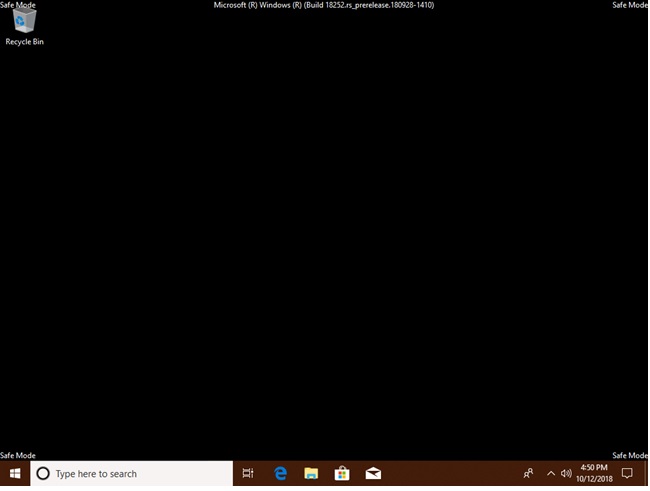
Când intri în Safe Mode (Mod de siguranță) în Windows 10, sistemul de operare încarcă o interfață de utilizare minimală, doar cu driverele și serviciile de bază necesare pentru funcționarea sa. Acest mod face ușoară depanarea problemelor deoarece nu încarcă lucrurile care pot cauza erori în Windows 10. Iată cum arată Modul de siguranță:

[mai mult...]

How to clone an M2 SSD

Clone an M.2 SSD to a larger M.2 SSD with EaseUS disk cloning software

The system files, installed applications, and personal data can easily eat up your M.2 SSD space and slow down your PC, especially when you are using an M.2 SSD with small storage capacity. When the low disk space appears, you need to clone an M.2 SSD to a larger M.2 SSD to upgrade the disk for better performance.

1. Install the M.2 SSD

Before you install the SSD drive though, first make sure that the SSD drive you bought is compatible with your laptop motherboard.

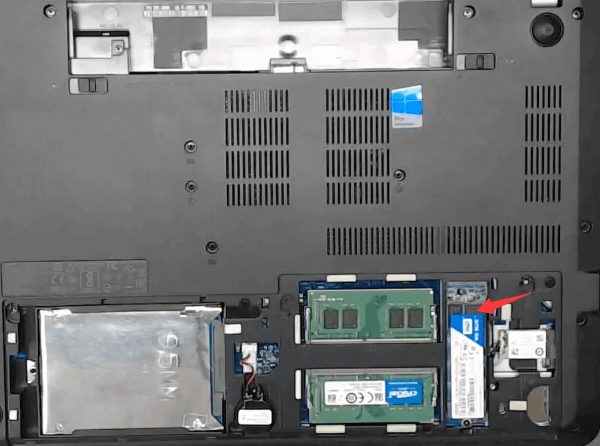
On a laptop

install m.2 ssd in a laptop

  • Open M.2 slot
  • Slide the M.2 SSD drive inside slot
  • Screw the SSD drive in
  • Finalize and cover

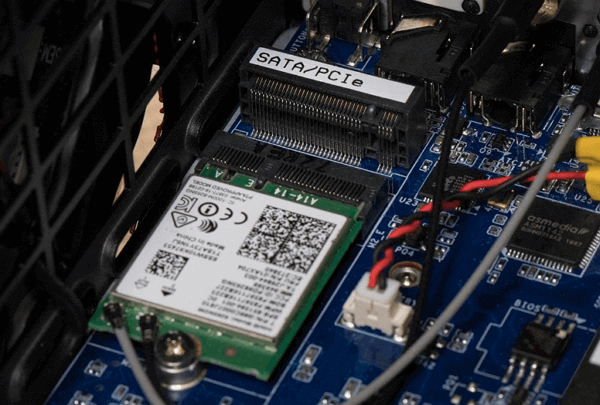
On a desktop computer

install m.2 ssd in a desktop

  • On the motherboard, look for an M.2 connector, usually labeled with “PCIe”.
  • Carefully insert the M.2 SSD into its slot and then secure the M.2 SSD using the mounting screw.
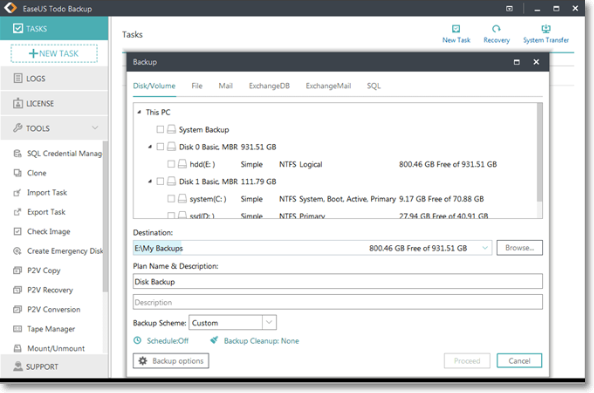
2. Clone via EaseUS Todo Backup

Make sure that both the SSDs are recognized by your computer. Download and install the essential disk cloning software, or you may treat it as an M.2 SSD to M.2 SSD duplicator

To clone one M.2 SSD to another larger M.2 SSD, follow these steps:

Step 1. Launch EaseUS SSD cloning software and choose “Clone” to start cloning one SSD to the other larger SSD.​

choose clone to clone ssd to larger ssd

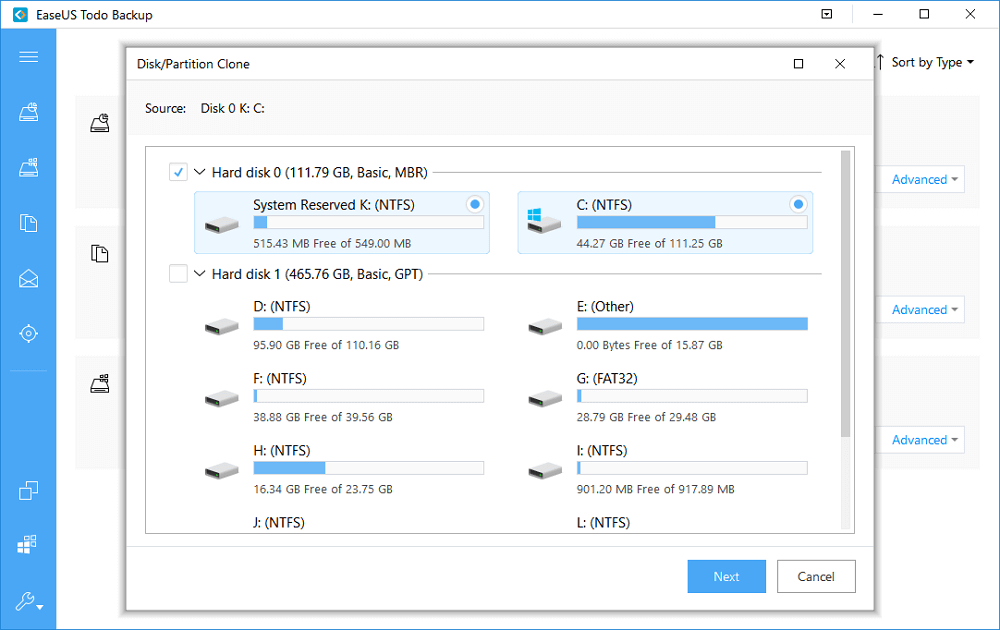
Step 2. Choose the smaller SSD as the source disk and click “Next”.

choose smaller ssd as source disk

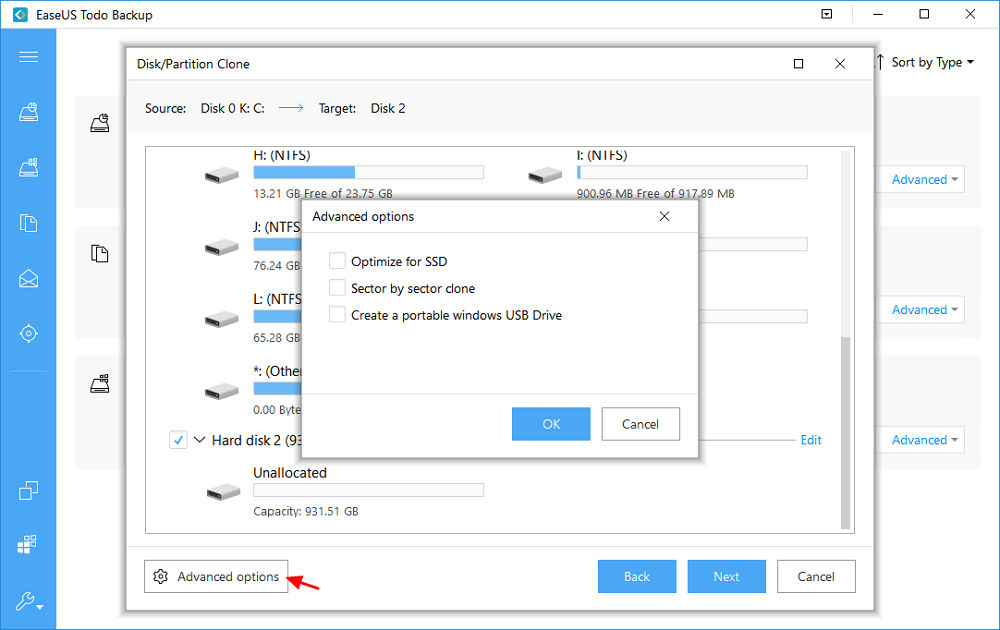
Step 3. Choose the larger SSD as the destination disk. Here, we highly suggest you tick the option “Optimize for SSD” within “Advanced options” in the bottom left corner. Click “OK” and then click “Next”.

choose the larger ssd as destination disk

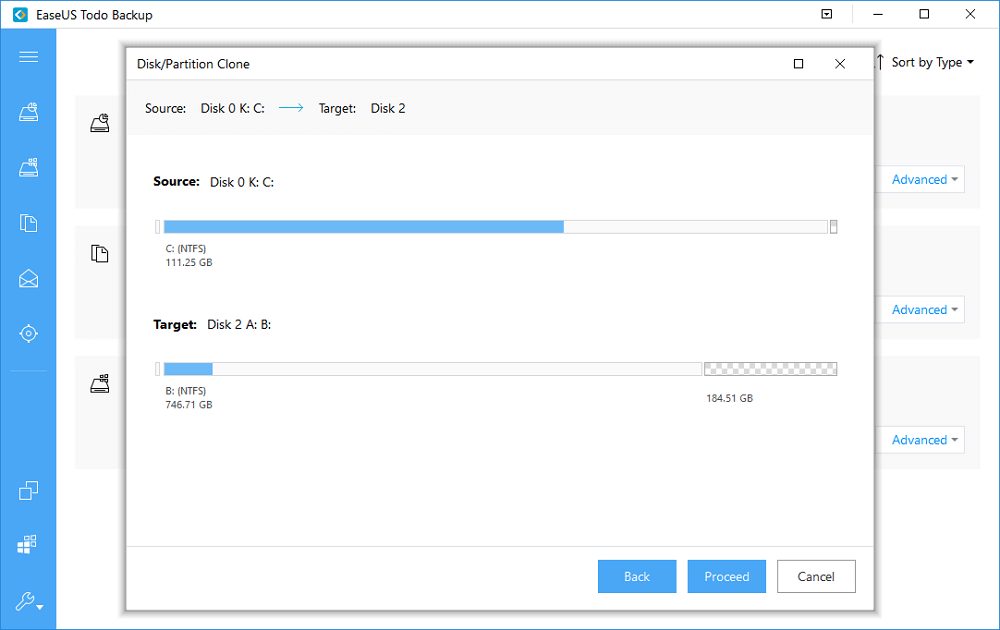
Step 4. If nothing’s wrong on the disk layout, click “Proceed”. It won’t take long to clone a smaller SSD to a larger SSD.​

preview disk layout and click proceed
3. Boot from the cloned M.2 SSD

At last, if you cloned the operating system to the new SSD and wish to boot Windows from it, try to disconnect the old SSD from your computer.

[mai mult...]