How to Fix “What Needs Your Attention” Windows 10 Setup Errors

Windows 10’s setup and upgrade process sometimes fails and says your PC “can’t be upgraded” but “no action is needed.” Windows knows the problem, but Microsoft hides the details from you. Here’s how to identify and fix the problem yourself.
How to See “What Needs Your Attention”

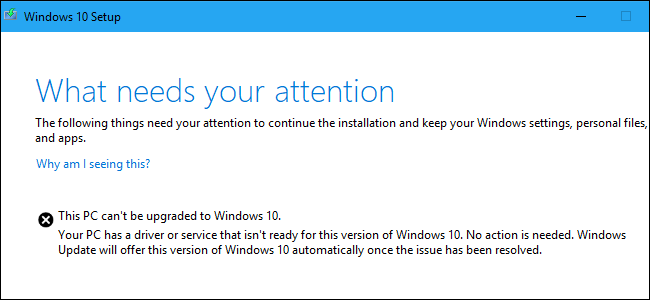
Microsoft should provide more descriptive error messages. The message we saw while attempting to upgrade to Windows 10’s May 2019 Update with Microsoft’s Update Assistantwas:
This PC can’t be upgraded to Windows 10.
Your PC has a driver or service that isn’t ready for this version of Windows 10. No action is needed. Windows Update will offer this version of Windows 10 automatically once the issue has been resolved.
Microsoft says a “No action is needed” message means you shouldn’t do anything.
That’s all well and good, but what if you don’t want to wait? Why doesn’t Windows tell us which “driver or service” is causing the problem? Windows 10 does know the problem, but it doesn’t display it here—you’ll have to dig it out of the log files and fix it yourself. Here’s how to do it.
How to View Windows Setup Log Files
The log files are hidden in this folder on your PC:
C:$WINDOWS.~BTSourcesPanther
To find them, open a File Explorer window and copy-paste that address into the address bar.

Look for a filename beginning with “CompatData_” and ending with “.xml” in this folder. If you see several, you should choose the most recent one—that’s the one at the bottom.

Open the file to view its contents. Without any additional software, we recommend right-clicking the file and selecting Open With > Microsoft Edge.
You can also use Notepad++ to view it nicely. Notepad and WordPad will display the file, but it will be difficult to read without the additional formatting provided by Edge and Notepad++.

This file will tell you why Windows won’t upgrade—if you can decode it.
For example, to find drivers that aren’t compatible, look under “DriverPackages” for any lines that include:
BlockMigration="True"

This tells us that the drivers associated with the files oem81.inf and oem80.inf are incompatible with the new version of Windows. They’re the reason Windows is refusing to upgrade.
But what are those files?
How to Match a Driver to an INF File
To learn more, you’ll have to open the INF files mentioned in the log. You’ll find them at:
C:WindowsINF
Look through the folder and find the .inf files you need to examine. In our case, that’s oem80.inf and oem81.inf.

You can double-click them to open them in Notepad. Once you do, you’ll likely see a comment near the start of each file explaining what it is.
In our case, we found that oem80.inf was “The Microsoft Print To PDF install file” and oem81.inf was “The Microsoft XPS Document Writer install file.” In other words, Microsoft’s own XPS and PDF printer drivers—part of Windows 10 itself—are blocking the installation process for some reason.

How to Fix Your Problem
Now that we know the problem, we can resolve it by uninstalling the offending drivers.
In this case, we can do that by heading to Control Panel > Programs > Turn Windows Features On or Off. Uncheck both “Microsoft Print to PDF” and “Microsoft XPS Document Writer” and click “OK.” We can reinstall them later, after the upgrade.
If you had other hardware drivers or applications blocking the upgrade, you could temporarily uninstall them.

How to Resume the Upgrade Process
You might expect that you can click the “Refresh” button in the Windows 10 Setup window after you’ve solved the problem. Sorry! That doesn’t work. The Refresh button won’t do anything.
Instead, you’ll need to head back to the C:$WINDOWS.~BTSourcesPanther folder. Locate the compatscancache.dat file and delete it.

After you’ve deleted this cache file, you can click the “Refresh” button, and the installation process will continue.

“Something Happened”
While this is the process Microsoft has given us, it isn’t great. As Brad Sams puts it, this error reporting system is a “cryptic mess.” The name of the “Panther” folder dates back to Windows Vista—that’s how old this is!
Windows 10’s May 2019 Update was supposed to offer better setup error messages, but we aren’t seeing them yet. At least this is better than the old “Something Happened” messages.