
Follow Us

Soluții pentru problemele tale IT

Home /Windows Server/Active Directory/Setare expirare cont Active Directory folosind PowerShell
Home /Windows Server/Active Directory/Dezactivare cont Domain User/Setare expirare cont Active Directory folosind PowerShell
Home /Windows Server /Setare expirare cont Active Directory folosind PowerShell

Setare expirare cont Active Directory folosind PowerShell

  • Data 10/05/2016
  • Autor Radu P
  • Categorie Active Directory, Dezactivare cont Domain User, Windows Server
  • -23
  • 1490
Configurare noua (How To)

Situatie

Se doreste ca un cont de AD sa nu mai poata fi folosit dupa o anumita data folosind PowerShell


Solutie

Pasi de urmat

Se deschide Active Directory Module For PowerShell
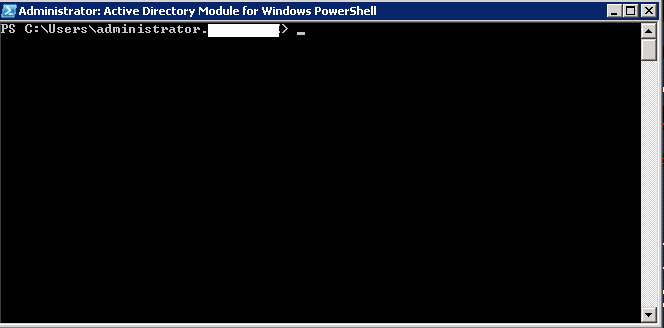
active-directory-module-powershell


Se ruleaza comanda:

Set-ADAccountExpiration contutilizator -DateTime "22/12/2016"

set-ad-account-expiration

Tip solutie

Permanent

Voteaza

Up Down
(23 din 69 persoane apreciaza acest articol)
Share
Tweet
Share

Despre Autor

Radu P

Solutii Asemanatoare

  • Cum activam Windows Search Service in Windows Server 2
  • Cum automatizați pornirea serviciilor de pe un server aflat în același domeniu folosind gMSA din AD Primary Domain Controller -3
  • Cum găsiți conturi de servicii utilizate în Active Directory 4
  • Exporta lista cu serviciile din windows -8
  • Setare NTP server pentru ILO 8
  • Cum instalam si configuram DirectAccess in Windows Server -5

Leave A Comment? × Cancel Reply

29534

Soluții Disponibile

0 Articole

In ultima saptamana

Cele mai recente soluții

  • How to clean temporary files on Windows 11
    • 233
    • 17/04/2025
  • How to update iOS on your iPhone
    • 274
    • 17/04/2025
  • Cum deschidem un RDP in full screen folosind Command Prompt in Windows 10
    • 289
    • 16/04/2025
  • Cum deschidem fereastra Sound folosind Run in Windows 10
    • 257
    • 16/04/2025
  • How to enter text with your voice on a Chromebook
    • 435
    • 16/04/2025
© Askit.ro, 2014 - 2025. All rights reserved. Done by Class IT
Share
Tweet
Share