Soluții

How to use Continuum in Windows 10

New to Windows 10, Continuum is a feature that allows the operating system’s interface to switch to Tablet Mode as soon as it detects that the display screen of a touchscreen device such as Microsoft Surface has been detached from its keyboard.

The moment you detach the monitor, Windows 10 displays a message asking to switch to Tablet Mode. When you tap the message, the Start menu appears similar to the one in Windows 8. Also, when Windows 10 enters the Tablet Mode, it switches to Full Screen allowing you to use the device as a full-fledged tablet.Continuum can be configured with more granularity by going to the Tablet Mode section from the SYSTEM window.

[mai mult...]
How to set the default save location to an external drive in Windows 10

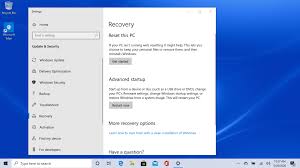
Unlike previous Microsoft operating systems, Windows 10 allows you to set a default save location – other than the system drive (which in most cases is C: ). In order to specify a different save location for your documents and pictures, an external storage media must be connected to your PC. The external storage media can be an external hard disk drive, a USB drive, etc.

The only limitation while setting a different default save location in Windows 10 is that you cannot change the default location for the apps that you download and install on your computer. You can change the default save location to an external drive only for the documents, images, and other files.

Once you have connected and external storage media to your Windows 10 computer, here is how you can change the default save location and set it to the connected storage:

[mai mult...]

How to fix crucial BSOD errors

The first thing you should do if you receive a BSOD is to try and restart your pc and boot into safe mode to try and reset your pc.

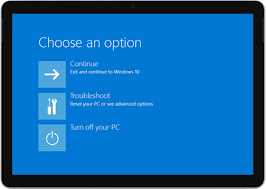
If you are unable to do this,what you need to do is to press the power button of your pc/laptop until it is fully shutdown,do this 3 times until the options below pop up:

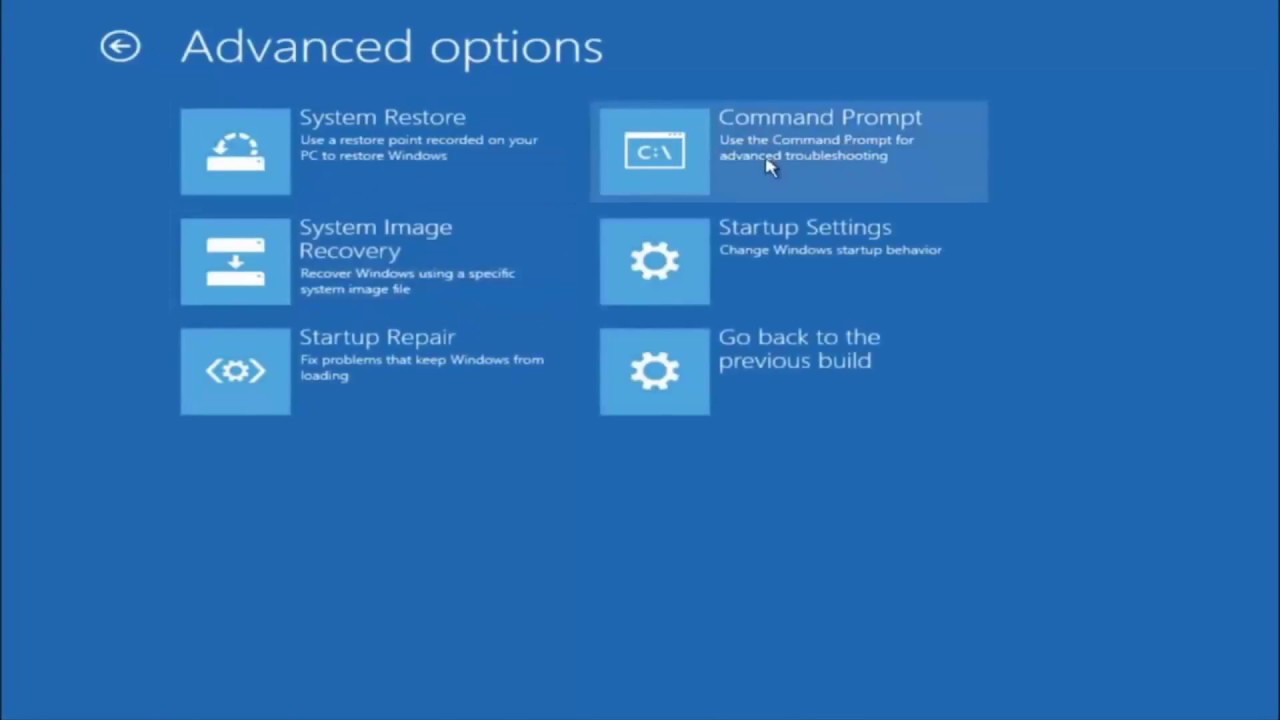
Once this shows up,you have to click on Troubleshoot-Advanced options-Startup Repair and see if this finds an error,if not,go ahead and get back to the upper menu ,Troubleshoot-Advanced Options-Command Prompt

Here you have to run a few commands:

1:bootrec /fixmbr

2.bootrec /fixboot if you get access denied in this step just type : bootsect /nt60 sys

3.bootrec /fixboot

4.bootrec /rebuild

5.sfc /scannow  NOTE: this will take a while,just be patient

6.chkdsk c:  NOTE: this will also take some time.

After these 6 steps,close command prompt and restart your pc,what this does if it finds any software/hardware issuse this will rewrite them with the basic settings.

[mai mult...]

Cum remediați situatia in care OneDrive nu se sincronizează

Dacă ați folosit un computer Windows în ultimii ani, ați interacționat cu OneDrive. Această soluție de stocare în cloud de la Microsoft este încorporată în Windows 10 și sistemele mai noi și, dacă v-ați conectat cu un cont Microsoft la prima configurare a computerului, probabil că sunteți deja configurat pentru a utiliza software-ul. OneDrive, la fel ca majoritatea programelor de backup în cloud, poate fi dificil de depanat atunci când lucrurile nu funcționează așa cum vă așteptați sau dacă fișierele dvs. nu sunt sincronizate atunci când ar trebui să fie.

[mai mult...]

Cum eliminați manual bloatware-ul din Windows 11

Bloatware este o aplicație inutilă și nedorită care vine instalată pe un sistem de operare. Aplicațiile bloatware ocupă spațiu de stocare valoros pe hard disk și pot face dispozitivul să funcționeze mai lent – un scenariu frustrant, mai ales dacă nici măcar nu utilizați acest software preinstalat.

[mai mult...]