Soluții

Configure your network switch

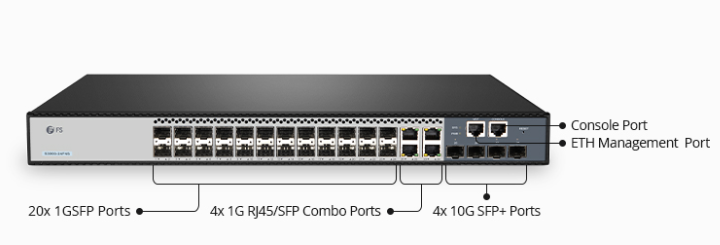
Check the model number of your shiny new switch. Or, if you are using a spare, check the device hardware and its connected cables for any damages. If everything checks out, power on the switch and verify that all the indicator lights are in working order. Next, use a rollover cable to console into the switch from your computer. To do this, you will need to download and install Putty (or a similar, fun-named software tool). Run Putty and select the 9600 speed serial connection.
[mai mult...]

How to troubleshoot BSOD errors on Windows

  1. Restart Your Computer:
    • Sometimes a temporary glitch may cause a BSOD. Restart your computer and see if the issue persists.
  2. Check for Overheating:
    • Ensure your computer isn’t overheating, as this can trigger BSOD errors. Check that fans are working properly and vents are clear of dust.
  3. Check for Recent Hardware or Software Changes:
    • If you recently installed new hardware or software, it may be incompatible or causing conflicts. Consider uninstalling or removing them to see if the BSOD stops.
  4. Update Device Drivers:
    • Press Win + X and select Device Manager.
    • Look for any devices with a yellow exclamation mark, indicating driver issues.
    • Right-click on the device and select “Update driver” to search for and install updated drivers.
  5. Run Windows Memory Diagnostic:
    • Press Win + R, type mdsched.exe, and press Enter to open the Windows Memory Diagnostic tool.
    • Choose to restart your computer and check for memory problems.
    • Allow the tool to run and detect any memory issues. If errors are found, consider replacing faulty RAM modules.
  6. Check Disk for Errors:
    • Open Command Prompt as administrator.
    • Type chkdsk C: /f /r and press Enter (replace C: with the drive letter of your system drive).
    • Allow the disk check to complete and repair any errors found.
  7. Check for Malware:
    • Run a full system scan with your antivirus software to check for any malware infections that may be causing BSOD errors.
    • Consider using additional malware removal tools if your antivirus doesn’t detect anything.
  8. Check for Windows Updates:
    • Ensure your system is up-to-date by checking for and installing any pending Windows updates.
    • Go to Settings > Update & Security > Windows Update to check for updates.
  9. Restore System to Previous State:
    • If the BSOD started occurring after a recent system change, such as a driver update or software installation, consider using System Restore to revert your system to a previous stable state.
  10. Check Event Viewer for Error Details:
    • Press Win + X and select Event Viewer.
    • Navigate to Windows Logs > System and look for any error messages corresponding to the BSOD events. These may provide clues about the underlying cause.
[mai mult...]

Troubleshoot Windows Update Errors

  1. Check Internet Connection:
    • Ensure your internet connection is stable and working properly. If not, troubleshoot your network connection before proceeding.
  2. Restart Your Computer:
    • Sometimes a simple restart can resolve Windows Update issues. Restart your computer and try updating again.
  3. Run Windows Update Troubleshooter:
    • Press Win + I to open Settings, then go to Update & Security > Troubleshoot.
    • Select “Windows Update” and click “Run the troubleshooter”.
    • Follow the on-screen instructions to detect and resolve any Windows Update-related problems.
  4. Check Date and Time Settings:
    • Ensure your computer’s date and time settings are accurate. Incorrect settings can cause issues with Windows Update.
    • Right-click on the date/time in the taskbar, select “Adjust date/time”, and verify the settings.
  5. Free Up Disk Space:
    • Insufficient disk space can prevent updates from installing. Delete unnecessary files or move them to an external drive to free up space on your system drive (usually C:).
  6. Temporarily Disable Antivirus/Firewall:
    • Your antivirus or firewall may be blocking Windows Update. Temporarily disable them and try updating again.
    • Remember to re-enable them after troubleshooting.
  7. Manually Download and Install Updates:
    • Visit the Microsoft Update Catalog website (https://www.catalog.update.microsoft.com/) using a web browser.
    • Search for the update(s) by KB number and download the applicable update(s) for your system architecture.
    • Double-click on the downloaded update(s) to install them manually.
  8. Check for Corrupted System Files:
    • Open Command Prompt as administrator.
    • Type sfc /scannow and press Enter to run the System File Checker tool.
    • Allow the scan to complete and follow any on-screen instructions to repair corrupted system files.
  9. Perform a System Restore:
    • If all else fails and you recently installed new software or drivers, consider performing a System Restore to revert your system to a previous stable state.
[mai mult...]

How to troubleshoot slow Computer Performance on Windows

  1. Close Unnecessary Programs:
    • Close any programs or browser tabs/windows that you’re not actively using to free up system resources.
  2. Check Task Manager:
    • Press Ctrl + Shift + Esc to open Task Manager.
    • Go to the “Processes” tab and check for any processes consuming a high amount of CPU or memory.
    • End tasks for any non-essential processes that are using excessive resources.
  3. Disable Startup Programs:
    • Open Task Manager (Ctrl + Shift + Esc) and go to the “Startup” tab.
    • Disable startup programs that you don’t need to launch automatically with Windows by right-clicking on them and selecting “Disable”.
  4. Check Disk Space:
    • Open File Explorer and right-click on the drive where Windows is installed (usually C:).
    • Select “Properties” and check the available disk space. If it’s low, consider deleting unnecessary files or moving them to an external drive.
  5. Run Disk Cleanup:
    • Press Win + R, type cleanmgr, and press Enter.
    • Select the drive you want to clean up (usually C:) and click “OK”.
    • Check the boxes next to the types of files you want to delete (e.g., Temporary files, Recycle Bin) and click “OK” to run Disk Cleanup.
  6. Check for Malware:
    • Run a full system scan with your antivirus software to check for any malware or viruses that may be slowing down your computer.
    • Consider using additional malware removal tools if your antivirus doesn’t detect anything.
  7. Update Drivers:
    • Press Win + X and select Device Manager.
    • Expand each category and right-click on devices with a yellow exclamation mark.
    • Select “Update driver” and follow the on-screen instructions to update drivers for those devices.
  8. Check for Windows Updates:
    • Go to Settings > Update & Security > Windows Update to check for and install any pending Windows updates.
  9. Adjust Visual Effects:
    • Press Win + R, type sysdm.cpl, and press Enter.
    • Go to the “Advanced” tab and click on “Settings” under “Performance”.
    • Choose “Adjust for best performance” or customize visual effects to reduce the load on your system.
[mai mult...]

How to troubleshoot sound/audio issues on Windows

  1. Check Physical Connections:
    • Ensure your speakers or headphones are properly connected to the correct audio port on your computer.
  2. Adjust Volume Settings:
    • Click on the speaker icon in the system tray and check if the volume is set to an audible level and not muted.
    • Right-click on the speaker icon and select “Open Sound settings” to adjust volume and device preferences.
  3. Update Audio Drivers:
    • Press Win + X and select Device Manager.
    • Expand the “Sound, video and game controllers” category.
    • Right-click on your audio device and select “Update driver”.
    • Follow the on-screen instructions to search for and install updated drivers.
  4. Run Audio Troubleshooter:
    • Open Settings by pressing Win + I.
    • Go to Update & Security > Troubleshoot.
    • Click on “Playing Audio” and then click “Run the troubleshooter”.
    • Follow the prompts to detect and resolve audio playback issues.
  5. Check Audio Services:
    • Press Win + R, type services.msc, and press Enter.
    • Look for services like “Windows Audio” and “Windows Audio Endpoint Builder”.
    • Ensure they are running by double-clicking on them and selecting “Start” if they are stopped.
  6. Disable Audio Enhancements:
    • Right-click on the speaker icon in the system tray and select “Open Sound settings”.
    • Under “Advanced sound options”, click on “App volume and device preferences”.
    • Disable any audio enhancements or special effects that may be causing issues.
  7. Check Sound Output Device:
    • Right-click on the speaker icon in the system tray and select “Open Sound settings”.
    • Under “Output”, ensure the correct playback device is selected.
  8. Check for Windows Updates:
    • Ensure your system is up-to-date by checking for and installing any pending Windows updates.
    • Go to Settings > Update & Security > Windows Update to check for updates.
  9. Test with Different Audio Device:
    • If possible, try connecting different speakers or headphones to your computer to see if the issue persists.
[mai mult...]