Soluții

How to use Copilot Win 11

Before you begin, you probably want to make sure you’re running the latest version of Windows 11.

  • Open Settings and then pick Windows Update.
  • Depending on where you are located geographically and how far down your PC is on Microsoft’s update list, you may have to enable the Get the latest updates as soon as they’re available toggle switch.

To launch Copilot, which shows up in a panel on the right of your screen, click the Copilot button on the taskbar, or press Win + C on the keyboard.

By the way, if you’d rather Copilot not show up on the taskbar, head to Personalization > Taskbar in Settings, then turn Copilot off.

Don’t expect too much from Copilot’s Windows integration just yet: at the time of writing, it’s still labeled a “preview” feature. Here are some cool little tricks I was able to do with it:

  • Type “turn on dark mode” to switch to Windows dark mode.
  • Type “open Windows Settings” to open the main Settings panel.
  • Type “launch File Explorer” to start browsing files on your PC.
[mai mult...]

What is netstat command used for?

Netstat stands for “network statistics”.  If you’re having difficulties accessing the internet, the netstat command can help you identify where the problem lies. Netstat will display all of your computer’s active network connections and the status of those connections. If a connection is not working, netstat can often provide more information about why it is not working.

Netstat can also be used to monitor your computer for security threats. By default, netstat does not show listening ports, so you will need to use the -l option to see them. If you discover any unusual or unfamiliar listening ports, it’s possible that someone is attempting to gain access to your system without permission.

USING CMD

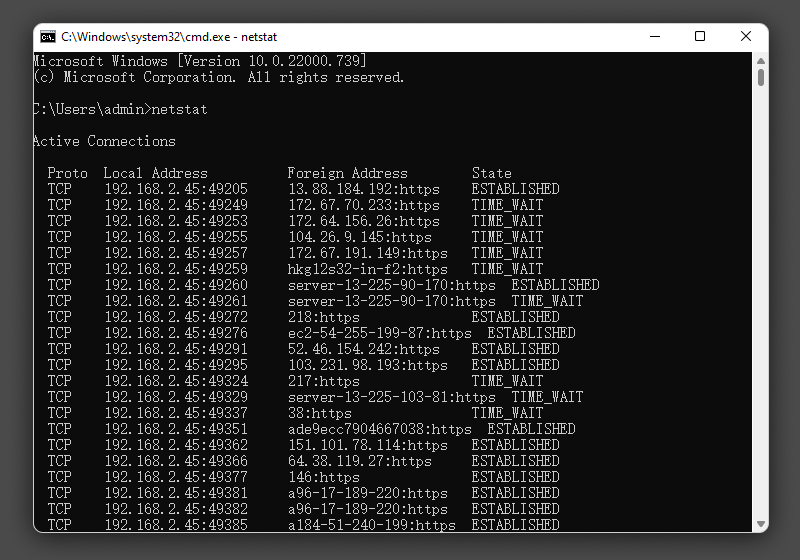
Type netstat at the prompt and press Enter. The netstat command will now display a list of all active network connections.

If you want to view all active network connections, just type netstat -a. Many other netstat options allow you to customize its output; type “netstat /?” for a full list at the command prompt.

To stop netstat output, just press the Control + C keys to exit.

  • Proto -The networking protocol and it could be protocols like TCP, UDP etc.
  • Local Address – The local computer’s IP address and the port number being utilized. Unless the -n switch is used, the hostname and port corresponding to the IP address will be displayed. An asterisk (*) indicates that the port has not yet been assigned if one has not yet been set up.
  • Foreign Address – The remote computer’s IP address and port number to which the socket is linked. The names that relate to the IP address and port are displayed unless the -n switch is used. If no port has yet been assigned, an asterisk (*) appears in place of the port number.
  • State – Indicates an active TCP connection’s status,  including:
    • CLOSE_WAIT
    • CLOSED
    • ESTABLISHED
    • FIN_WAIT_1
    • FIN_WAIT_2
    • LAST_ACK
    • LISTEN
    • SYN_RECEIVED
    • SYN_SEND
    • TIMED_WAIT
[mai mult...]

How to Solve Windows Update Error

  1. Check Internet Connection:
    • Ensure that your computer is connected to the internet. You can do this by opening a web browser and attempting to navigate to a website.
  2. Restart Your Computer:
    • Sometimes, simply restarting your computer can resolve temporary issues. Restart your computer and attempt to update Windows again.
  3. Run Windows Update Troubleshooter:
    • Windows includes a built-in troubleshooter specifically for Windows Update issues.
      • Press the Windows key on your keyboard to open the Start menu.
      • Type “Troubleshoot” and select “Troubleshoot settings” from the search results.
      • Scroll down and select “Windows Update” under “Get up and running.”
      • Click on “Run the troubleshooter” and follow the on-screen instructions. The troubleshooter will attempt to detect and fix any issues with Windows Update.
  4. Check Disk Space:
    • Make sure your computer has enough free disk space to download and install updates.
      • Open File Explorer and navigate to “This PC” or “My Computer.”
      • Check the available space on your system drive (usually the C: drive). If it’s running low, consider freeing up space by deleting unnecessary files or uninstalling unused programs.
  5. Disable Third-Party Antivirus:
    • Sometimes, third-party antivirus software can interfere with Windows Update. Temporarily disable your antivirus software and try updating Windows again.
  6. Manually Download and Install Updates:
    • If Windows Update continues to fail, you can manually download and install updates from the Microsoft Update Catalog.
      • Go to the Microsoft Update Catalog website (https://www.catalog.update.microsoft.com/).
      • Search for the update KB number (you can find this in the error message or by checking the Windows Update history).
      • Download the appropriate update for your system architecture (32-bit or 64-bit).
      • Double-click the downloaded update file to install it manually.
[mai mult...]