Soluții

Cum instalezi Windows 11 cu cont local, fără cont online Microsoft

Cu toate acestea, Microsoft nu vrea ca Windows 11 sa fie instalat cu un cont local, deoarece producătorul dorește să promoveze ideea utilizării conturilor online. Totuși, nu toți utilizatorii au un cont Microsoft sau, pur și simplu, nu vor sa instaleze sistemul de operare cu cont online Microsoft, din diverse motive.
Instalare Windows 11 - doar opțiune de cont online
Instalare Windows 11 – doar opțiune de cont online

Sincronizarea setărilor contului între mai multe dispozitive hardware poate fi utilă, dar dacă vrei sa creezi un cont local la instalare, aceasta opțiune nu este disponibilă. Totuși, ea era disponibilă în cazul instalării Windows 10.

Pașii de urmat pentru creare cont local în Windows 11

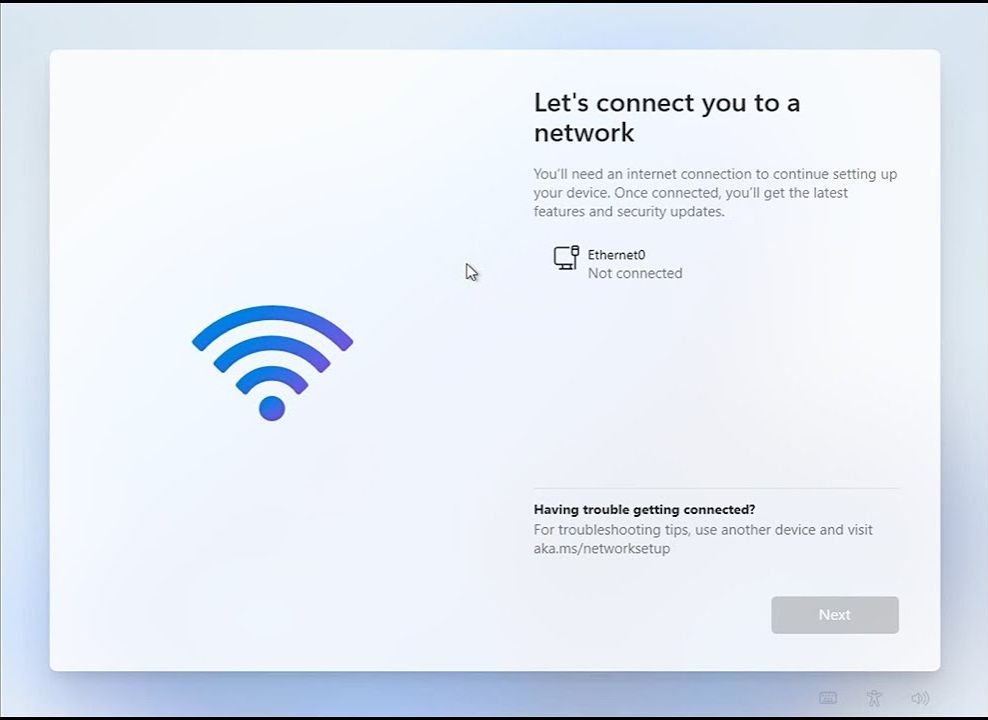
În timpul instalării Windows 11, ajungi la un punct în care se solicită să selectez rețeaua la care dorești să se conectezi noul computer. În acest moment, este important să NU conectați cablul UTP sau să nu faceți conexiunea la o rețea wireless, dacă doriți să utilizați un cont local.

Când ai ajuns la acest pas al instalării, încearcă combinația de taste ALT + F4. Dacă fereastra de dialog nu se închide, atunci treci la pașii următori:

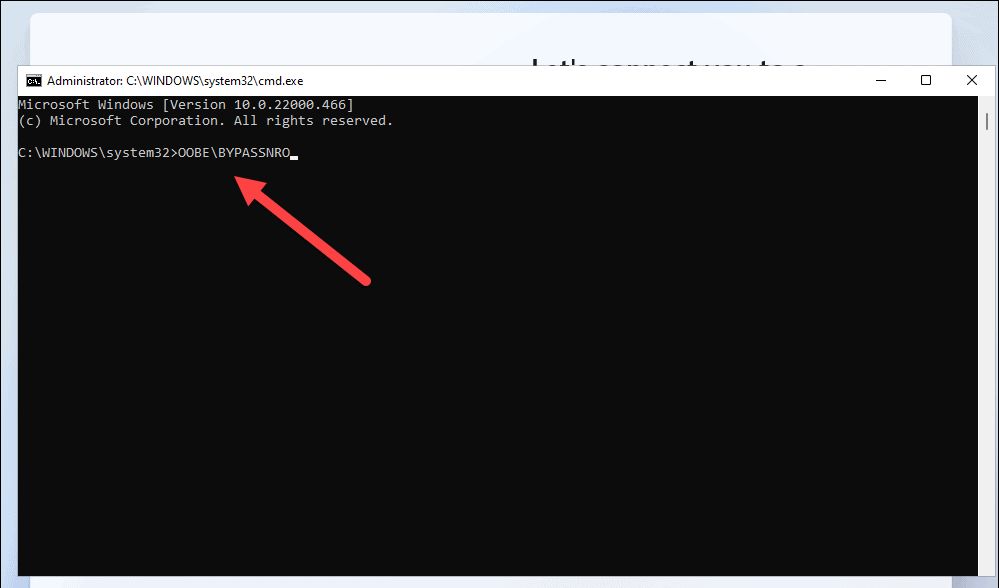
  1. În ecranul care solicită conectarea la o rețea, apăsați SHIFT + F10 sau SHIFT + FN + F10 pentru a deschide fereastra de comandă Command Prompt.
  2. În fereastra Command Prompt, scrieți oobe\bypassnro și apăsați Enter.
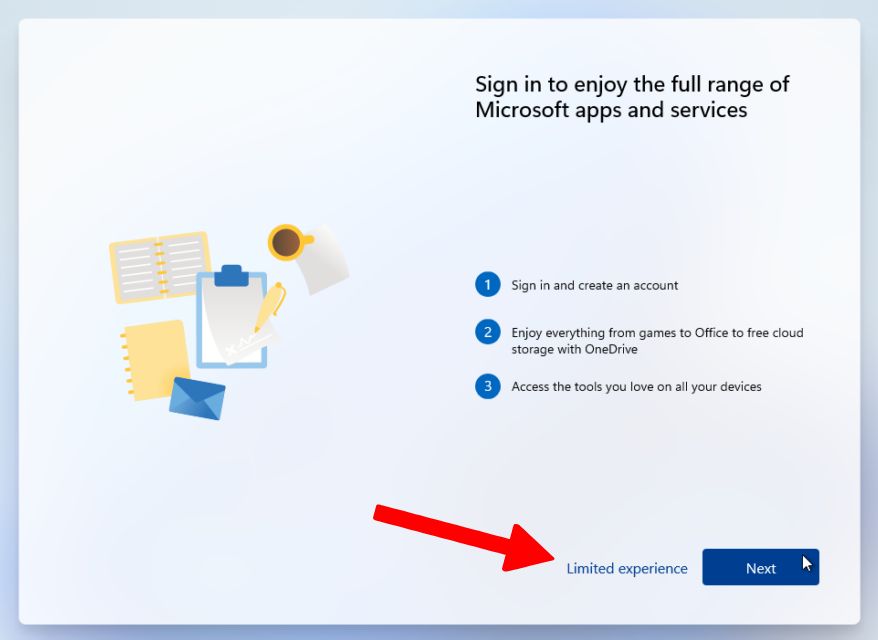
  3. Sistemul se va restarta, iar la pasul conectării la rețea va exista și opțiunea de a continua fără acces la Internet (butonul Limited experience), care te duce în meniul de creare cont utilizator local.
Windows 11 - instalare fara cont online
Windows 11 – instalare fara cont online
Instalare Windows 11 cu cont local

Acești pași vă vor permite să instalați Windows 11 cu un cont local, fără conectarea la Internet.

Dezavantajele folosirii unui cont local

Microsoft susține ca în acest caz utilizatorii vor pierde avantajele sincronizării setărilor contului între mai multe dispozitive hardware, iar unele actualizări și funcții noi pot fi disponibile doar pentru utilizatorii care utilizează conturile online.

[mai mult...]

How to Install VLC on Debian 12

VLC or the VideoLAN Client is the multimedia software application used to run the media files of different formats on computers. It is used to play the CD/DVD files as well as to stream different protocols on the system.

It supports different multimedia formats such as mp3, mp4, and mkv on computers and smart devices. Also, users can customize their VLC media players by adding different extensions. It can be installed on iOS, Android, Linux, and Windows by various installation methods.

VLC Media Player can be installed on Debian with four different methods. These methods are demonstrated with the complete step-by-step guide in this tutorial with the following outline:

  1. What are the Installation Methods of VLC on Debian Linux
  2. Method 1: Install VLC on Debian Linux Using the Package List
  3. Method 2: Install VLC on Debian Linux Using the Snapcraft
  4. Method 4: Install VLC on Debian Linux Using the Software Store

Let’s start the post with the installation methods of VLC.

What are the Installation Methods of VLC on Debian Linux?

VLC can be installed on Debian using both the command-line interface (terminal) and the graphical user interface with the next explanation.

[mai mult...]

How to Install and Use ChatGPT in Ubuntu

ChatGPT (Generative Pre-trained Transformer) is an AI tool that chats with its users and provides them with solutions to their queries. It has been integrated with different websites including Google. On the basis of this integration, it gives answers to its user’s queries.

Many other AI tools similar to ChatGPT are used to provide convenience to humans. This post provides the installation methods of ChatGPT in Ubuntu by different techniques.

ChatGPT can be installed on Ubuntu by one of the mentioned methods:

  1. Using the SnapCraft
  2. Downloading the Debian Package
[mai mult...]

How to Install lxml on Ubuntu

Lxml este legarea Python a bibliotecilor libxml2 și libxlt utilizate pentru procesarea documentelor HTML. Este util, în special în tehnicile de scraping web, pentru a obține anumite informații, de asemenea, poate fi folosit pentru crearea și analizarea documentelor HTML și XML. Această postare explica instalarea lxml python binding pe Ubuntu folosind metodele din linia de comandă.

Două metode diferite pot fi utilizate pentru instalarea lxml pe Ubuntu:

1.Utilizarea depozitului implicit al Ubuntu

2.folosind Pip

[mai mult...]