Cum schimbam secventa de bootare in BIOS?

Soluții pentru problemele tale IT

On Windows 11, the Widgets board now supports widgets to monitor CPU, GPU, and RAM usage on your computer, and in this guide, you will learn the steps to add them. However, you don’t need to download these widgets individually to monitor system resources on your computer. They are part of the new “Dev Home” experience, an app designed for developers to improve the way they set up, test, and build applications, and anyone can install it.
Initially, the app includes four widgets to monitor system resources and additional seven widgets specific to GitHub, and more are planned for future updates.
To install the Dev Home app, use these steps:

Once you complete the steps, you can continue adding the widgets on Windows. To add CPU, GPU, and RAM widgets on Windows 11, use these steps:


After you complete the steps, the widgets will appear in the left column. If you want to remove a widget, click the three-dots button and choose the “Unpin widget” option.
You can also use the menu (three-dots) button in the widgets to change the size to small, medium, or large. If you choose the large option, you will be able to view more details and have more functions about a particular component. For example, the “CPU” widget allows you to end the top three processes. If you have multiple network adapters or graphics cards, you will notice an option to switch views to each component. And the “Memory” widget will reveal more details about the memory usage.
[mai mult...]Ever fired up the Task Manager to see how many resources your PC is consuming? Now there’s an easier way. Thanks to new widgets by Microsoft added to Windows 11, that data is a click away, as it can now sit in your widget tray.
Windows 11 is getting a range of new widgets that can display graphs such as CPU utilization, RAM utilization, and GPU utilization, as well as exact numbers of how much of your hardware is in use, and how hard it’s running. Previously, all this data was only available to look at in the Task Manager, by going into the Performance tab, or through the Game Bar.
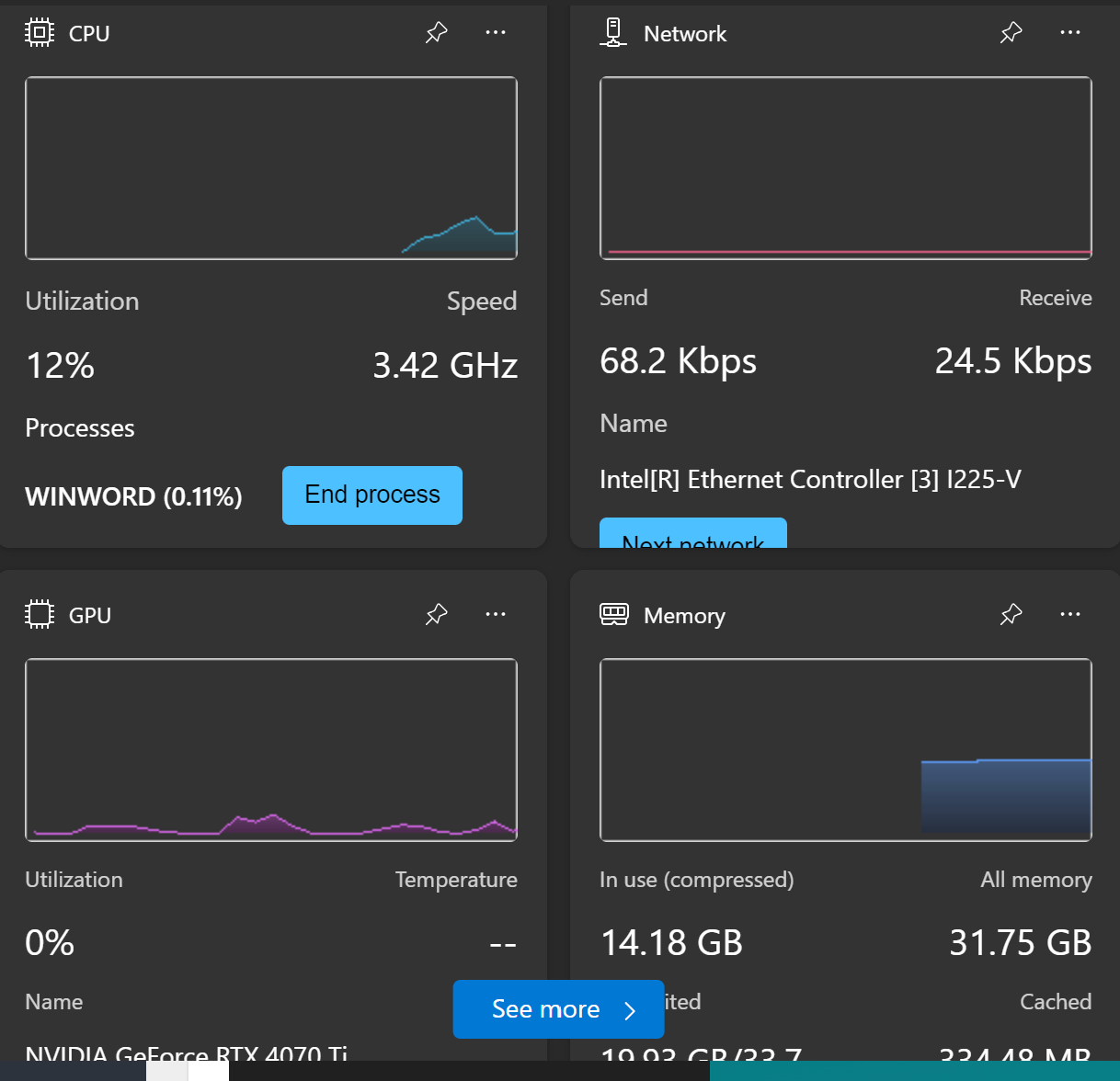
This isn’t something that’s just limited to Insiders. Rather, it’s a change that should be rolling out for everyone within the next few days or weeks. To add them to your widget tray, just open them up — if they’re available, you should see a small notice telling you to check out some new widgets that were just added. Then, when adding the widgets, just look for the CPU/GPU/RAM option, depending on what you want to add, or if you want to add all three.
[mai mult...]One way is to upload your PDF to Google Drive, open it with Google Docs (which deletes the watermark), and save the file back as PDF. Another way is to launch your PDF with MS Word, select the watermark and press Backspace (Windows) or Delete (Mac), and save the file back as PDF. You can also use various web-based PDF watermark removal tools.
[mai mult...]The Samsung Galaxy Watch gets plenty of features available on this smartwatch, including third-party apps support and raise to wake display. But, several people are facing issues with the feature. If you are also facing issues with your Galaxy Watch’s raise-to-wake feature not working, then check out the ways mentioned below.
[mai mult...]