Soluții

How to rotate text in Google Docs

Google Docs has no official option to rotate text in your documents but you can use a workaround to do that. To start the process, launch a web browser on your computer and open Google Docs.

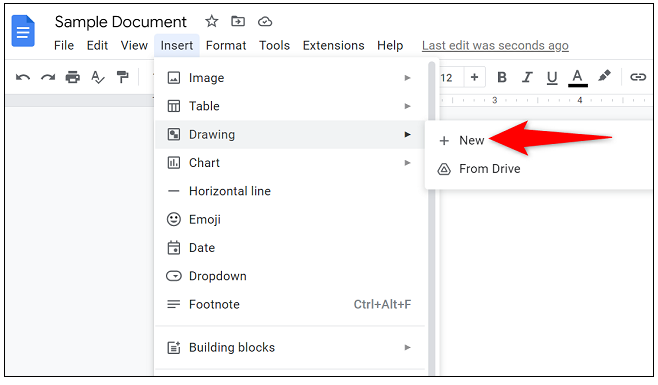
When your document launches, place the cursor where you want to add the rotated text. Then, from Google Docs menu bar, choose Insert -Drawing -New.
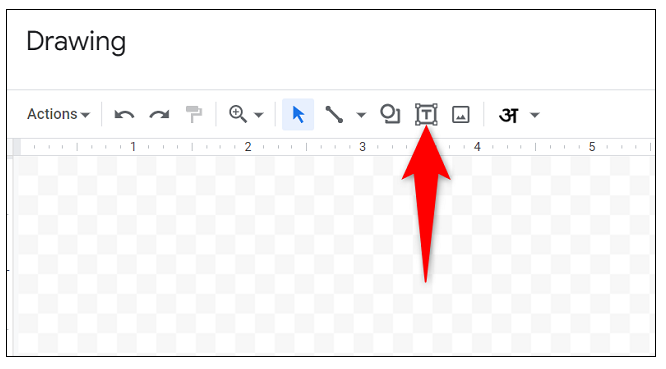
A Drawing window will launch. Here, in the toolbar items at the top, click the Text Box tool which is an icon of a box with a T in it.
On the blank canvas, draw a text box. Then, click the box and add your text.
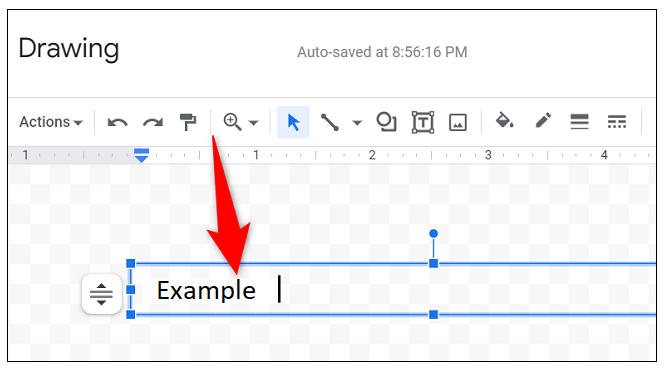
After entering the text, at the top of your text box, you’ll see a blue dot. Click and drag this dot to begin rotating your text box.
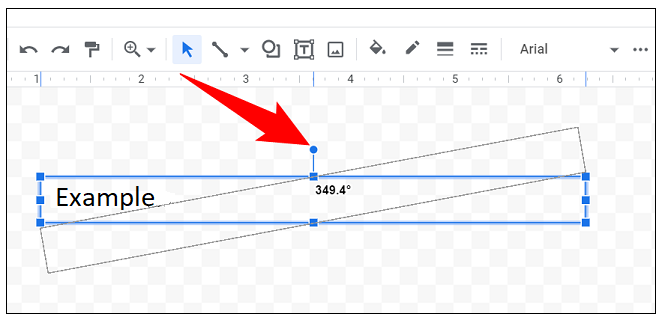
Add the text to your document by selecting Save and Close at the top-right corner of the Drawing window. On your document screen, you’ll find your rotated text.

[mai mult...]
How to Remove Dotted Lines in Microsoft Excel

Have you ever been working on an Excel spreadsheet when dotted lines suddenly appeared? While fine to some, those dotted lines may be distracting to others. We’ll show you when and why these dotted lines appear and how to remove them.

There are a few instances where you may see dotted lines in Excel. If you set up your sheet to print or use the Page Break Preview, you’ll see dotted lines for page breaks when you return to the Normal view. Additionally, if you share a spreadsheet with editing privileges, a collaborator may add a border with a dotted line style.

[mai mult...]

Printing a Specific Selection of Cells in Microsoft Excel

This option is the quickest method to print a selected range of cells. Select and highlight the range of cells you want to print.

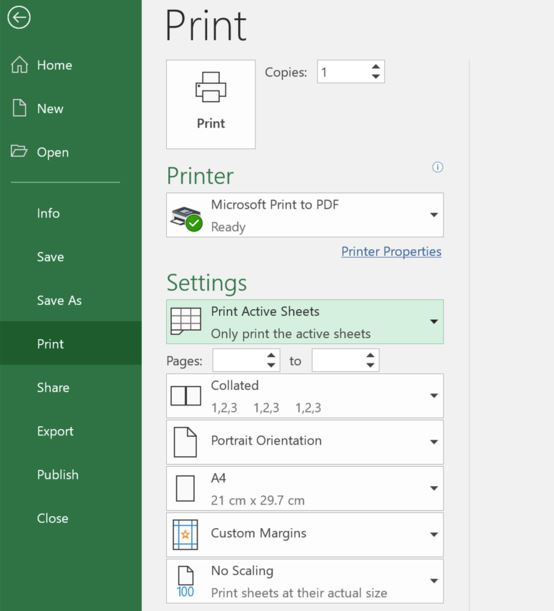
Next, click File > Print or press Ctrl+P to view the print settings.

Click the list arrow for the print area settings and then select the “Print Selection” option.

The preview will now show only the selected area. Click “Print” to finish the process.

Setting the Print Area in Microsoft Excel

  • If you print the selected area frequently, you can set the selected range as the print area. This option will save you from needing to select the range each time you print.
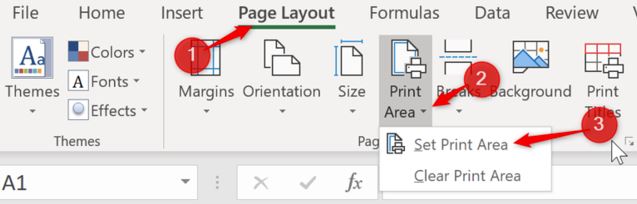
  • Select the range of cells you want to set as the print area. Next, click Page Layout > Print Area > Set Print Area.

  • The print area is now set.
  • The next time you print (File > Print or press Ctrl+P), this area will be printed by default.
  • To remove a print area, click Page Layout > Print Area > Clear Print Area.
[mai mult...]

How to use a PS4 Controller on Steam

  1. Open Steam
  2. Go to Settings in top left dropdown
  3. Open Controller tab
  4. Click General Controller Settings
  5. Register device to your account
  6. Change preferences
  7. Calibrate joysticks
  8. Tick PlayStation Configuration Support
  9. Remap from Settings Controller tab/in game

Thanks to official Steam support, there’s almost no setup involved in getting your PS4 controller working in Steam. Just be sure to pair or plug in your controller before opening Steam or any Steam games, otherwise your controller may not be recognized.

If you run into any connection issues, closing and reopening Steam should do the trick. Otherwise, try using a USB 2.0 port instead of a USB 3.0 port. DualShock 4s are weird like that. Once connected, navigate to Steam’s settings menu—under the top left dropdown—to get everything running smoothly.

Under the Controller tab, open General Controller Settings; you should see your controller listed under Detected Controllers. From here you can register it to your account, so it will remember the settings on any PC you log into.

[mai mult...]

How to validate digital signature in a PDF

  1. Open the digitally signed PDF that you need to validate using Power PDF.
  2. Locate the digital signature object within the document.
  3. Right click or command-click on the signature object.
  4. Select “Verify Signature” from the context menu.
  5. Power PDF automatically checks the information behind the signature and displays a message saying “Signature Valid” if the document remains in its original form.

Repeat steps 3 and 4 as needed with any other signatures in the document. If Power PDF displays “Signature Validity Unknown,” you should proceed to verify the integrity of the document with the original signer.

Click the “Verify Identity” to check for contact information and to match signature certificate numbers. You may need to contact the signer directly for additional information.

[mai mult...]