OS - Windows

Depanare VPN 4 Solutii

instalare printer 50 Solutii

Optimizare pc 50 Solutii

Optimizare PC 103 Solutii

Scanare cu malwarebyte 4 Solutii

shareuire si mapare 15 Solutii

adaugare la domeniu 5 Solutii

Migrare profil 9 Solutii

Instalare/reinnoire certificate 2 Solutii

Personalizare sistem operare 274 Solutii

Configureaza si verifica setarile de boot 11 Solutii

Transfer de date 21 Solutii

Configurare OS 109 Solutii

Reparare OS 47 Solutii

Punct de restaurare OS 8 Solutii

Windows Event Viewer 6 Solutii

Reinstalare/reconfigurare VPN 8 Solutii

Optimizare client e-mail 12 Solutii

Optimizare PC 30 Solutii

Optimizare PC 20 Solutii

Reinstalare / Reconfigurare VPN 6 Solutii

Reinstalare OS 32 Solutii

Reparare sistem de operare 45 Solutii

Programare sistem operare 12 Solutii

Puncte de restaurare sistem de operare 14 Solutii

Instalare imprimanta 44 Solutii

Mapare si partajare 13 Solutii

Modificari firewall 12 Solutii

Migrare profil 8 Solutii

Transferuri de date 33 Solutii

Upgrade sistem operare 12 Solutii

Windows Event Viewer 7 Solutii

Verificare HDD 32 Solutii

Spatiu partitie 31 Solutii

Scanare cu MalwareBytes 5 Solutii

Setari servicii sistem operare 42 Solutii

Setari retea sistem operare 25 Solutii

Setari partitii 19 Solutii

Actualizare sistem operare 15 Solutii

Clonare HDD 11 Solutii

Compatibilitate program 13 Solutii

Instalare / Reinnoire Certificate 6 Solutii

Configurare si verificare setari de BOOT 15 Solutii

Configurare Sistem de operare 1399 Solutii

Identificare DLL-uri lipsa 2 Solutii

Depanare 1006 Solutii

Editarea politicilor de grup ale sistemului de operare 13 Solutii

Drivere 50 Solutii

Multiple monitors settings-Windows 10

How to change the resolution of a specific monitor,or how to change whre the information is shown

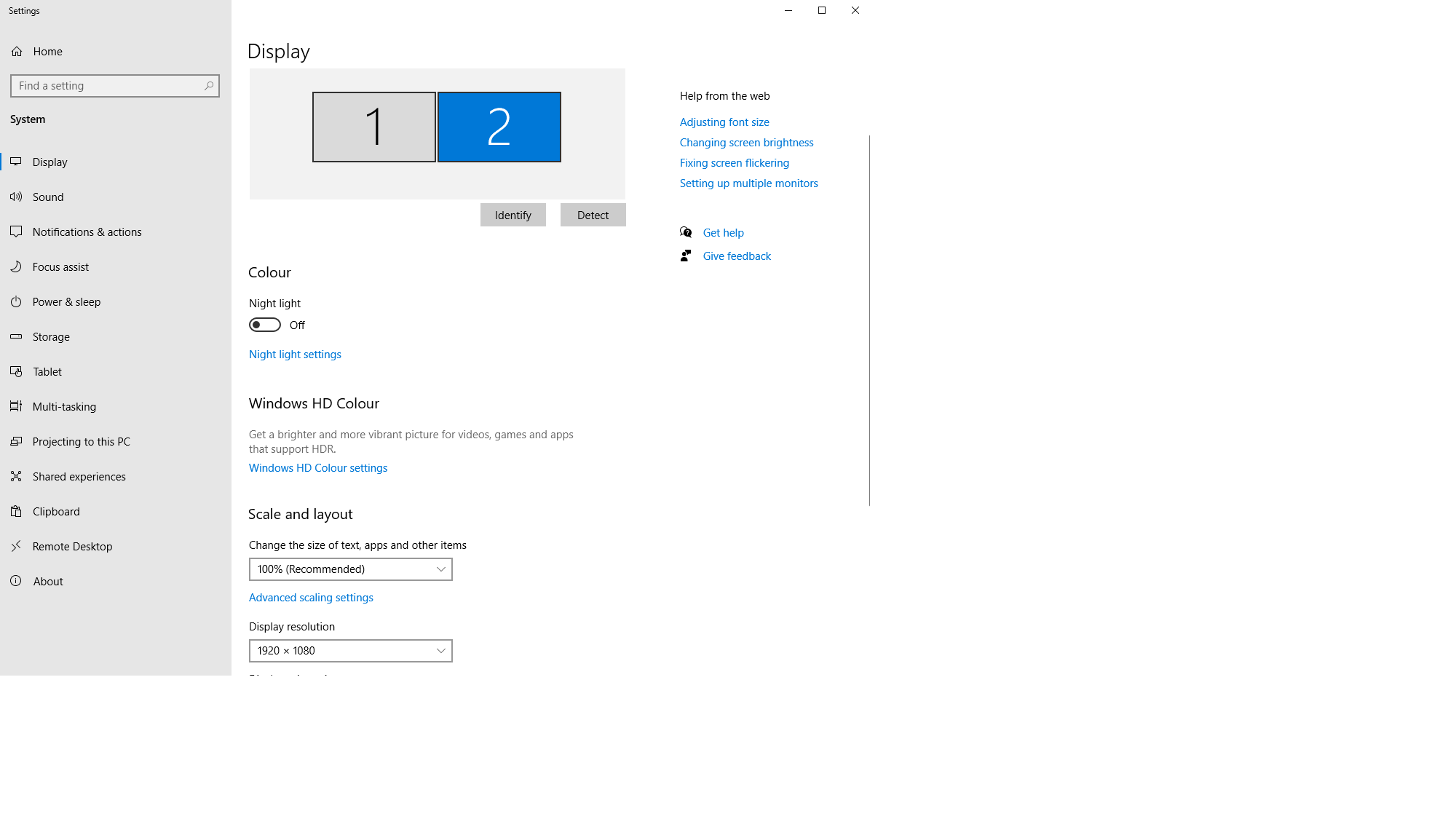
  • First,right click on your desktop,and go to display settings
  • To identify on which monitor you’re working on, just click identify a number which represents the monitor number will be shown on the bottom left.

From here,you can select your desired monitor to either change the resolution,make it your primary.

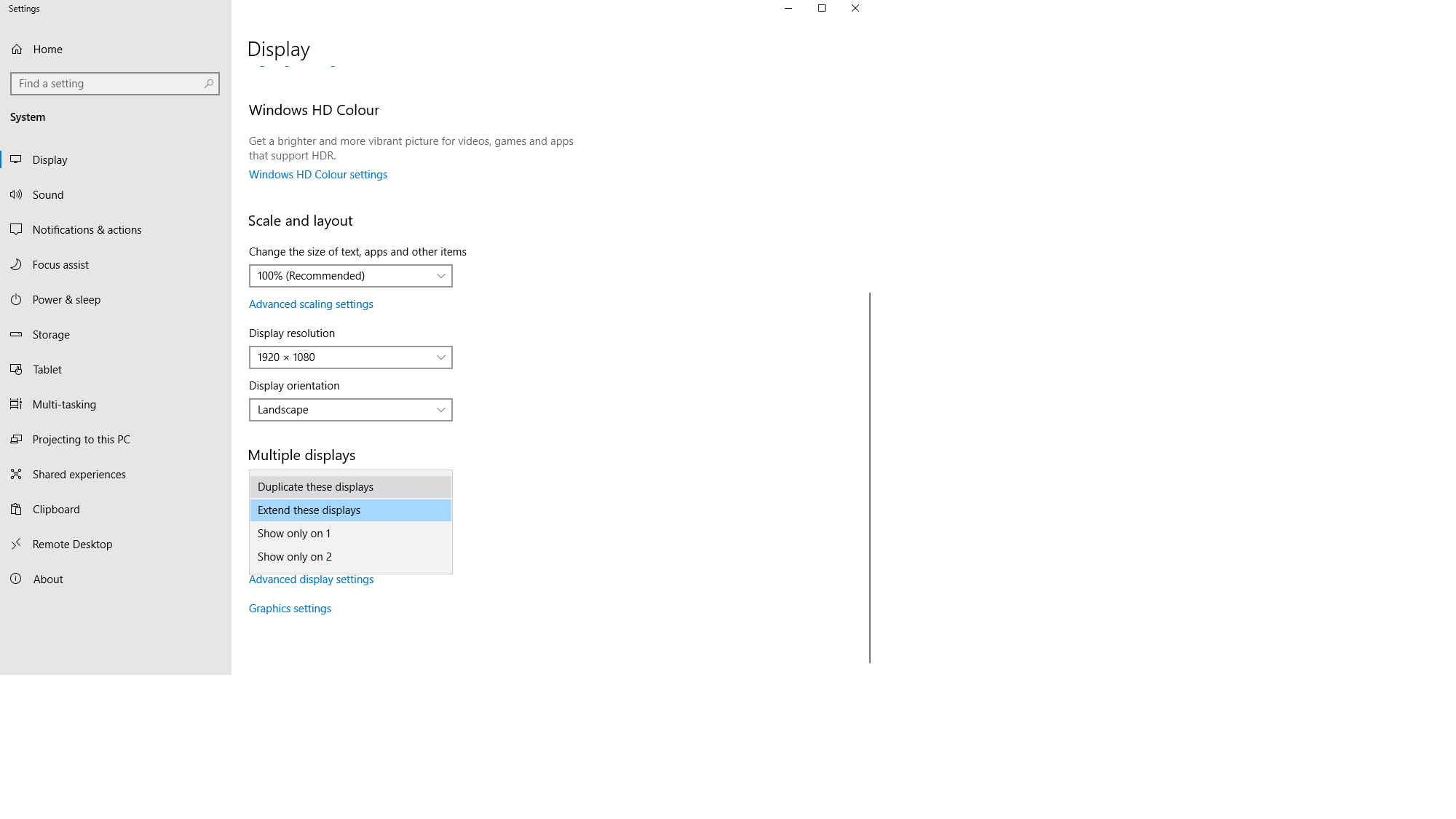
Under the “Multiple displays” option you can change what your monitors to, for example:

  • Duplicate these displays will show the same information on all your monitors
  • Extend these displays,all your monitors will act as one
  • Show only on 1-will only show information on monitor one,the other ones will show a black screen
  • Show only on 2-will only show information on monitor two,the other ones will show a black screen
  • And so on and so forth

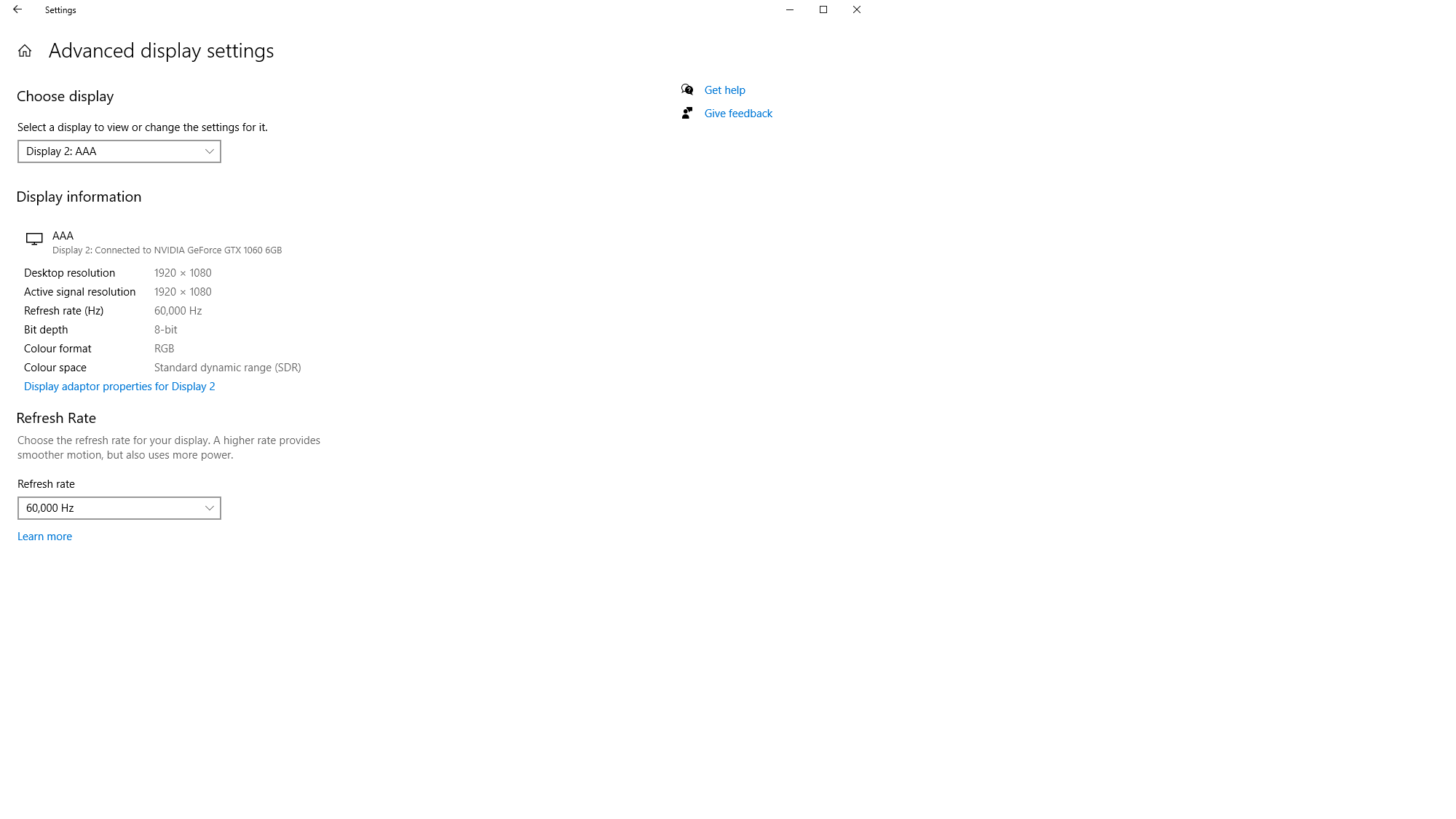
To change the monitor refresh rate(Hz) go to Advanced display settings, select the desired monitor.

[mai mult...]

How to change power mode on Windows 11

On Windows 11, a power mode (or plan) is a group of specific hardware and system settings (such as screen brightness, sleep, and others) that controls the use of energy on a computer.

By default, Windows 11 uses a “balanced” power mode that automatically balances performance with energy consumption on capable hardware. However, depending on your device or situation, you can change the power mode to save energy (and battery life) or increase performance at the cost of more energy consumption. In previous versions, you were able to set the preferred power plan from the Battery button in the taskbar. However, on Windows 11, you can only configure these settings from the Settings app or Control Panel.

[mai mult...]

How to create bootable W11 USB install media

If you plan to install Windows 11 on a device that meets the minimum requirements using the clean process, you will need a bootable USB media, and in this guide, you will learn how.

Although you can start a clean install of Windows 11 directly from the Media Creation Tool or mounting an ISO file, booting the device with USB installation media is still the best approach to proceed with the installation. Also, it’s perhaps the only way to install Windows 11 on a new computer or a device with an empty hard drive.

[mai mult...]

Dezactivați permanent modul avion pe Windows 10

Modul Avion este o caracteristică care vă permite să dezactivați toate comunicațiile fără fir de pe un dispozitiv. Poate fi util dacă utilizați un laptop in avion, dar poate provoca probleme în alte situații. În timp ce îl puteți dezactiva în setări, acesta poate fi activat din nou accidental de către utilizatori sau o eroare îl poate activa.

[mai mult...]