
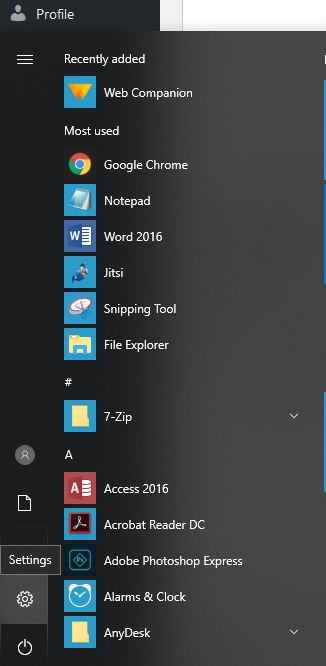
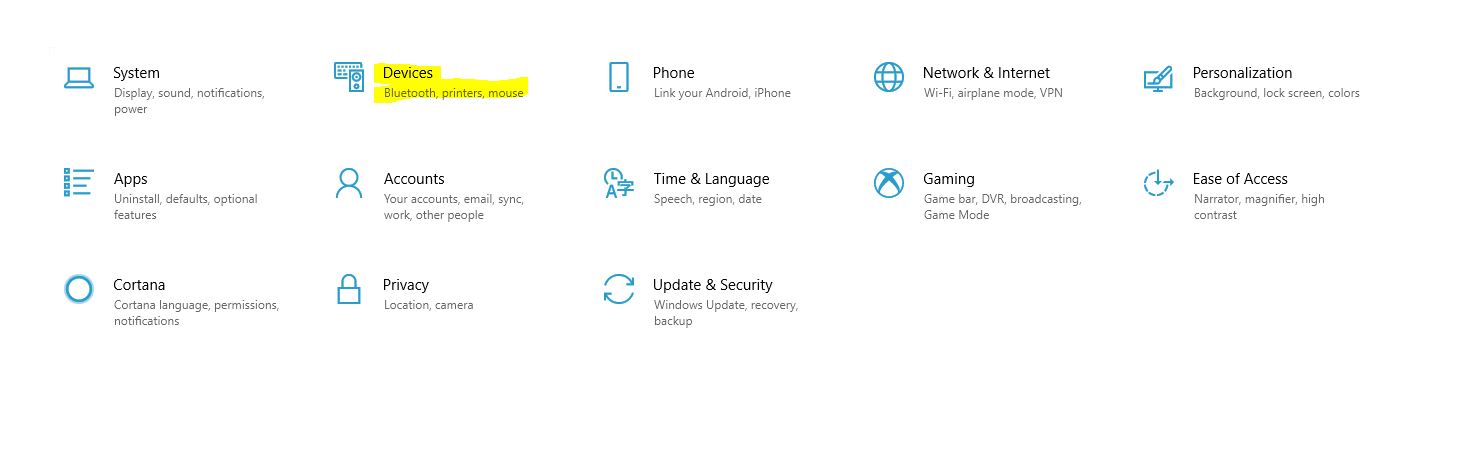
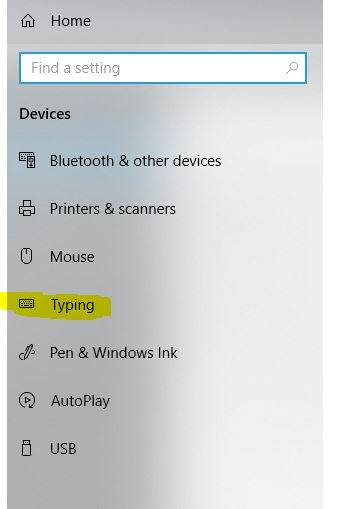
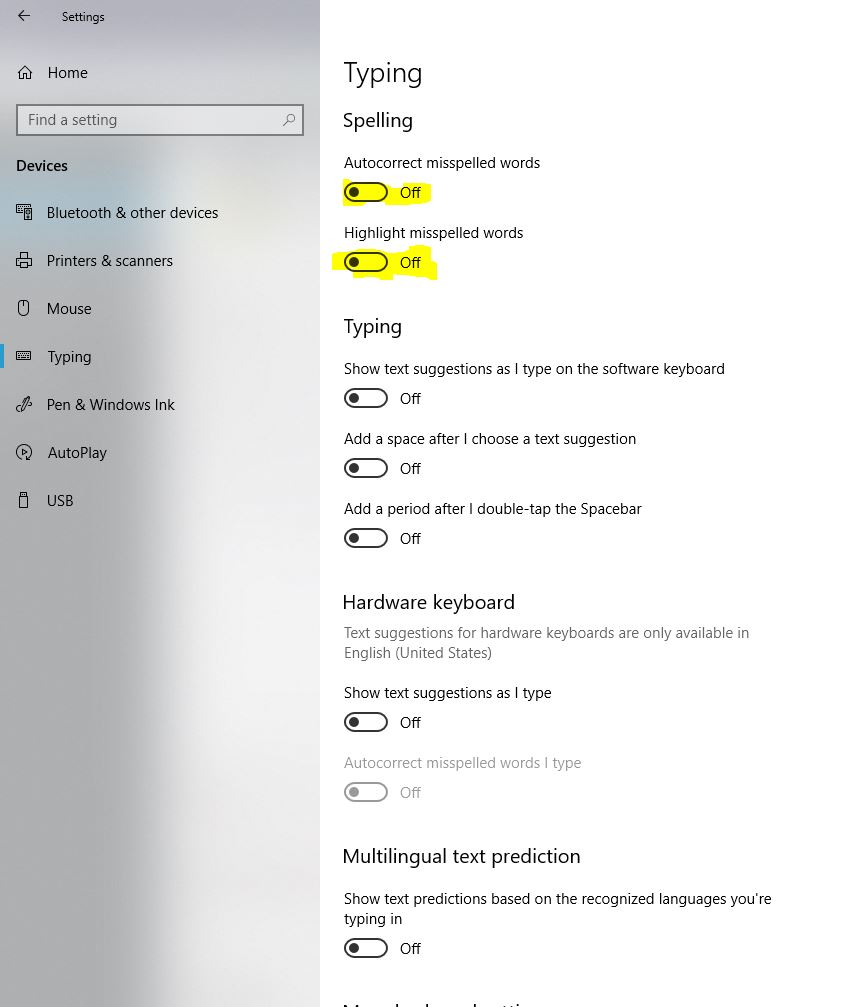
Cum dezactivam Spell Check din windows 10 in 3 pasi simplii Data 08/06/2018 Autor Cristian Anghel Categorie Configurare program, OS - Windows 9 963 Configurare noua (How To) SituatieSpell check este auto correctul pentru windows. Daca vreti sa il dezactivati, puteti urma pasii de mai jos: Solutie Pasi de urmat Apasati Tasta Windows + S – simultan si selectati Settings Din urmatorul meniu, selectati Devices. Din meniul de Devices, selectati “Typing” Pentru a dezactiva spell check, selectati optiunea Off Tip solutiePermanent Etichetare: autocorrectwindows 10 autocorrectWindows Spell check Voteaza Up Down (31 din 53 persoane apreciaza acest articol) ShareTweetShare Despre Autor Cristian Anghel Solutii Asemanatoare How to clean temporary files on Windows 11 -1 Cum deschidem un RDP in full screen folosind Command Prompt in Windows 10 1 Cum deschidem fereastra Sound folosind Run in Windows 10 4 Cum pot activa modul Dark in Microsoft Office? -1 Cum pot rezolva problema cu conexiunea la retea in Windows 10? 2 Reducerea deseurilor rezultate din echipamente electronice (e-waste): corectarea software a disfunctionalitatilor butoanelor perifericelor -3 Leave A Comment? × Cancel Reply Save my name, email, and website in this browser for the next time I comment. eight − five =
Leave A Comment?