Soluții

How to use Linux’s screen Command

The Linux screen command is a versatile tool that allows you to run terminal applications in the background and switch back to them when needed. It supports split-screen displays and can be used over SSH connections, even after disconnecting and reconnecting. With screen, you can create new windows, run multiple processes, detach and reattach sessions, and share sessions between multiple users in real-time.

With the Linux screen command, you can push running terminal applications to the background and pull them forward when you want to see them. It also supports split-screen displays and works over SSH connections, even after you disconnect and reconnect!

What Is the screen Command?

The screen command is a terminal multiplexer, and it’s absolutely packed with options. To say it can do a lot is the granddaddy of understatements. The man page runs to over 4,100 lines.

The following are the most common cases in which you would use the screen command, and we’ll cover these further in this article:

  • The standard operation is to create a new window with a shell in it, run a command, and then push the window to the background (called “detaching”). When you want to see how your process is doing, you can pull the window to the foreground again (“reattach”) and use it again. This is great for long processes you don’t want to accidentally terminate by closing the terminal window.
  • Once you’ve got a screen session running, you can create new windows and run other processes in them. You can easily hop between windows to monitor their progress. You can also split your terminal window into vertical or horizontal regions, and display your various screen windows in one window.
  • You can connect to a remote machine, start a screen session, and launch a process. You can disconnect from the remote host, reconnect, and your process will still be running.
  • You can share a screen session between two different SSH connections so two people can see the same thing, in real-time.
[mai mult...]

Connect your Excel workbook from OneDrive for work or school to Power BI

When you choose Connect, your workbook appears in Power BI just like it would in Excel Online. However, unlike Excel Online, you have some great features to help you pin elements from your worksheets right to your dashboards.

You can’t edit your workbook in Power BI, but if you need to make some changes, you can select Edit from the Workbooks tab of your workspace. Then choose to edit your workbook in Excel Online or open it in Excel on your computer. Any changes you make are saved to the workbook on OneDrive.

[mai mult...]

Create a copy of a dashboard in the Power BI service

There are many different reasons to make a copy of a dashboard. Maybe you want to make changes and test its performance against the original; or create slightly different versions to distribute by colleague, region, or team. Perhaps a colleague admires your dashboard design and wants to use it for reporting out to their managers. Another reason would be if you have a new database with the same data structure and data types and want to reuse the dashboard you’ve already created. This can be done but would require work in Power BI Desktop.

Dashboards are created and copied using the Power BI service and can be viewed in Power BI mobile and Power BI Embedded. Dashboards aren’t available in Power BI Desktop.

[mai mult...]

How to add subtitles to a Video on Android

Automatically Add Subtitles to a Video on Android

If you don’t want to spend too much time and effort finding and downloading the subtitles—you can add them automatically. All you need is an internet connection and a subtitle app that can search and download subtitles for your videos.

Adding subtitles automatically will smooth the process, and you don’t have to rely on a manual search to download the subtitles. It also automatically synchronizes the subtitles with the video sound. The media player apps adjust the timing and speed of the subtitles according to the video playback. You can try VLC and MX media player—that will do the most work for you.

Add Subtitle to a Video Using VLC Media Player

The VLC ranks among the top media players for Android devices. You can play almost any local and network video using VLC. It supports multiple video formats such as MKV, MP4, AVI, and MOV.

You can use VLC to directly download and add subtitles to your favorite TV show or movie. You can also customize the subtitle text appearance and position from VLC settings. This will help you to adjust the subtitle synchronization with the video.

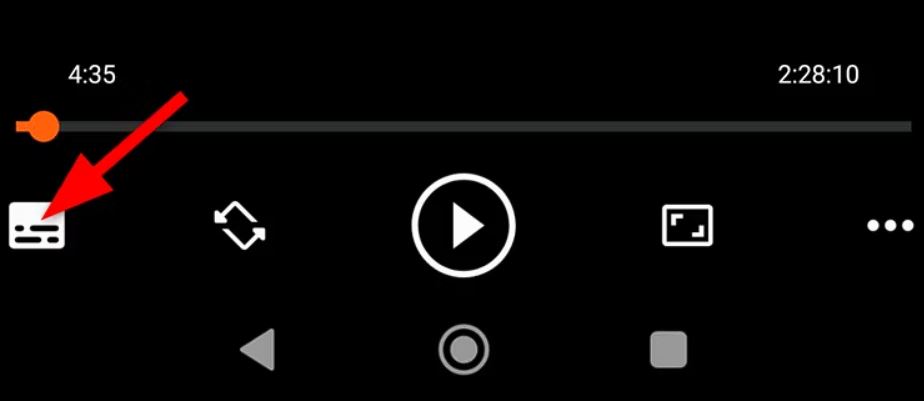
Open the video in VLC Player to add subtitles to it. Tap anywhere on the screen, and you’ll see some on-screen buttons. Find the subtitle icon, usually located in the bottom left corner. Tap on that subtitle icon to bring up the subtitle options.

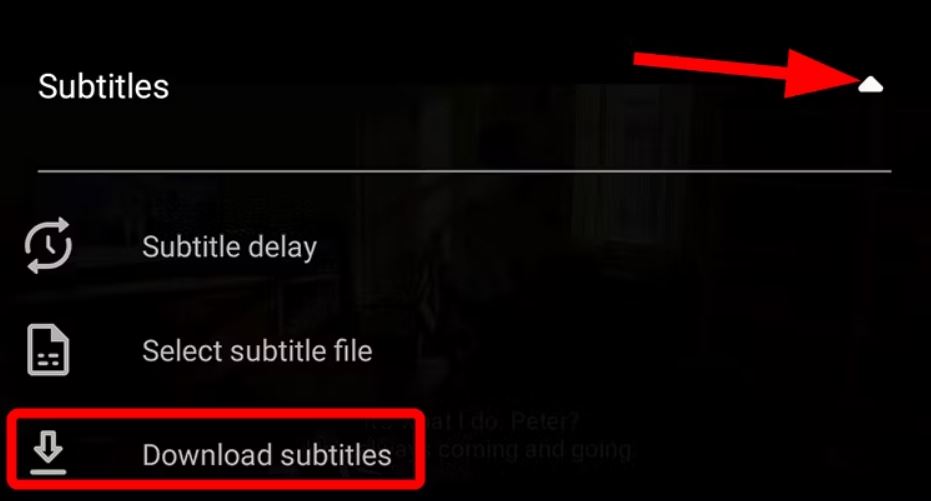
Click the little down arrow to expand the “Subtitles” menu. Here you will see different options for subtitle selection. To proceed with adding subtitles, select “Download Subtitles.”

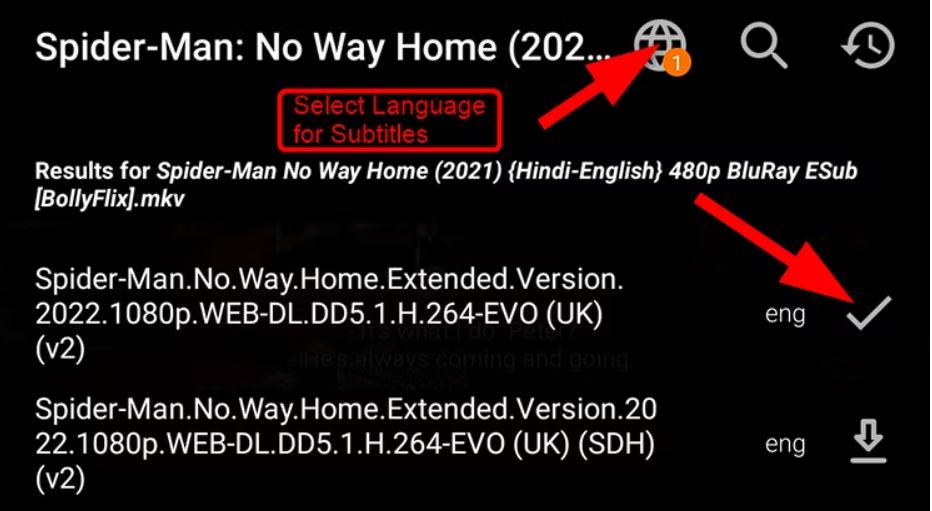
VLC Player will start searching for available subtitles. It typically searches for subtitles using the video’s title, filename, or other relevant metadata to find the best match.

You will get a list of all available subtitles to download. Select the suitable subtitle according to your video. To add the selected subtitle, simply hit the download icon next to it.

You can also choose a different language to search for the subtitles.

After downloading the subtitles, select the downloaded subtitle track from the subtitle settings.

[mai mult...]